Zoom and crop
Crop and zoom reframes any guest after recording, so every face sits centred and evenly sized.

Crop and zoom reframes any guest after recording, so every face sits centred and evenly sized.
Riverside's crop and zoom tool solves the problem of a guest sitting off to one side of their frame, fixed after the recording is already finished.
The video covers:
00:00 Have you ever had a big guest and their face was way off to the side in their camera shot, but you've already finished recording and now you don't know what to do. Well, the Riverside editor now has a new tool where you can crop and zoom in on either your video, your remote guests to make sure everyone is framed just right. Here's how to use our new crop and zoom tool in Riverside. In my Riverside account, let's jump to a previous recording with multiple guests and we can quickly jump into the editor by clicking the edit button here.
00:23 Now here we have a side by side shot, but let's say I wanted to zoom in to make their heads and faces even size. I can click on one of the guests here and you'll see new tools appear above their video. You could choose to put this video track full screen, hide it entirely in this scene or use our new crop tool. Clicking crop. You can now zoom in on any of the guests.
00:42 You can fit the full video in the frame if you want to show the full 16 by nine or drag the slider or click the plus and minus buttons to zoom in. And once you've zoomed in, you can now click and drag around here in the frame to perfectly center each person's face. Click done. And now you've reframed the video. I just noticed I'm leaning a little bit to the left.
00:59 So I'm going to go back into the crop tool, drag it over and now I've recentered myself. I can do the same for the other guests. Clicking the crop tool, zoom in and drag his face to be centered. When you're ready, click done. And now you have multiple guests perfectly framed. Don't forget all the other branding tools we have available to you.
01:16 Going over to the brand, we can actually add spacing between the video round the corners and then choose one of the backgrounds built into the Riverside editor. If you'd like to change the order that people appear, just click and drag them here in the tracks tool and that will swap their position. Add animated captions with just a click. And you can even decide what kind of animation for the active word. I like the boxed look. We'll go to a darker color there.
01:38 And now we have animated captions added to this edit. And don't forget, we have our image overlay tool where you can add royalty free images. Our text overlay tool, great for names, websites or lower thirds. And you can of course upload your own content, including image overlays, insert video clips and just edit your content by selecting text here in the transcript, which you get every time you record with Riverside, click delete and you've edited your video. When you're ready to export, click the export tool in the top right, export it up to 4k resolution and you're ready to download and share wherever you'd like. And that's our new crop and zoom tool in the Riverside editor.
02:11 If you have any questions, leave comments below this video. I answer those personally. And don't forget to subscribe to the channel because we have lots of new features coming soon. And if you didn't know, you can live stream with Riverside to multiple destinations and even see all of the messages from various social platforms in your Riverside studio.
02:27 If you want to learn more about our live streaming tools, check out this video right up here. If you haven't hit that like button, be sure to do that. And if you want to learn about using your mobile device, like an iPhone 16 or 16 pro as a podcast studio, wherever you go, both beginner, intermediate and advanced setups, check out this video right up here. Thanks for watching. We'll catch you next time.
More videos you might like
A full product tour: studio and recording, AI assets, editing, then hosting, newsletters and social.
A complete editor tour: transcript and timeline editing, AI tools, layouts, scenes and exporting.
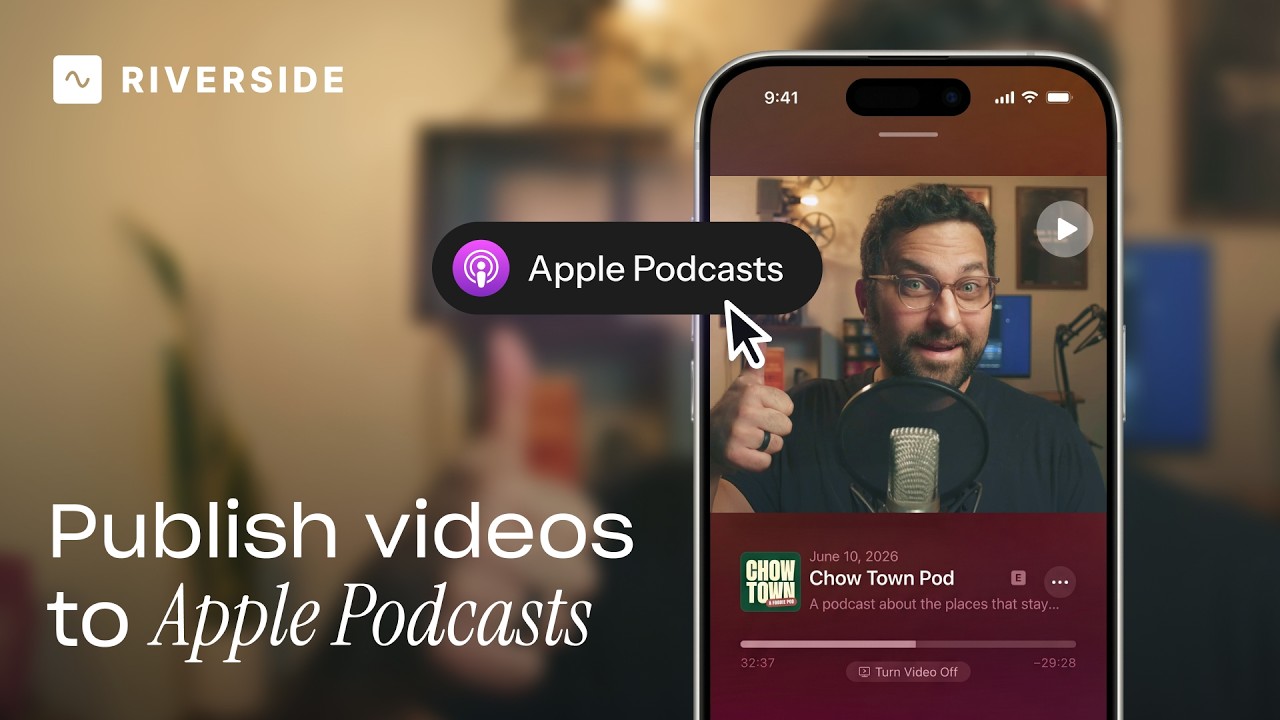
Publish video to Apple Podcasts so your audience can switch between listening and watching easily.
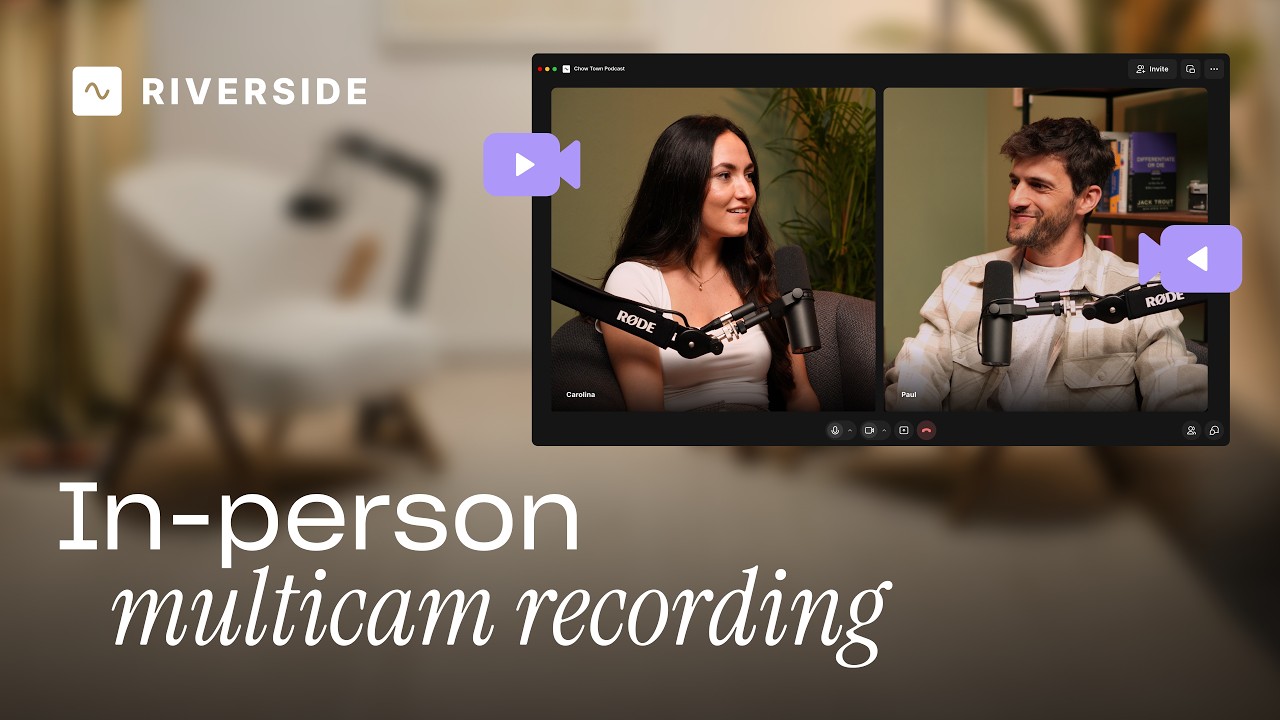
Add multiple in-person guests with their own camera and mic from one computer, as synced tracks.


.avif)
.avif)
.avif)
Got a process that works for you? Get featured by submitting your step-by-step flow. Help other creators save time, learn new tricks and improve their productions.


.avif)