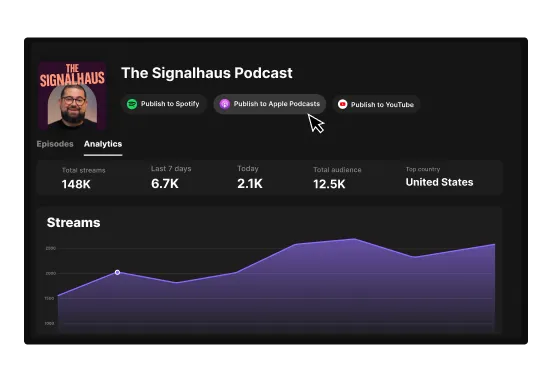


Key takeaways:
- Your podcast host generates and manages your RSS feed for you, unless you self-host on your own website.
- Each podcast has one RSS feed and new episodes get added to the same feed automatically.
- You only submit your RSS feed to directories once; after approval, new episodes appear without any further action from you.
- If you want the option to eventually switch hosts, make sure your platform supports feed redirects so you don’t lose your subscribers.
To create an RSS feed for a podcast, sign up for a hosting platform, and it will generate the feed for you. From there, every new episode you release gets distributed to podcast directories automatically.
You only set this up once, so it's worth getting right the first time.
Here's our full guide on how to create your podcast RSS feed, validate it, and submit it to directories like Apple Podcasts and Spotify. Plus I’ll share what changes if you'd rather self-host on your own site.
What is a podcast RSS feed?
A podcast RSS feed is a text file of your show's details and a list of every published episode. It includes audio links, episode titles, descriptions, publish dates, and your cover art.RSS specifically stands for “Really Simple Syndication,” and syndication is what the file does for you. Every time you publish a new episode to your host site, apps like Spotify and Apple Podcasts pick it up from your RSS feed automatically.
How do you create an RSS feed for a podcast?
Creating a podcast RSS feed takes 4 steps: you sign up for a host, your host generates the feed, you validate it, then you submit it to directories once.
Here’s how to get started.
Step 1: Choose a podcast hosting platform
When choosing a podcast hosting platform, confirm that it generates an RSS feed automatically. Most platforms do.
You’ll also want to make sure your host:
- Offers enough storage
- Supports the listening apps you’d like to publish to
- Supports feed redirects, in case you want to switch hosts.
We’ve got a full guide on choosing the best podcast hosting platform. But some great options to explore include Riverside, Buzzsprout, Podbean, and Spotify for Creators.
Step 2: Add your podcast show
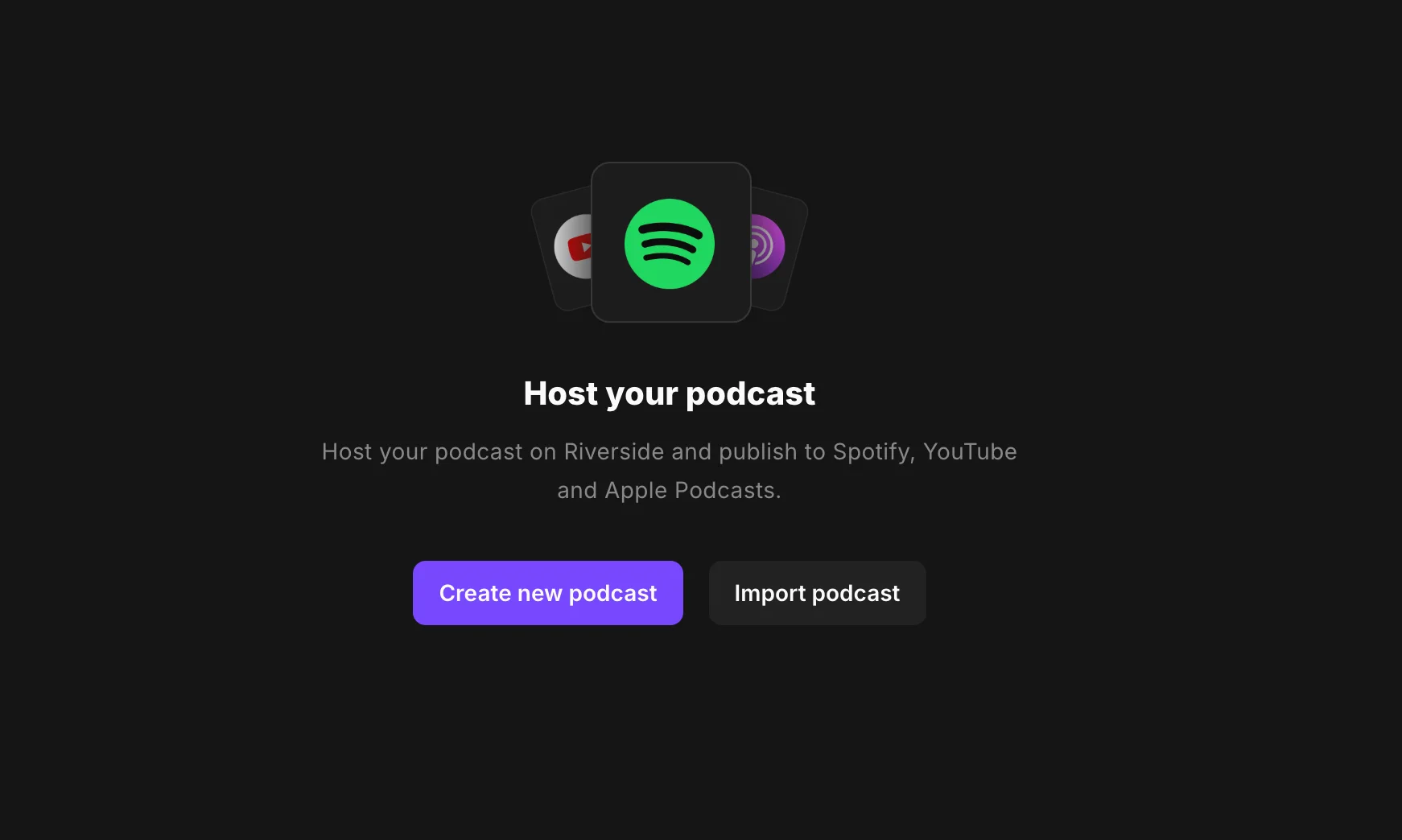
Follow your hosts prompts to add your podcast show and first episode. Usually, you’ll see a button like “Add new show” or “Create new podcast” to do this. You’ll be asked to add details like your podcast title, description, category, and artwork cover.
This is important because your RSS feed will sync these details with your listening directories.
Step 3: Upload your first episode
It’s best to upload at least one episode after creating your show as many listening platforms won’t validate your RSS feed without any episodes.
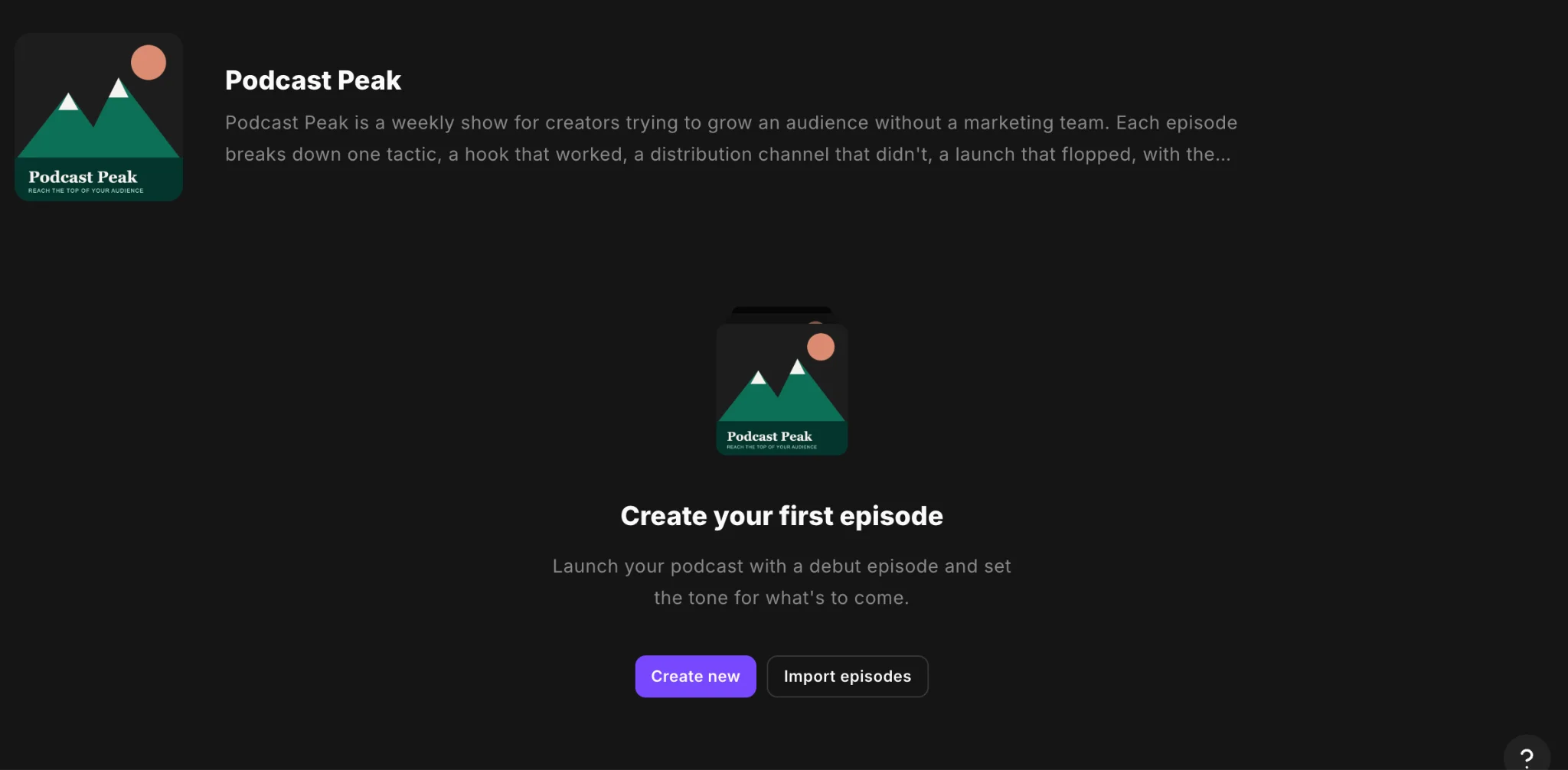
You’ll likely find a button to create or upload an episode in your podcasts’ dashboard. For example, on Riverside, you can click “Create new” to either select a Riverside recording or import your first episode.
Step 4: Generate your RSS feed
Your host should automatically generate an RSS feed, as soon as you finish creating a new show.
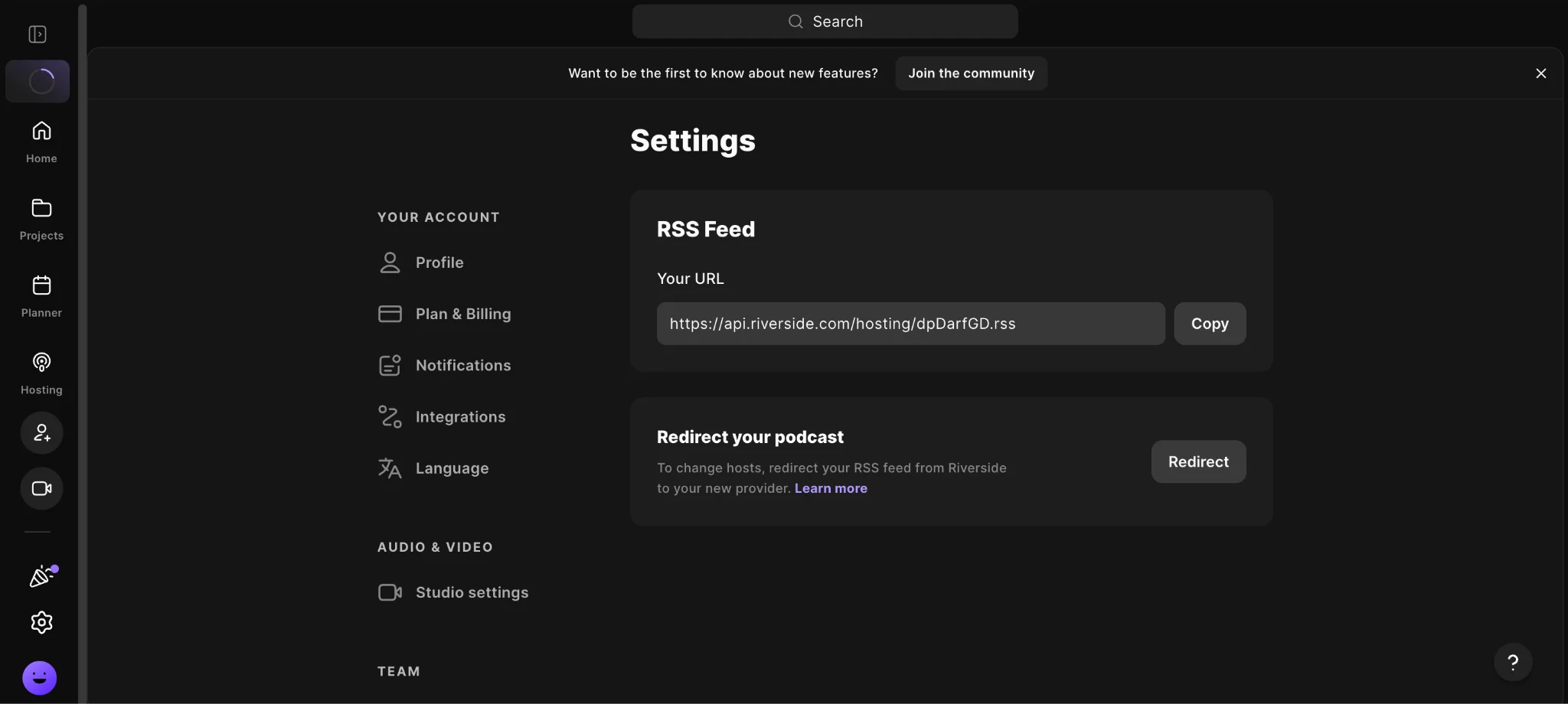
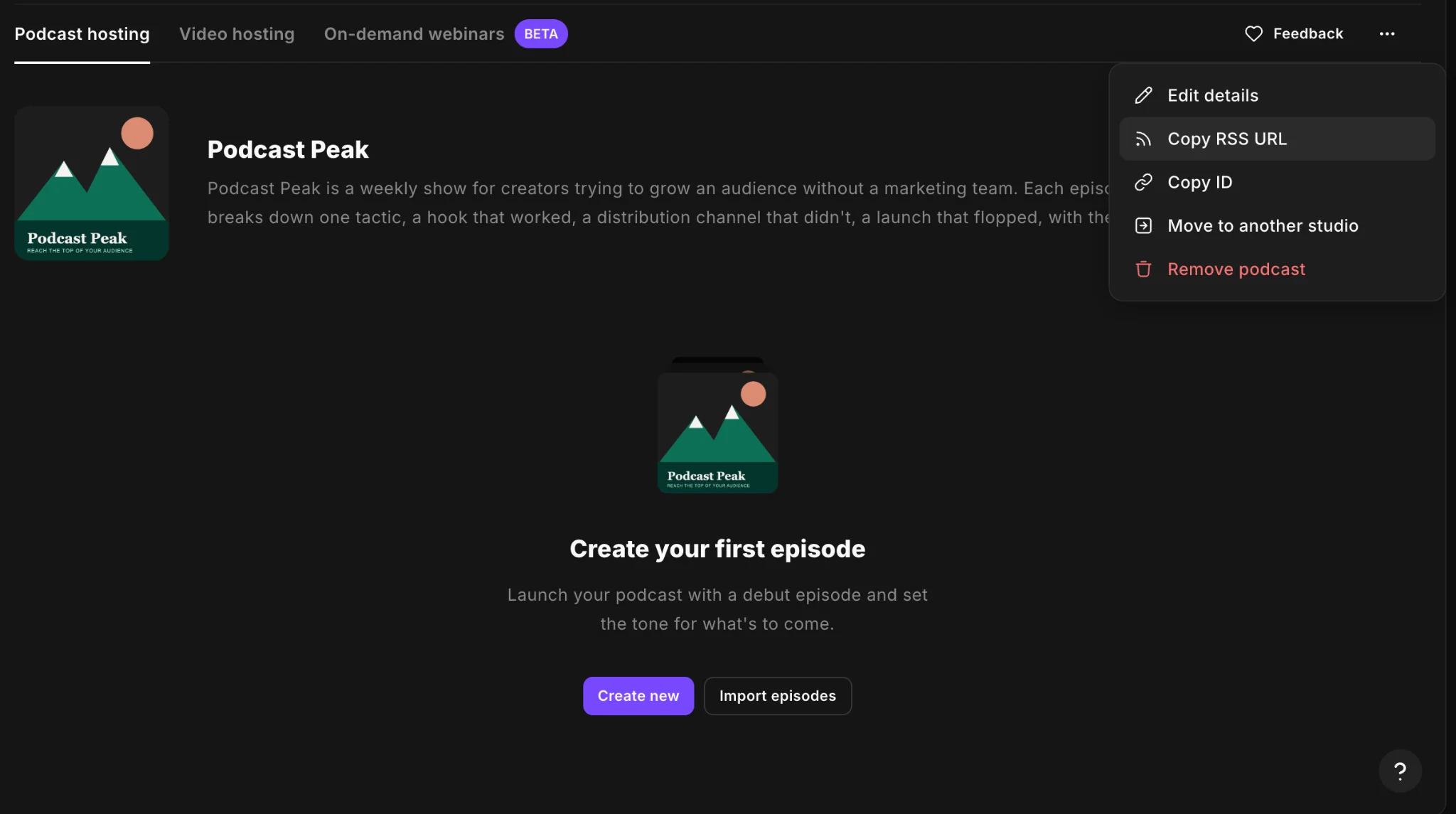
To locate your RSS feed URL, check your hosting platform's dashboard. It's typically available under a tab labeled “RSS Feed,” “Distribution,” or “Feed Details.”
On Riverside, you can locate your RSS feed by going to “Hosting” and clicking “ •••” in the upper right corner of your screen. You’ll see an option to “Copy RSS URL”.
Step 5: Validate your podcast RSS feed
Before submitting your feed to directories for the first time, run a quick validation check to catch common issues. Paste your RSS feed URL into a tool like Cast Feed Validator or Podbase and fix any errors the validator identifies.
Most hosting platforms ensure your feed is technically well-formed, but they might overlook things like incorrect artwork dimensions and metadata, or a missing explicit flag. So it’s important to check because when you go to submit your RSS feed, missing information may cause directories to reject your podcast.
Step 6: Submit your RSS feed to podcast directories
To submit your show, copy your RSS feed URL from your host. Then go to each directory's submission page and paste it in.
Most directories will also ask you to verify you own the show, usually by clicking a link they email you or checking a box confirming the rights. After that, your show goes into review.
Some podcast hosting platforms, like Riverside, also offer one click distribution where you can submit your show directly from your host without manually copying and pasting your RSS feed.
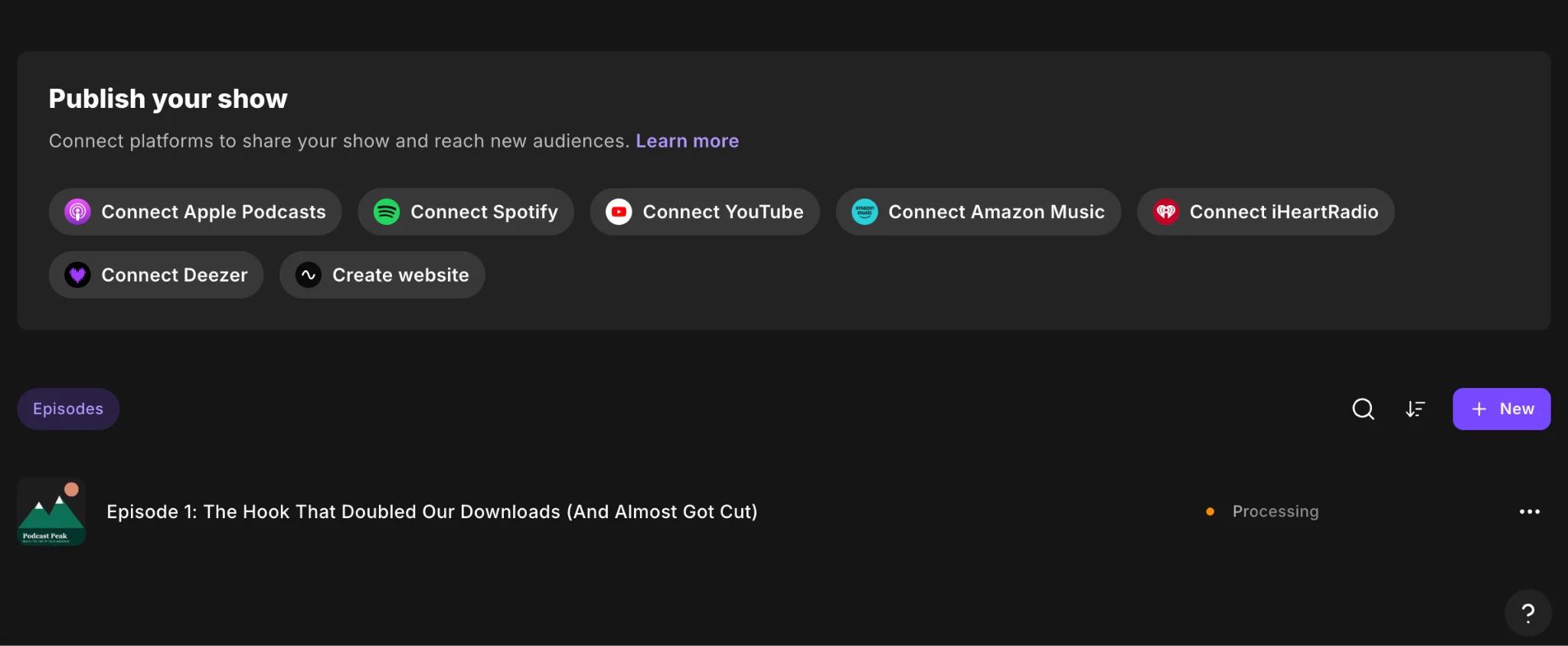
You want to submit your show available wherever listeners already are. The following list is a good starting point of podcast directories to publish to:
- Apple Podcasts
- Spotify
- YouTube
- Amazon Music and Audible
- Deezer
- iHeartRadio
- TuneIn
You will only submit your RSS feed once per directory. After your show is approved, every new episode you publish to your host will automatically appear on the directories you submitted to.
While waiting for approval, don’t edit your feed (by changing episode titles, descriptions, etc). Some directories review submissions manually. Making changes during that window can delay or restart the review process.
How do you create a podcast RSS feed when hosting on your own website?
If you're hosting your podcast on your own website, you have a few options depending on your website’s platform:
- Squarespace includes built-in podcast RSS support.
- WordPress site owners can use a dedicated podcast plugin like Seriously Simple Podcasting or PowerPress.
- For other website builders like Webflow, you'll need a dedicated hosting platform or another external setup to generate and maintain the feed.
- For self-hosted websites, you’ll need to write the RSS feed XML manually.
Unlike podcast hosting platforms, these setups place the technical responsibility on you, the creator. The RSS feed won’t generate itself. And with manual RSS feed creation, you’ll also need to update the XML file every time you publish a new episode.
So unless you have a compelling reason to self-host, a dedicated podcast is the lower-maintenance choice.
FAQs on creating a podcast RSS feed
Does Spotify for Creators create an RSS feed?
Yes, Spotify for Creators does generate an RSS feed. But, there are a few things worth knowing before you rely on it:
- It only creates the feed when you publish your first episode, not when you set up your account.
- Your show is automatically published to Spotify, but to distribute it to other platforms like Apple Podcasts, you need to enable your RSS feed manually in Settings. Spotify won't distribute your podcast on your behalf to other directories.
Do you need a new RSS feed for each episode?
No, you have one RSS feed for your entire show. Each new episode you publish gets added to the same feed automatically by your hosting platform.
Directories like Apple Podcasts and Spotify regularly reference your feed for updates and pull new episodes as they appear.
Is an RSS feed necessary for launching a podcast?
Yes, you need an RSS feed to publish a podcast on most major podcast directories. Without one, they can't find your episodes and deliver them to subscribers.
The only exception is Spotify for Creators. You can upload your show directly to Spotify without an RSS feed, but you won’t be able to distribute it to any other platform.
Can I create a podcast RSS feed for free?
Yes, many free hosting platforms include RSS feed generation in their plans, but expect limitations in storage, analytics, and episode count. These restrictions become harder to ignore as your audience grows.
Can I host my own podcast RSS feed without using a hosting platform?
Yes, you can host your own podcast RSS feed, but you’ll need to manage the technical setup yourself. This includes hosting your audio files, generating a valid RSS XML file, and maintaining the feed over time. If your server goes down or your feed breaks, your show disappears from directories until you fix it.
Do I need a website to own a podcast RSS feed?
No, you only need a website if you want to self-host your podcast files and RSS feed. Any hosting platform will generate and maintain the feed for you on their infrastructure.
Can I take my RSS feed with me if I switch hosting platforms?
You can't take the feed URL itself, because it's tied to your current host. But, you can set up a 301 redirect from your old feed URL to your new one, which tells directories and podcast apps to follow the show to its new location. As long as your old host supports redirects and you set one up before leaving, existing subscribers won't notice the difference.
How do private podcast RSS feeds work?
A private RSS feed is a separate, authenticated feed URL that only approved listeners can access, typically protected by a unique token or login. It’s a good fit for internal company podcasts, paid subscriber-only shows, or any content you don't want publicly listed in directories. Not all hosting platforms support this.

.webp)




.webp)
.webp)