-in-5-Steps-(1).webp)


Key takeaways:
- All you need to start recording a video podcast is a mic, headphones, and a camera (even a phone camera works).
- If you’re recording remotely, invest in local recording software that preserves your video and audio quality regardless of internet connection speed.
- For in-person recording, use one mic per speaker and an audio interface that connects them to your computer.
- Optimize your visual setup (lighting, aesthetics, etc.), record in a quiet space, frame your shot, and face the camera.
If you’re starting a podcast, adding video might feel like a big leap. But it’s actually one of the simplest ways to grow your audience and build deeper engagement.
I’ve produced podcasts and video content for over a decade, and I currently co-host Primary Technology, a video podcast that consistently ranks in the top 100. I also run a YouTube channel with over 130K subscribers and average more than 1 million views a month.

In this guide, I’ll walk you through how to plan and record a video podcast, from choosing the right gear and software to creating a smooth, high-quality workflow.
What you need to start a video podcast
A video podcast is a podcast with video elements to complement the audio feed. To start one, all you need is a quiet room and equipment you may already own (e.g.,your phone as a camera and a basic USB mic).
Here is a checklist of essentials to get started:
- Microphone: An external plug-and-play USB mic works better than your laptop’s built-in mic.
- Camera: You can use a 1080p webcam, a smartphone, or a mirrorless camera.
- Headphones: These enable you to monitor the recording while preventing mic bleed.
- Recording software: Choose local recording to capture your video and audio feeds cleanly regardless of connection speed.
- Lighting: A simple ring light or natural window light may be enough to illuminate your face evenly.
- Quiet space: Try to eliminate background noise, room echo, and unwanted interruptions during your recording.
How to record a video podcast step by step
Creating a video podcast can be very beginner-friendly if you break it into simple steps. Follow the steps below to learn everything you need to know about setting up, recording, and publishing your show.
Step 1: Plan your concept and format

First, you’ll establish your video podcast’s identity (what you’ll cover, who it’s for, and what your ideal format is).
Determine your concept
What’s your show about? You need a clear focus to attract the right listeners, but you do not always have to start with a topic. If you know the topic, ask who would find it useful or entertaining. If you know the audience, build your concept around their interests or challenges.
Write a simple audience profile: Who are they, what do they already know, and what would make them spend time listening to your show?
Once you know the answers, you can easily choose a topic that solves their specific problems and make them want to come back for more.
Pick your format
Your format determines who you need to record and how. Here are the most common podcast formats:
- Interview: Talk with guests in person or remotely. In-person recording requires one mic per speaker and a camera framing both of you. Remote recording is easier to handle with the right software, but each person needs their own recording setup.
- Solo: Present your ideas directly to the audience without any guests. One mic, a camera, and recording software are enough.
- Co-hosted: Share the conversation with a regular partner. Use a shared setup with separate mics for in-person recording, or individual setups with remote recording software.
- Live stream: Broadcast your show so viewers can interact in real time. This requires multi-streaming software and a stable internet connection.
Outline your episodes
Working within the podcast format you’ve decided on, outline a rough episode structure, including your opening, main talking points, and closing.
Tailor your episode outline to your specific format:
- Solo shows: Add visual assets to make your video more engaging. Remember to describe these visuals verbally so your audio-only listeners can still follow along.
- Interviews: Don’t start with a long biography or backstory, and get straight to the good stuff. Ask the questions your guest hasn’t answered a hundred times. That’s where the value is.
- Co-hosted shows: Create a shared digital document for your episode flow. Outlining your segments prevents you and your co-host from awkwardly talking over each other.
- Live streams: Plan dedicated times to acknowledge the live chat and answer audience questions. Prepare a few questions of your own to keep things moving if viewers are slow to contribute.
Set a realistic schedule
Your audience needs to know when to expect new episodes, which means consistency is key. A bi-weekly schedule might be manageable if you’re doing quick, 15-minute solo takes on trending topics. But if you’re diving into hour-long, in-depth interviews, you’ll need more time to plan and produce.
Step 2: Get your video podcast equipment

Next, I’ll give you some essential equipment recommendations: microphone, camera, headphones, and lighting. I highly suggest using the same setup for every episode recording. It’ll be familiar, save you some troubleshooting, and keep your audio and video consistent.
Here’s a quick list of what you need from the get-go:
Read more: For more buying advice and setups by budget, see our podcast equipment guide.
Microphone
When choosing a microphone, consider your podcast type and recording setup:
- For remote recording: Use a dedicated USB microphone with a cardioid pattern to block background noise. The Samson Q2U and Shure MV6 are good options to start out. You can upgrade to a Shure SM7B / SM7dB when you’ve got the budget for an XLR mic and audio interface.
- For in-person recording: Use one XLR mic, such as the RØDE PodMic, per speaker. For group recordings, connect these to a USB audio interface, such as the Focusrite Vocaster Two or RØDECaster Pro II. (Audio interfaces give you separate tracks for each microphone, while most mixers only output a single stereo mix.)
Consider the following mic accessories as well:
- Mic stand.
- Shock mount (to isolate your mic from vibrations).
- Windscreen/pop filter (to prevent harsh “p” and “b” sounds).
Read more: Check our guide on the best podcast microphones.
Camera
If you record remotely, you’ll just need one camera, webcam, or smartphone for yourself (ideally, your guests will also have their own). In person, start with one camera framing everyone, then add close-up angles if you need them.
And, trust me, smartphones can do a decent job. My co-host uses his iPhone as his webcam, and it looks great. Just make sure to mount your phone securely on a tripod and use the back camera.
If you want to step up your camera, the Sony Alpha ZV-E10 and Blackmagic Pocket Cinema Camera 4K are both significant upgrades over a smartphone.
Read more: Check our guide on the best podcast cameras.
Headphones
Wearing headphones while recording is essential for catching audio issues, like background noise or muffled sound, in real time. You also hear your podcast exactly the way your audience will.
Basic wired earbuds work, or choose over-ear headphones such as the Audio-Technica ATH-M20x since they’re comfortable to wear for extended periods of time.
Read more: Check our guide on the best podcast headphones.
Lighting
I’m a firm believer that even if you have a $2,000 mirrorless camera, it’s not going to look great without good lighting. Start by facing a window or placing a soft light in front of you, then try a 3-point lighting kit like Limostudio’s Continuous Lighting Kit.
Read more: Check our video lighting guide to refine your setup.
Step 3: Choose your recording software
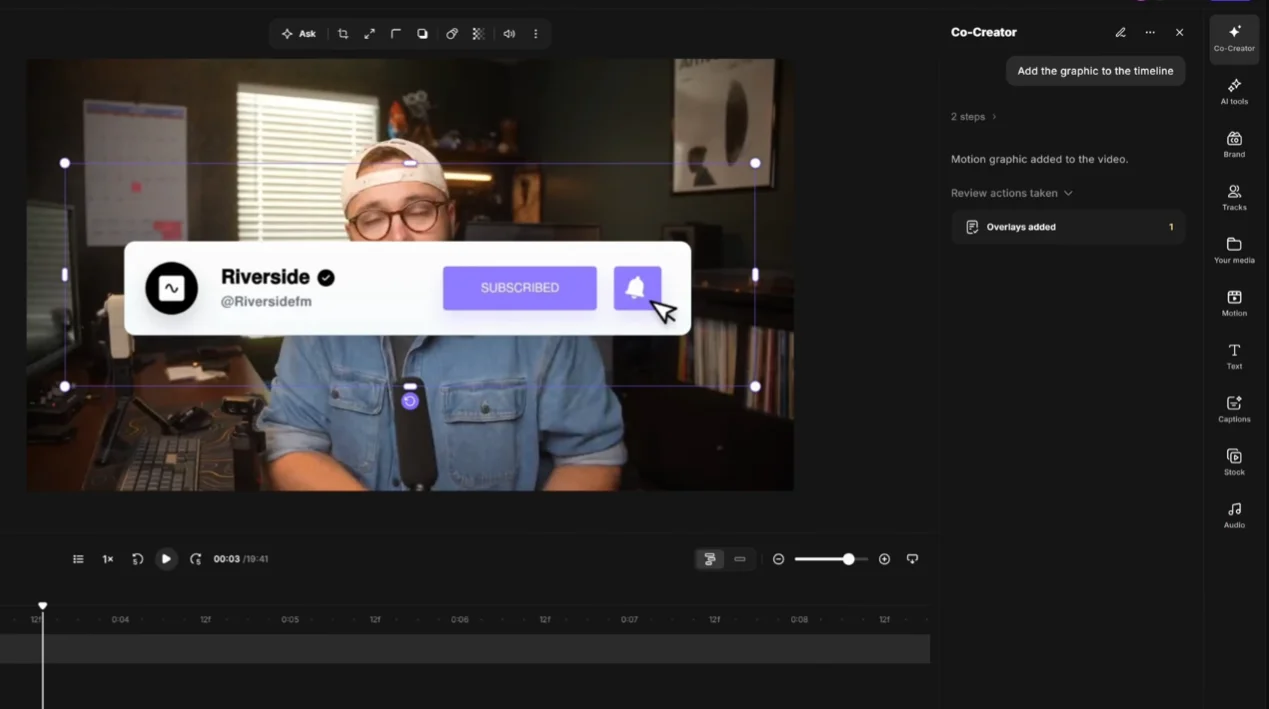
When it comes to recording and editing your video podcast, software is just as important as your microphone or camera.
If you’re still learning the ropes, look for software that helps you record, edit, and publish with minimal friction. Ideally, it should include:
- Local recording so internet drops never ruin your file quality.
- A user-friendly interface for you and guests.
- High-quality recording (aim for 1080p or 4K).
- Browser-based, no-download guest access, especially for remote recording.
- Separate audio and video tracks for each speaker.
- Automated tools to simplify video editing and clean up audio.
Your options depend on how you record:
- OBS Studio is free and powerful for recording from one location, with support for control over multiple cameras and screen recording. However, it does not support remote guests and has a steep learning curve.
- Zoom is easy to use and familiar for video calls, but it captures remote guests over the internet. That means any drop in your connection permanently lowers your recording's video and audio quality.
- Riverside and Descript Rooms capture remote participants locally on separate audio and video tracks in up to 4K. They also include text-based editing so you don’t need separate tools for post-production.
Read more: Compare all the options in our video podcast software guide.
Step 4: Set up your recording space
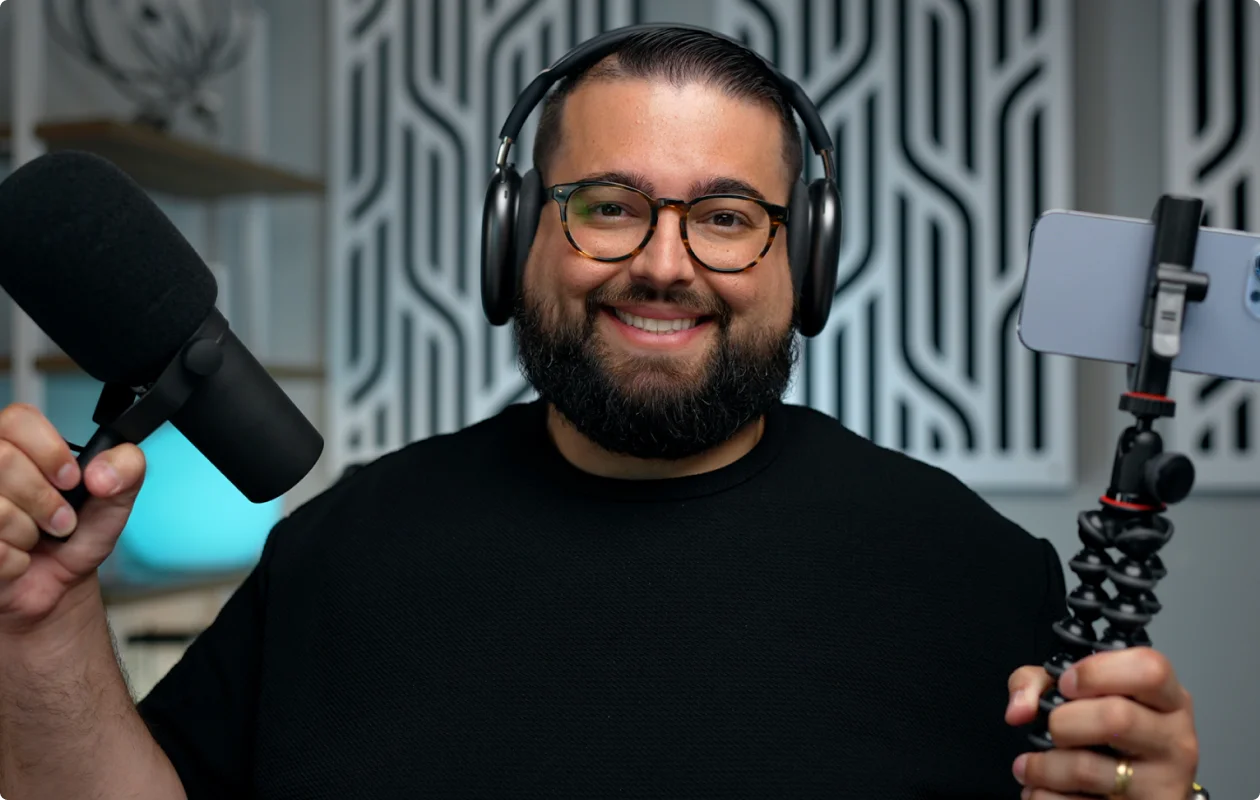
Now, it’s time to get your setup ready for recording. Start by taking care of your equipment and studio:
Cameras
- Choose your angles: Single wide-angle shot or multiple cameras for dynamic angles? Mount your camera on a tripod, test framing, and adjust angles with someone in the shot.
- Check stability: See whether normal movements disturb your camera. I moved my overhead camera from a desk mount to a wall mount because touching the desk made the shot shake.
- Make sure you can get to the end: Charge batteries (plus spares), format SD cards, and ensure you have enough storage for the entire episode.
- Keep it crystal clear: Give your camera or webcam lens a quick clean before recording to keep your video sharp and professional.
Audio
- Position your microphone: Place your mic 2 to 4 inches from your mouth to capture rich vocal tone and minimize room reverb.
- Cut ambient noise: Turn off ceiling fans, air conditioners, and noisy appliances before you start.
- Soften the room: Rugs, curtains, sofas, and blankets help reduce echo from hard surfaces. I use decorative acoustic panels in my studio, so part of my background also helps reduce sound reflections.
- Check nearby surfaces: I found that my computer monitors reflected sound into my microphone even after I’d added acoustic panels. Moving the monitors farther back and sitting farther away helped.
- Adjust gain: Gain is the amount of amplification applied to your microphone’s signal, which you can lower so speech doesn’t push the recording meter into the red. Adjust it so your audio peaks between -12 dB and -6 dB to avoid distortion.
- Do a quick sound check: Record a short test through headphones and make sure you’ve selected the correct inputs, especially for remote recordings.
Lighting
- Use soft, diffused light: Place your key light slightly above eye level at a 45-degree angle to your face. Always diffuse your main light with a softbox to eliminate harsh shadows or reflections in glasses.
- Add depth: Use a subtle hair light or background fill light to cleanly separate yourself from your backdrop.
- Advanced lighting options: If you are using a professional lighting set, blocking outside light will help you keep a consistent look. In my studio, I lower blackout shades or curtains because outdoor sunlight ruins visual consistency by shifting constantly in brightness and color temperature.
Set decoration
- Tell a story with your background decor: Choose a few details that suit your show, such as film posters for a cinema podcast, books, or your logo. Make sure your decorations match your show's theme.
- Declutter your room: Scrutinize everything visible behind you and remove distracting clutter. Position your desk a few feet away from the back wall rather than sitting right against it.
- Use practical accent lighting: I connect all my studio accent lights to smart plugs and automate them into a single scene, so one button sets the exact color and filming mood instantly.
My recording studio
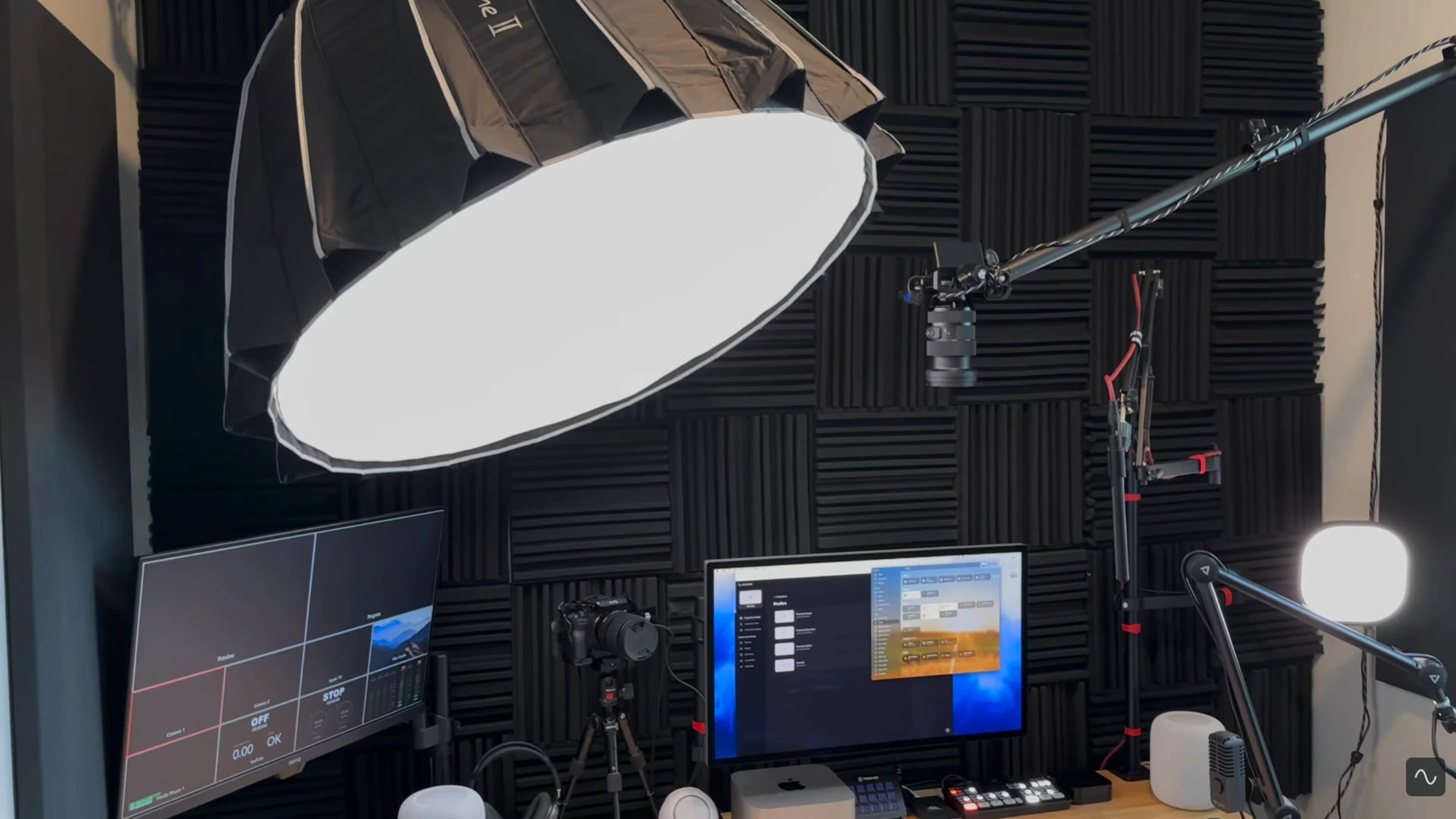
I use an Earthworks Ethos XLR microphone plugged into a RodeCaster Pro II audio interface, paired with a Sony a7 IV camera connected to an ATEM Mini Pro switcher.
To monitor my audio, I use Beyerdynamic DT 770 Pro headphones, then I check camera framing on a dedicated multiview monitor. Before recording, I trigger a smart home automation that closes blackout blinds, turns on studio key lights, and shuts off the ceiling fan.
Lastly, my host and I open a shared outline doc and check each other's audio levels and video framing inside Riverside.
Step 5: Record your podcast
The best way to record your video podcast depends on whether you’re doing it remotely or in person.
- For remote recordings: Use dedicated browser-based software that captures local audio and video directly on each person's device. If you’re recording via a smartphone, you can use a recording app and a stable mount or tripod.
- For in-person recordings: Connect individual XLR microphones to an audio interface while recording video through a multi-camera setup or smartphones.
Here’s a step-by-step workflow:
1. Prepare your guests
Send guests the episode outline, expected recording length, and any instructions for joining beforehand. Ask remote guests to bring headphones, find a quiet spot, and join a few minutes early.
2. Set up your studio
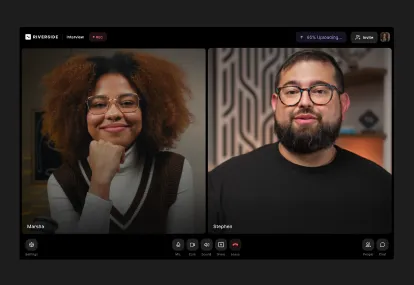
For a remote show, create a studio inside recording software like Riverside and send the browser invite link to your guests. Then, verify your hardware in the recording lobby before joining.
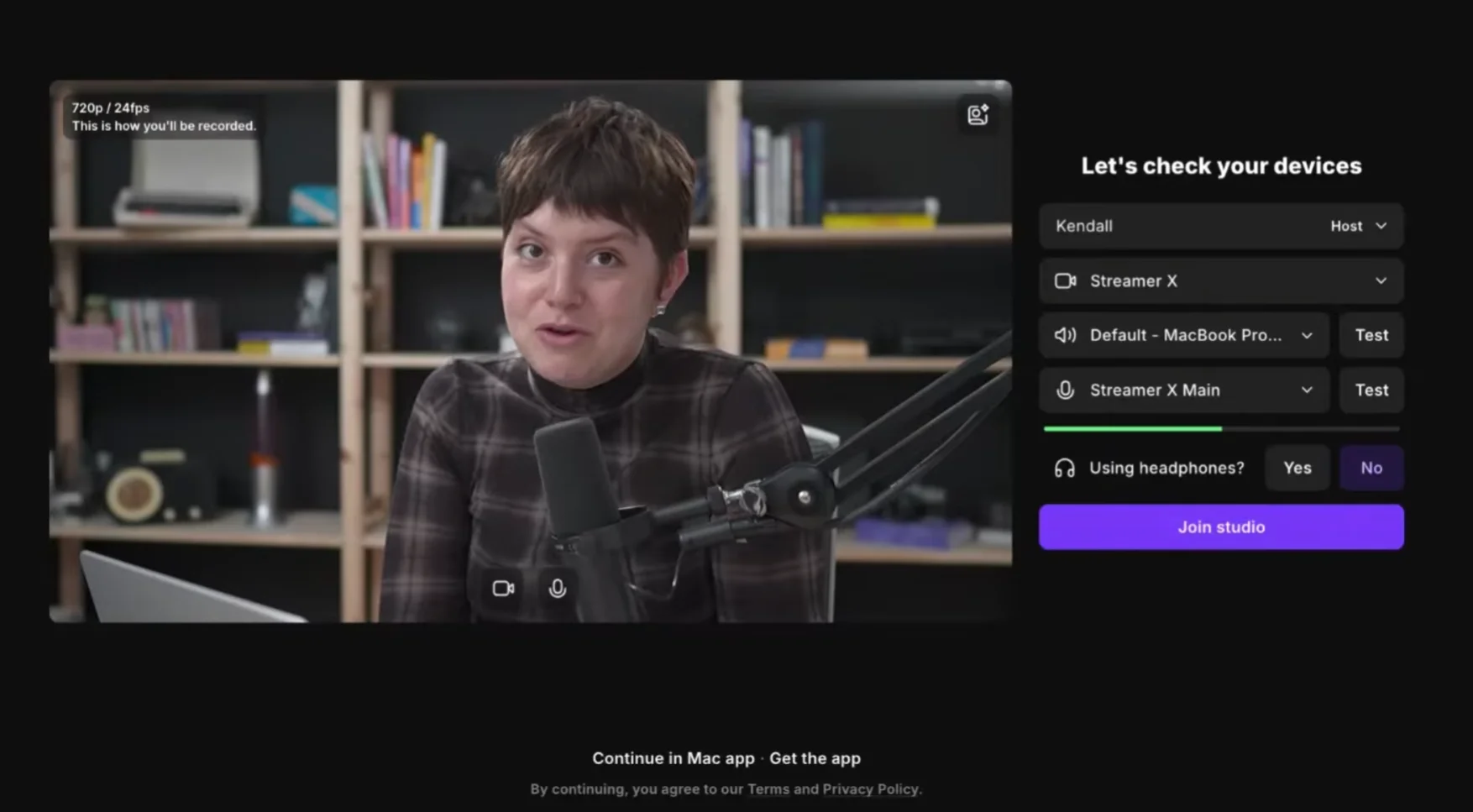
For an in-person recording, seat each speaker at their own mic, position your cameras at eye level, and confirm your audio interface connects cleanly to your computer.
In both instances, run a quick soundcheck to test audio levels, reverb, and echo.
3. Start recording
Customize your layouts and branding, and add lower thirds. If you’ve got a script or set of questions you want in front of you, set up the teleprompter (if available).
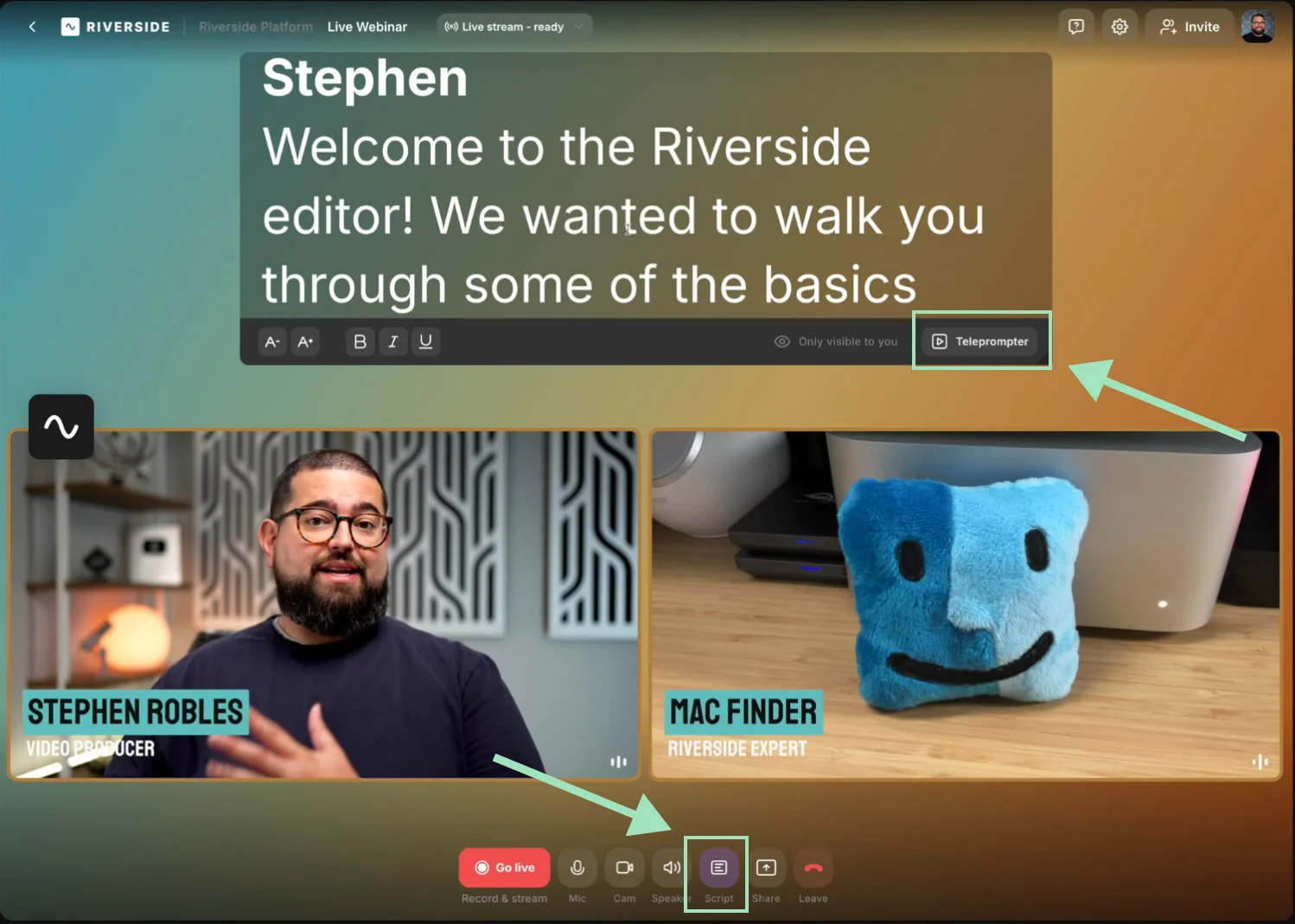
When everyone is ready, click “Record” to start recording.

Keep the flow of the conversation natural. If an interesting tangent comes up, roll with it and explore, even if it wasn’t part of your original plan.
4. Confirm your files saved properly
Click “Stop” to end the recording. If you record remotely in Riverside, wait a few moments after ending the call so every participant's local tracks finish uploading to the cloud.
If you record in person, confirm that your SD cards or local drive files saved properly before powering down your gear.
Read more: Check our complete guide on how to record a podcast.
Step 6: Edit your recording
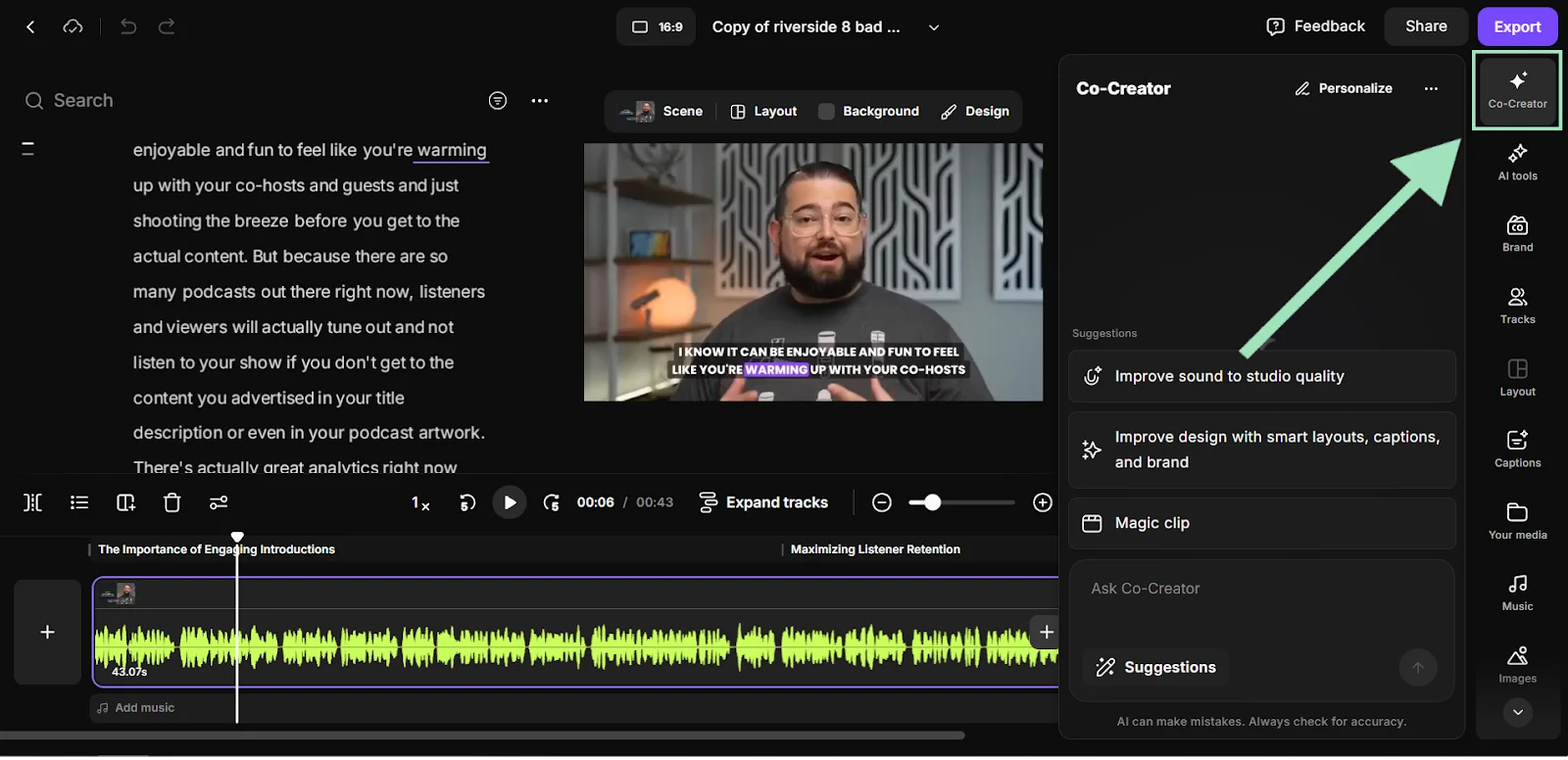
Once you've wrapped your recording, the editing process is where you turn your raw footage into a cohesive, professional episode.
Follow these steps to keep the process fast and repeatable:
- Trim the recording: Cut chatter, tangents, and mistakes. You can use Riverside's text-based editor to cut audio and video in minutes by deleting the corresponding words from the transcript.
- Clean up the audio: Balance volume levels across all speakers and remove background noise. You should also remove awkward pauses, silences, and repetitive filler words to keep a steady pace.
- Add captions: Generate dynamic captions to keep your audience engaged, especially since many people watch social videos on mute.
- Add supporting visuals: Overlay B-roll footage and images to illustrate what you’re discussing.
- Add intro and outro: Use royalty-free music to break up the talking-head format or create catchy transitions.
- Apply your branding: Apply your custom branding options, like your logo and background colors, to establish a visual identity.
Read more: For a detailed walkthrough, bookmark our podcast editing guide.
Step 7: Publish and promote your video podcast

The final step is getting your freshly edited podcast out into the world. To do this, you’ll have to first upload your video to a podcast host.
Choosing a podcast host
A podcast hosting platform stores your large audio and video files online and creates an RSS feed to distribute your show to directories. Once your host generates this feed, you can push your video podcast directly to platforms that support visual playback, such as YouTube, Spotify, and Apple Podcasts.
If you’re using Riverside, you don’t need a separate host. Our paid plans include hosting with unlimited cloud storage. Other podcast hosting platforms include Spotify for Creators, Buzzsprout, and Transistor.
Preparing your show for publication
Give your show a name, description, and cover image.
For each episode, make sure to create:
- A thumbnail to make it recognizable.
- Show notes with useful links and guest details.
- A summary with timestamped chapters.
- A transcript for accessibility and SEO.
Promote each episode
Once your episode is live, you must actively promote it to reach a wider audience.
Start by turning your best moments into short video clips to share them on platforms like TikTok, Instagram, and YouTube Shorts. Then engage directly with your listeners on social media and prompt them to leave comments and reviews.
Finally, post your episode's text transcript alongside your video on your website to make your content easily discoverable by search engines.
Read more: Check our guide on how to grow your podcast audience.
FAQs
What is a video podcast?
A video podcast is a podcast recorded and published with video, so audiences can watch as well as listen. Adding a visual element lets you build stronger connections with your audience and easily repurpose eye-catching clips for social media platforms.
Is a video podcast better than audio?
A video podcast is not inherently better than an audio podcast, and the right format depends on your content and audience. Video podcasts add a “human factor” through facial expressions and visual clips can be repurposed across more platforms. But, audio-only podcasts are better for listeners on the go. You can also publish both versions of the same episode.
Can you record a video podcast on your phone?
Yes, you can record a video podcast directly on your phone. Modern smartphones capture excellent high-definition video, and you can achieve professional audio by plugging in a dedicated mobile microphone and stabilizing your device with a simple tripod.
What is the best free software for recording a video podcast?
The best free software for recording a video podcast depends on your setup. OBS Studio offers extensive control over cameras, audio, and screen captures for recording on your computer. QuickTime Player, included with macOS, is a simpler option for recording yourself with a camera and microphone. Neither includes a built-in remote guest studio.
How much does it cost to start a video podcast?
The cost to start a video podcast ranges from completely free to a significant professional investment, depending on whether you use a phone-only, entry-level, or professional studio setup.
- Phone-only setup: Costs nothing if you rely on the smartphone you already own, natural lighting, and free recording applications.
- Entry kit: Around $160 buys a Samson Q2U microphone kit and Audio-Technica ATH-M20x headphones, using your existing computer and phone for recording. A simple LED ring light and a phone mount cost a few dollars more.
- Studio setup: You may need a budget of $800+ for professional XLR microphones, a multi-input audio interface, 4K mirrorless cameras, and a dedicated multi-point lighting kit.


.webp)

.webp)