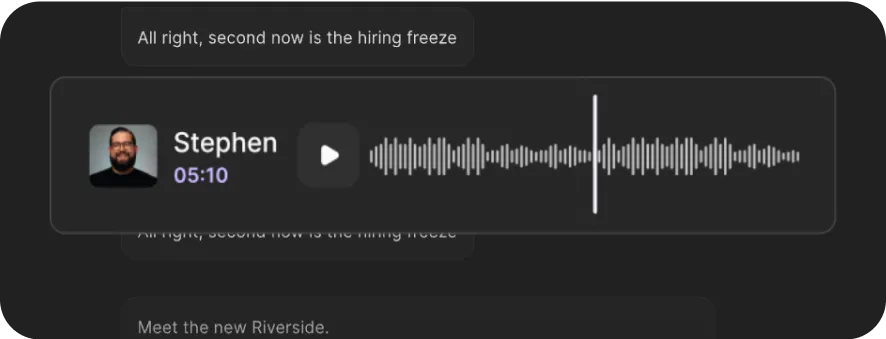
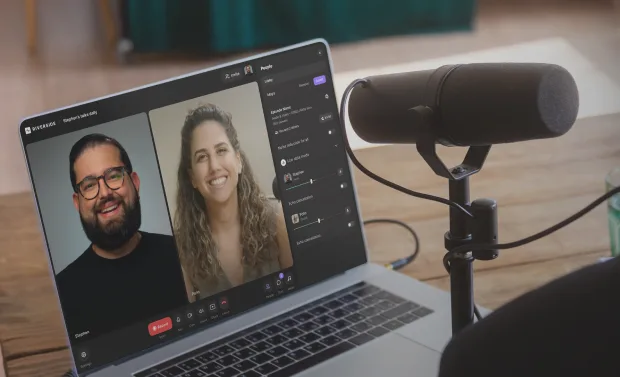
Spanish transcription
Get highly accurate Spanish transcriptions in minutes for free. Or explore the full Riverside suite to record, transcribe, edit, and repurpose in a single workflow.


or drag MP3, WAV, MP4 or MOV files


How to transcribe Spanish with Riverside
Step 1:
Record or upload your content
Record directly on Riverside in up to 4K resolution, or upload any audio or video file.
Step 2
Generate your Spanish transcript
Select your recording language, and our AI transcription automatically transcribes your recording. You get highly accurate transcripts with speaker labels and timestamps.
Step 3
Download your Spanish transcript
Download your transcript as a clean TXT you can repurpose into post and summaries, or timestamped SRT for captions and subtitles.

Why Riverside:
Why use Riverside: Spanish transcription built for your full content workflow

Highly accurate Spanish transcripts
Our speech-to-text technology even recognizes different accents and dialects. The result? Clean and accurate Spanish transcription every time.

Ready-to-use subtitles or text
Transcribe Spanish audio to text files for meeting summaries and show notes. Or get a subtitle transcript with timestamps, ready for video captions.

Transcribe in 100+ other languages
Spanish is just one of many. Get transcripts in 100+ languages, including Chinese, French, and German.

Translate Spanish for a global reach
If you record directly on Riverside, translate your Spanish recordings and transcripts to reach new audiences worldwide.

From transcript to content in seconds
Need show notes, meeting points, or want to turn your recording into a blog? Chat with our repurposing agent to turn your transcript into all the above in just a single prompt.

Edit recordings by editing text
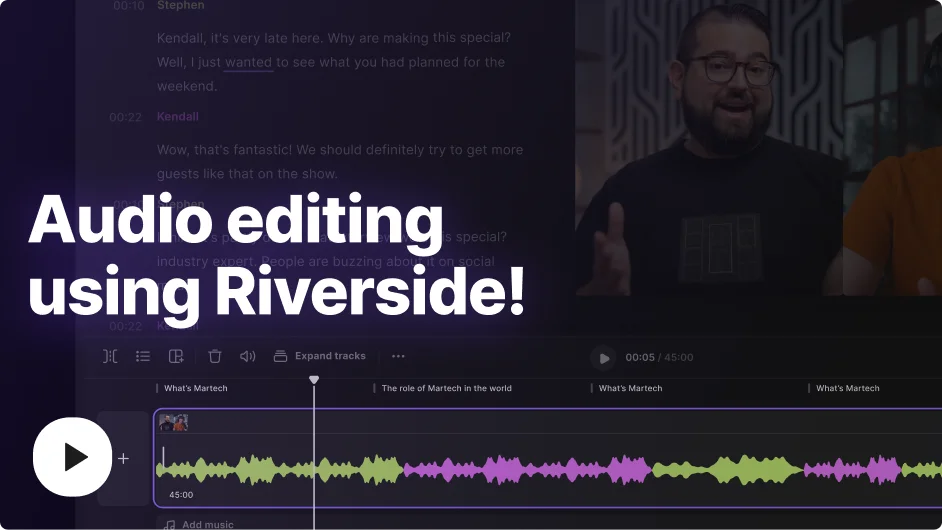
Your Spanish transcript is more than just a text file. If you use Riverside’s built-in text-based editor, you can cut, trim, and polish recordings just by using your transcript.
Spanish audio to text in minutes.
Get highly accurate transcripts ready for subtitles, summaries, or show notes.
How to transcribe Spanish audio: 6 Tips
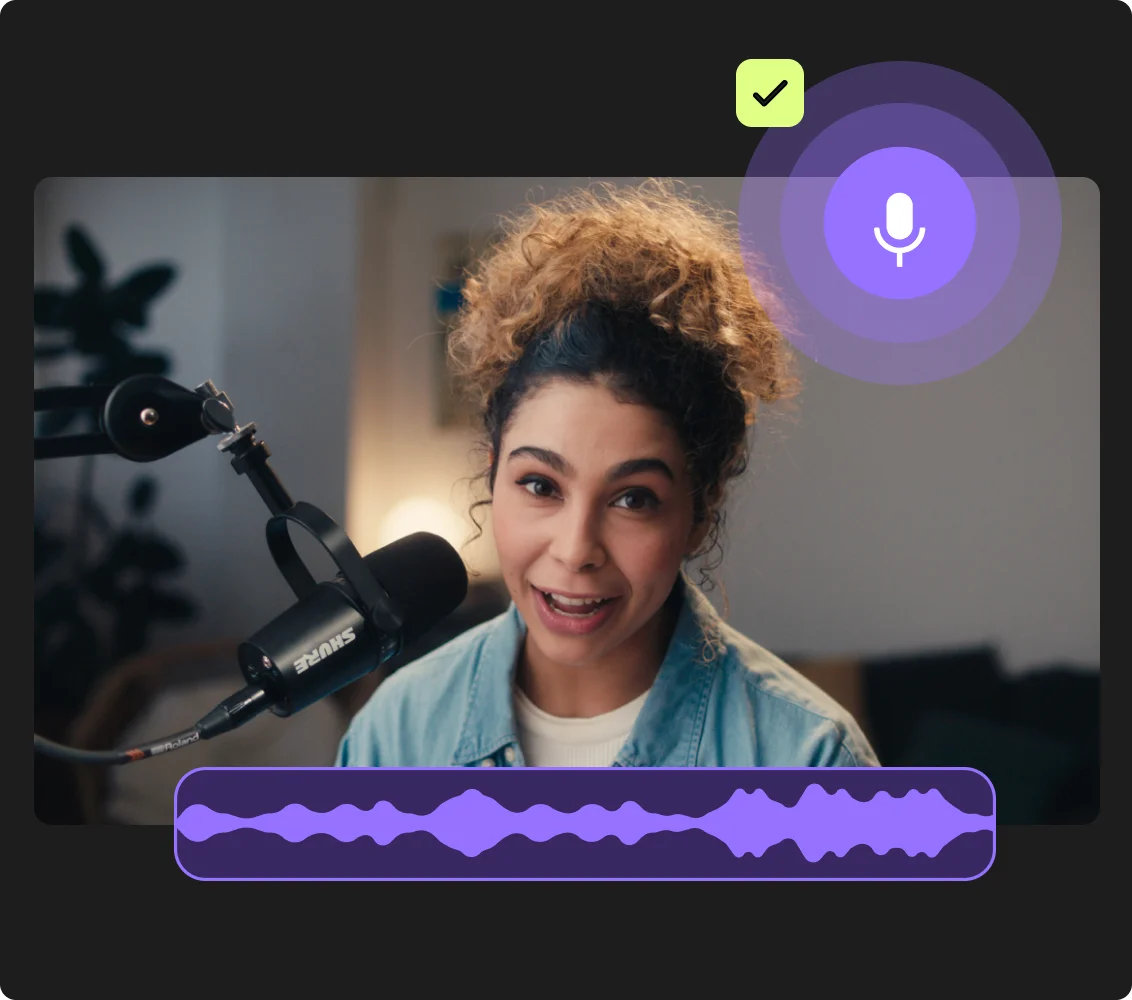
Start with clear audio
Crisp audio leads to more accurate speech recognition. Start by recording high-quality, uncompressed audio (with Riverside, you can record in 48kHz WAV). Make sure you record in a quiet place, and use a good microphone.
Speak clearly and avoid overlap
Fast speech and crosstalk make transcripts harder to read. Take your turns speaking to help transcription tools separate words and speakers more accurately.
Check for regional variations
Spanish varies by country and accent. Always check names, brands, and region-specific words so your final transcript matches what was actually said.
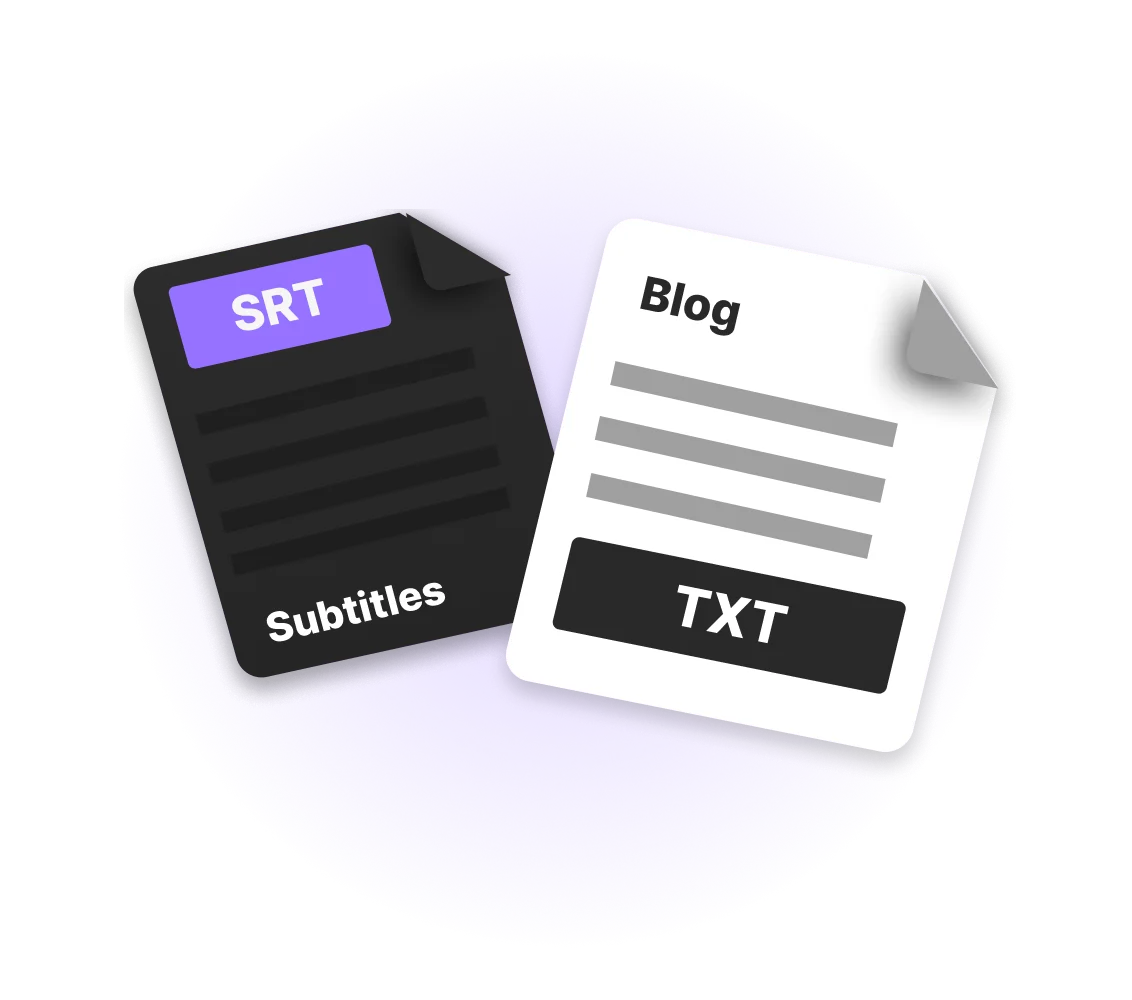
Choose the right file format
Think about how you’ll use the transcript afterward. TXT files are useful for blog posts and show notes, while SRT files work better for captions and subtitles.
Edit for readability
Even accurate transcripts often need light cleanup. Fix punctuation, spacing, and repeated filler words so the text is perfect before you publish it.
Keep transcription in your workflow
Don’t juggle with too many apps just to turn a Spanish audio into finished content. Find a tool where recording, transcription, editing, and export are all in the same place.
Transcribe Spanish text to:
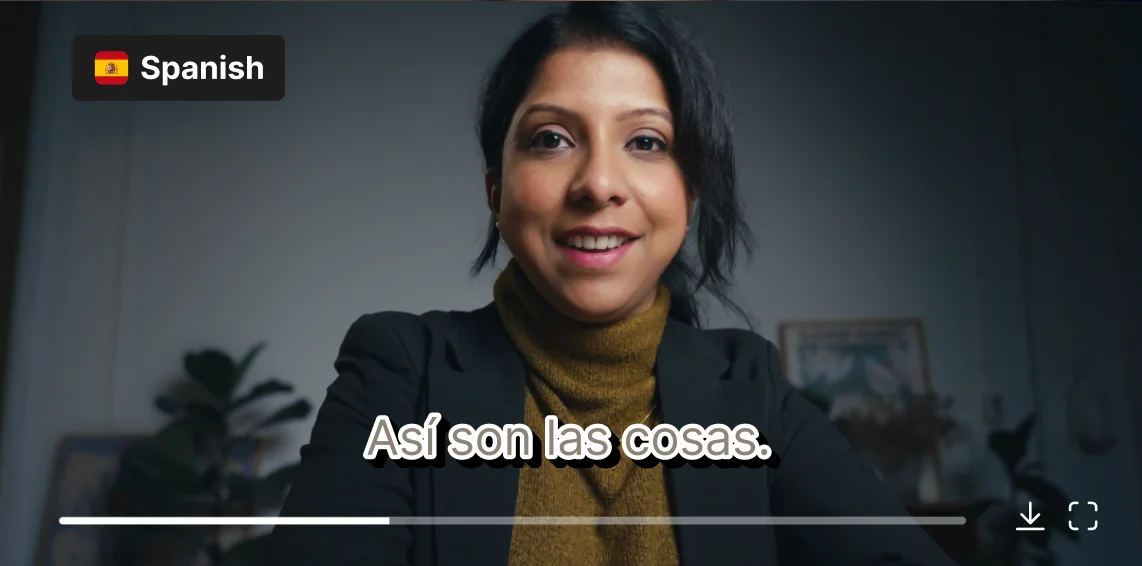
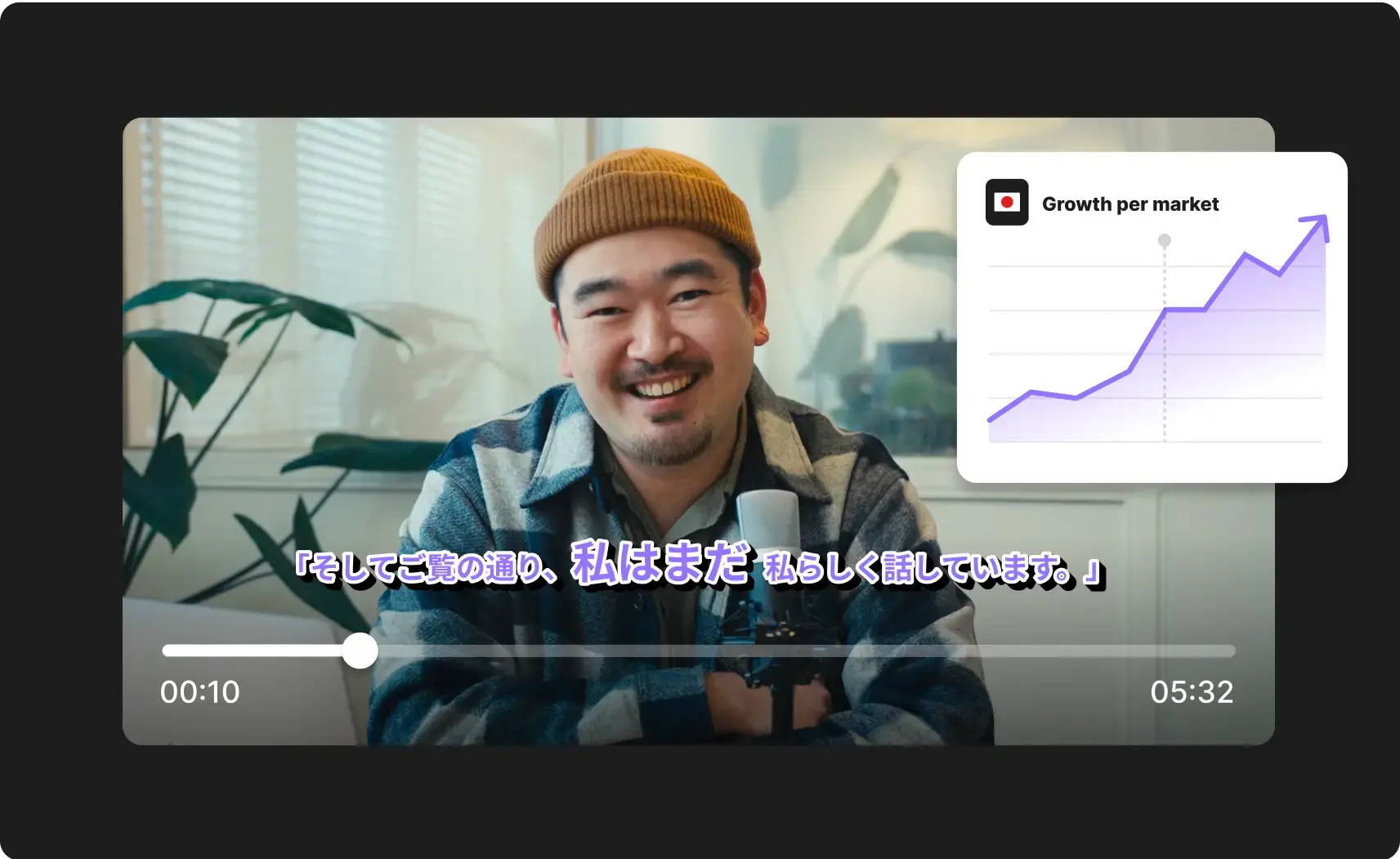
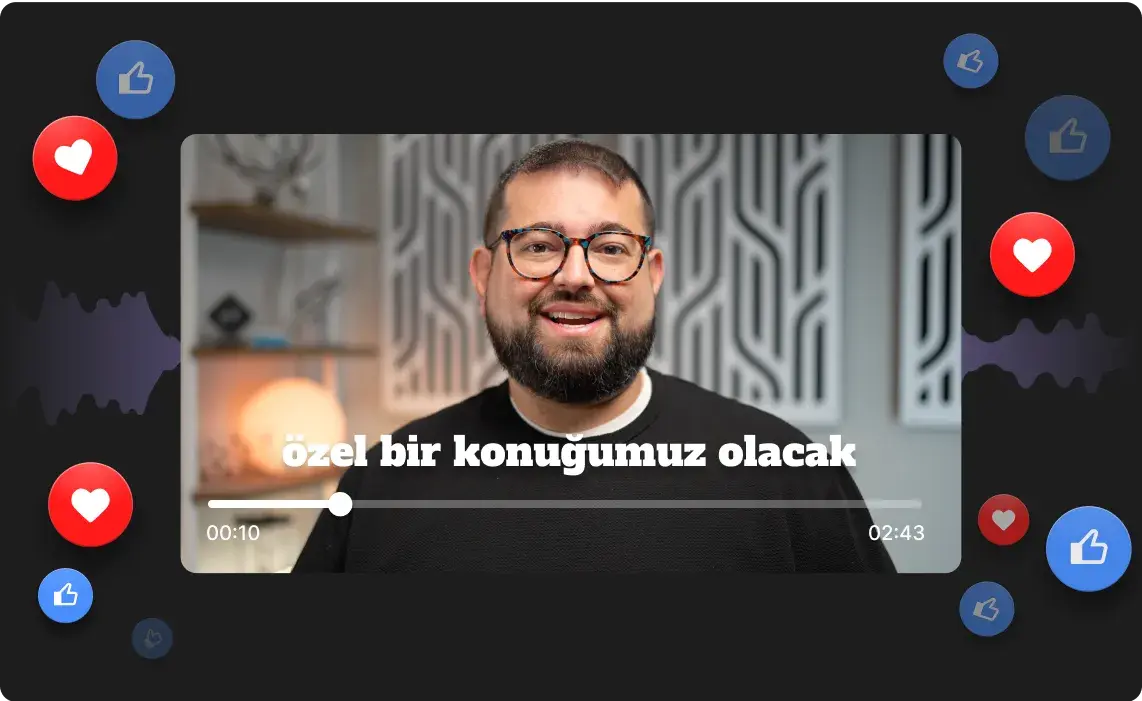
Create subtitles for all your Spanish content
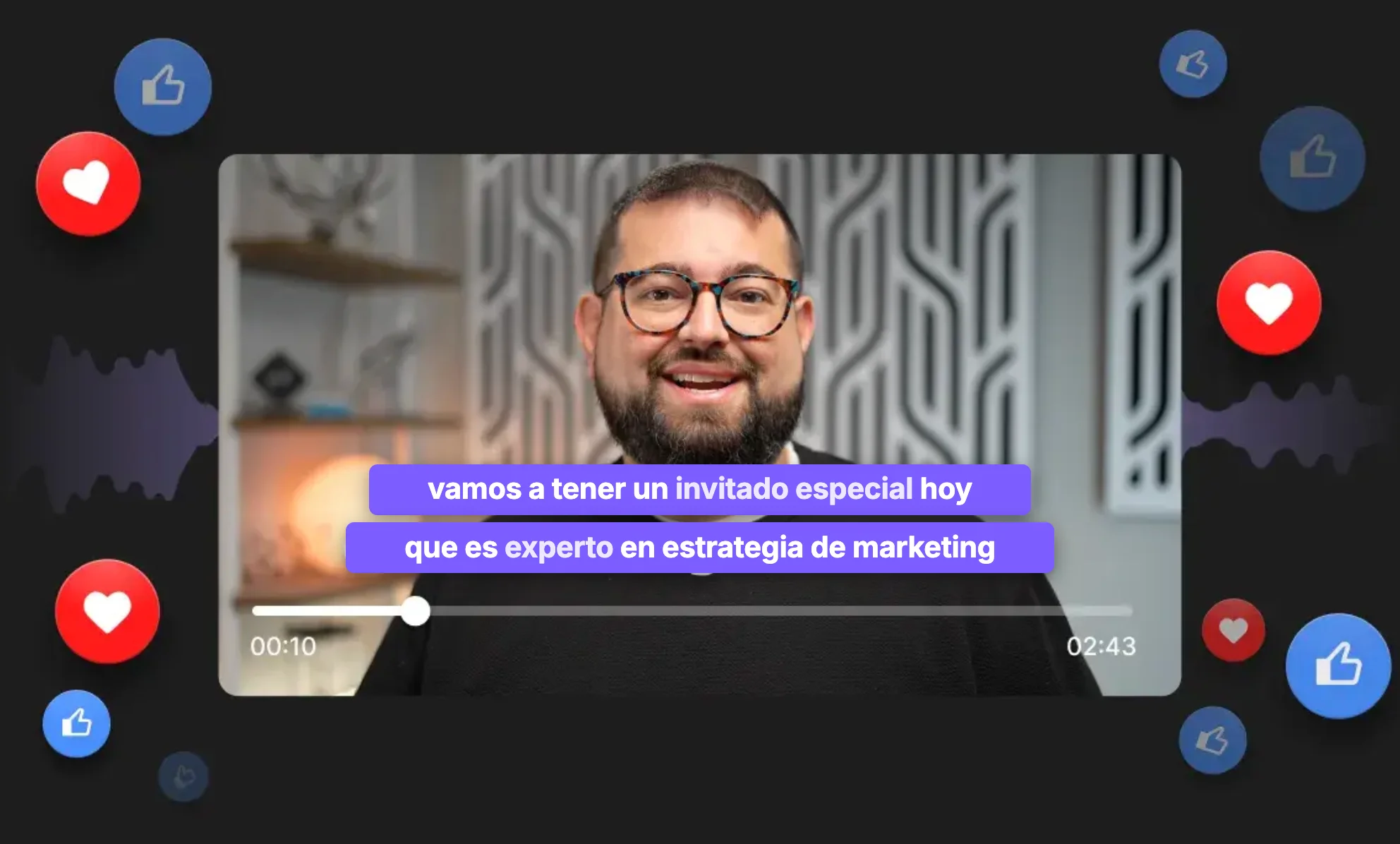
Transcribe your YouTube videos or Instagram reels to add quick captions that can increase watch time and make your content easier to find.
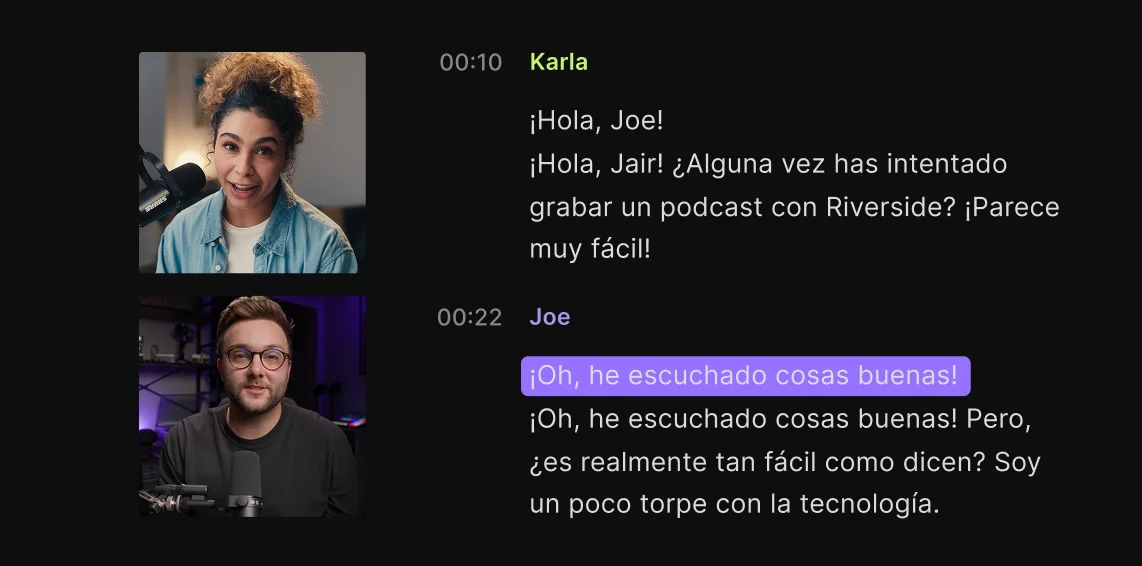
Organize Spanish interviews and pull key quotes
Convert Spanish research interviews into organized transcripts. Automatically identify different speakers with precise labels. Quickly extract quotes with the chat-based editor.
Expand the reach of your Spanish marketing campaigns
Turn Spanish webinars, ads, and interviews into search-friendly blog articles that keep working long after you publish.
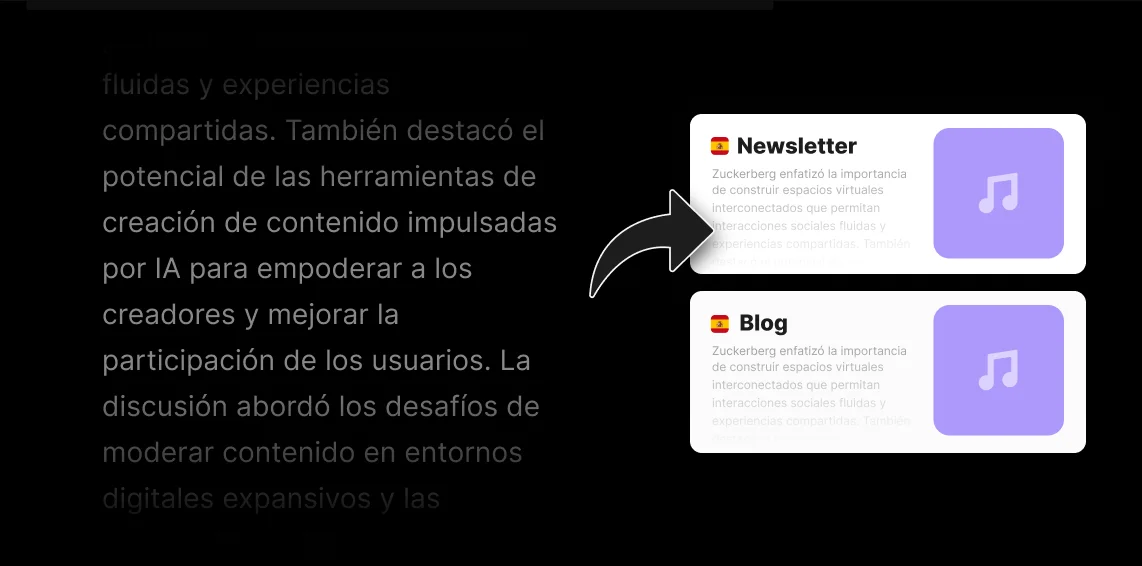
Make podcast summaries and show notes
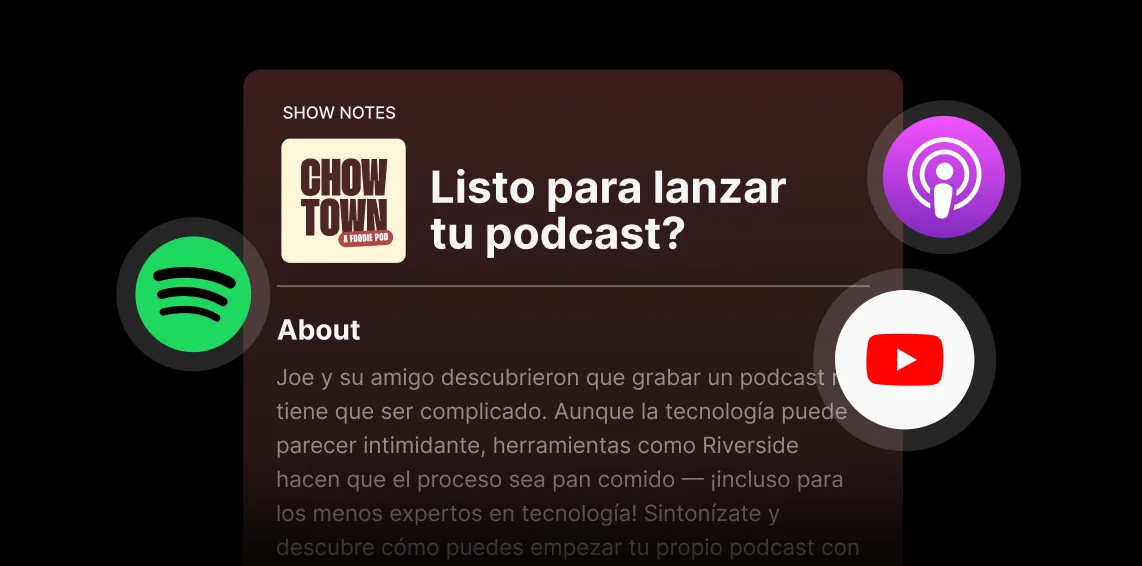
Instantly create show notes and timestamped SRT captions from your Spanish audio. Clean up filler by simply editing the text, then one-click publish to Spotify and Apple Podcasts.
Pricing
From recording to publishing, all on one platform. Studio-quality results with AI that does the heavy lifting.
Pro
Create polished, high-quality content
/mo (yearly plan)
High-quality video & audio recording in separate tracks
Unlimited text-based editing
Unlimited multi-track editing
AI tools (Magic Audio, Smart Scenes for automatic multi-cam edits, eye contact, unlimited transcriptions, show notes, remove silences & filler words)
AI content repurposing tools
Publish to YouTube, Spotify, Apple, Instagram, LinkedIn & more
Business
Produce at scale with control
Full remote control over recording and post-production
Custom branding
Webinar solution
Podcast hosting for as many shows as you want
Async recording
Team collaboration
24/7 priority support
Dedicated Customer Success Manager
Enterprise-grade security

Frequently Asked Questions
Spanish transcription is the process of converting spoken Spanish audio or video into written text. AI transcription tools analyze the Spanish speech and generate an accurate text file that can be turned into usable content, including:
- Captions and subtitles for videos (SRT files).
- Written transcripts for blogs, articles, or documentation (TXT files).
- Searchable archives for interviews, podcasts, or research.
- Content assets like posts, summaries, quotes, and show notes.
With tools like Riverside, Spanish transcription is automated, so you can convert speech to text in seconds instead of transcribing manually.
Yes, ChatGPT can do Spanish transcriptions, but it isn’t a dedicated speech-to-text software so it is more limited compared to a transcription tool like Riverside.
In particular, Chat GPT:
- Has difficulties identifying multiple speakers.
- Can’t handle long recordings.
- It struggles with accuracy with low-quality audio files.
- It’s not an all-in-one solution that lets you record in high quality, transcribe, and edit in one place.
- You can’t use the transcript to edit your videos with the text-based.
Yes, apps like Riverside translate Spanish audio or video to English in just a few minutes.
Here’s how:
- Record or upload your content on Riverside.
- Find the recording in the “Projects” page, click “Ask AI”, then choose “Translate”.
- Pick the English accent you want to translate the video into (United States, United Kingdom, Australia, or Canada).
- Turn the “Lip sync” toggle on if you want this feature.
In a few minutes, Riverside will generate an English re-dubbed copy of your content with perfect lip syncing. Our AI will keep your original voice and tone intact for a fully natural delivery of the dialogue.
Transcribing Spanish is just the beginning.
Record, edit, transcribe, and repurpose. All in one place.


More from Riverside

.webp)
.webp)

Features