Run a five-minute pre-recording prep
A five-minute pre-recording check covering your room, gear, internet, invite links and studio settings.

A five-minute pre-recording check covering your room, gear, internet, invite links and studio settings.
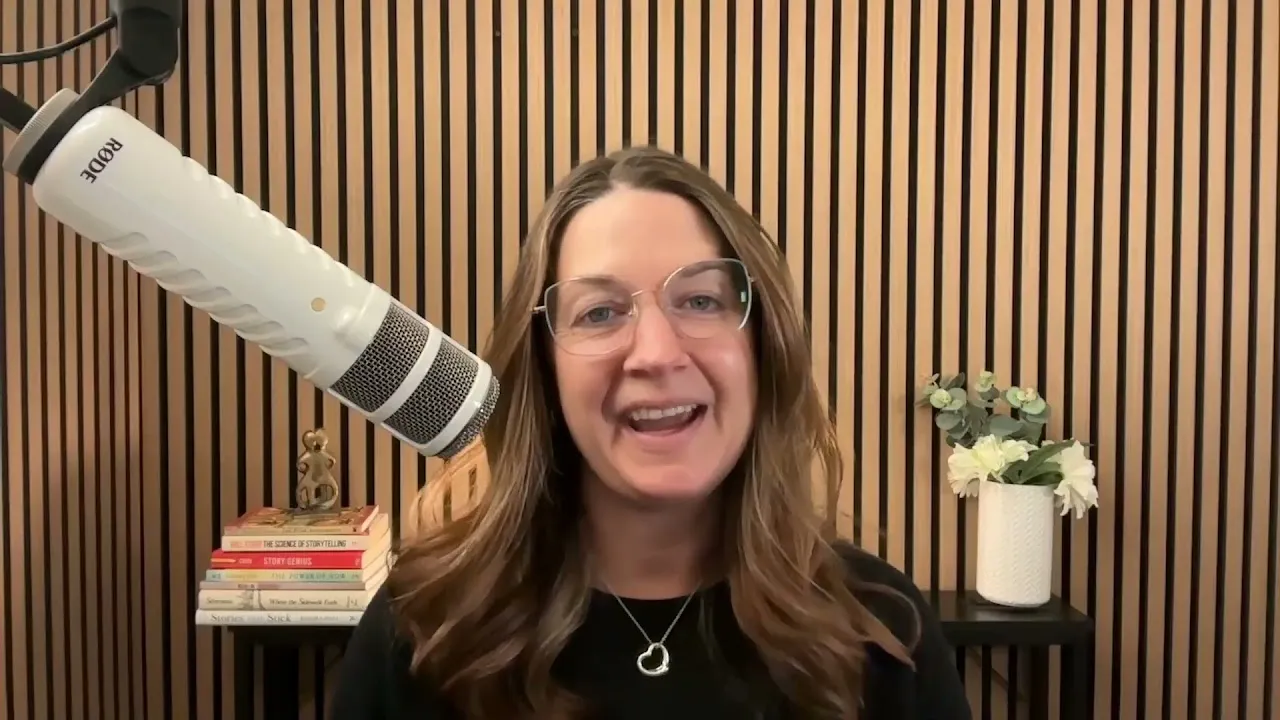
Discovering after a recording that your audio was off, your framing was wrong or you used the wrong microphone is one of the most frustrating podcasting mistakes. In this video, podcast producer Jamie Brooke walks through the five-minute check she runs before every Riverside session.
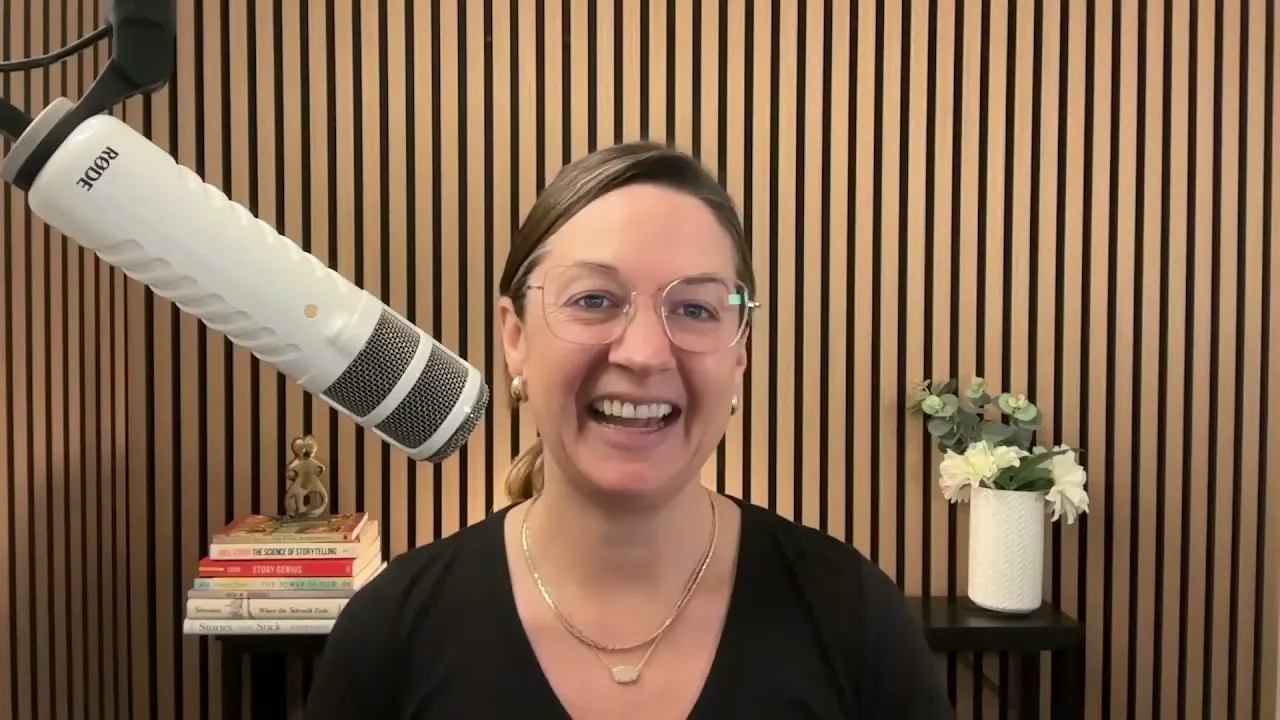
She covers the physical setup first: acoustic panels, diffused lighting, a backlight, a proper microphone and wired headphones instead of Bluetooth. Then she tests internet upload speed, turns on Do Not Disturb across her devices and sends the right guest and audience links. Inside the studio, she checks roles, names, devices and audio levels, adjusts background effects and sets recording resolution to 1080p before hitting record. None of the steps take long, but together they prevent some of the most common recording problems she sees as a producer.
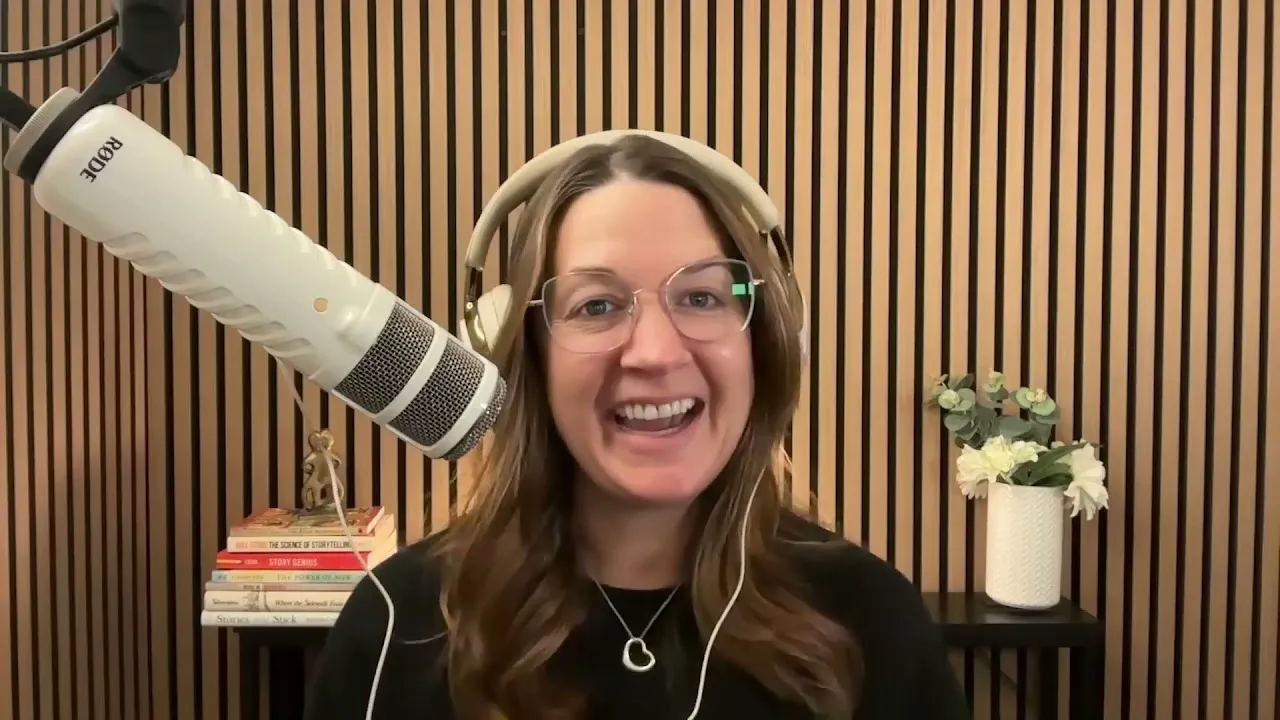
Make sure what your webcam sees is covered by acoustic panels to cut echo. Use a proper microphone instead of your computer's built-in mic. Light yourself with diffused lights rather than overhead lights, add a subtle light behind you to separate you from the background, and include a few personal touches in the frame.
Wired headphones avoid audio lag, and they can't switch to another Bluetooth device mid-recording if your phone rings. Jamie plugs hers straight into her microphone.
Search "internet speed test" on Google and click Run speed test. Your upload speed should be above 10 Mbps, ideally 25 or more. If it's low, try your phone's hotspot or move closer to your router.
Close any tabs and apps you don't need, and turn on Do Not Disturb on every device: your computer, phone, and iPad. On a Mac, you'll find it under Focus.
In your studio, click Invite to record. Copy the Guest link for anyone who should be recorded, and the Audience link for anyone who should watch without being recorded, like a producer.
Make sure your role says Guest (or Host), not Audience, because audience members aren't recorded. Enter your name exactly as it should appear in the show notes, credentials included. Confirm the right camera, microphone, and speakers are selected, and test your mic so levels stay in the green, maybe the orange, but never the red.
Confirm every participant has the right role and healthy audio levels. Blur or change your background under Effects if you want to. Then go to Settings and set the recording resolution to 1080p if your camera supports it.
00:00 Hi, I'm Jamie Brooke. I'm a podcast producer and I help health, fitness and wellness professionals launch, produce and monetize their podcast. Today I'm gonna be walking you through my five minute checklist on what I use before any Riverside recording. Now, normally I'm behind the scenes as a podcast producer, I'm joining Riverside as an audience member.
00:20 This means that I'm not gonna be recorded, but my host and their guest will be. But in this case, I'm gonna show you what it's like when I'm the host. when I'm actually creating a podcast on my own. Taking a few minutes before every interview to check your setup can save you from discovering after the recording, your audio was off, your camera framing was wrong, or you recorded an entire interview using the wrong input.
00:45 So here's what I check before every recording. Before I even open Riverside, I start with my physical recording setup. You don't need an elaborate podcast studio, but there are a few things that can make a big difference. So for example, I'm gonna pick up my computer right now and I'm gonna show you around this small room that I have set up as a recording studio. The webcam that I'm using is attached to my laptop.
01:08 I have acoustic panels behind me to help control reflection and echo in the room. They really truly fit where my webcam shows. Could I have added more acoustic panels to make sure it was all filled in? Yes, absolutely. But I chose just to have as much acoustic panels as needed to cover this particular webcam space.
01:29 In addition, I have, as you can see, a boom arm and Rode podcaster microphone, and that's connected right into my computer. I also have two diffuser lights in this room. I have a diffuser light up here. which is quite tall of an angle. I have this light as well.
01:51 Last but not least, I have this light right here, which is behind me. And the reason that we wanna do something behind us can actually, just a subtle light is to actually differentiate you from the background to the subject, which is me in this case. Finally, I've added just a small console table back here, which allows me to have a little bit of added decor.
02:15 I like to have something green in the background as well as my interests right here, which are some of my favorite books. And then last but not least, I have my wired headphones. So really important to use wired headphones. There's a couple of reasons for this. The first one is that it helps with audio lag and that just creates issues when you're later dealing with post-production work.
02:39 Second reason to use the wired headphones is you really don't want your headphones, which are usually also an option of having Bluetooth, you don't want these connecting to anything else while you're recording. So for example, if your phone rings or something happens and then your headphones switch to a different device, that is not a great thing to be happening.
02:59 But it seems as long as your headphones are wired, they don't act as a Bluetooth device when you are actually recording. I just directly connect these into my microphone. So to recap, I love the acoustic panels. I think it helps with reflection.
03:21 It also creates a nice textured look in your background. I recommend adding diffused light sources within the room. They're much better than overhead lights. I also recommend adding a light to your background as well to differentiate your subject from the background. I also recommend adding a couple things that just personalize your look and make it more you.
03:43 And last but not least, I do recommend that you have a proper microphone instead of using your computer microphone, as this is going to be better sound, and then wired headphones as well. Next, I try to eliminate anything that could interfere with the recording. So the first thing I think about is my internet speed.
04:03 How fast is my internet speed? So you can easily go onto google.com and you can search for internet speed test, and then you can simply click on REN Speed Test. So in about 30 seconds or less, you're going to be able to see what your MBPS upload is. You want to make sure that you are anything above 10.
04:25 Ideally, it's about 25 or more, but anywhere over 10 is really what you're looking for. If you're struggling with your internet speed test, I highly recommend trying out your personal hotspot to see if that improves, trying a different location in your home, something that might be a little bit closer to your router, et cetera. The other thing I want to make sure that I do after I close all those tabs is I want to make sure that all of my devices, my phone, my computer, my iPad, everything is on Do Not Disturb.
04:55 So on a Mac, I would come up here and I would just go down to focus. So now I'm in Do Not Disturb. Now I'm ready to record in Riverside. If I'm the host, I'm gonna make sure that I log in to my Riverside and I will have already shared a link with my guests and my producer.
05:19 So if I haven't already shared those links with my guest and my producer, I'm going to go into here and I'm gonna click on Invite to Record. I'm gonna find this link, which is my personal link for this studio. and I'm gonna make sure that it says guests and I'm gonna copy that link and I'm gonna email it or send it in some way or form to my guests.
05:42 I'm also going to select audience and I'm gonna click copy link and that will be a different URL that I would send to anyone who doesn't wanna be recorded. A perfect example is your producer who might be logging in to make sure that the recording goes well, that there's no questions or anything along those lines, but ultimately that audience role. will not be recorded.
06:03 Now I'm gonna pretend that I am a guest and that I'm logging in to the studio as a guest using a guest specific link. The first thing that they will see, the guest will see is welcome to the Interscript, which is one of my podcasts that I produce. You'll click continue and you'll also be doing this as a host as well, but just so you know, this is more of the guest role to be considered.
06:27 First thing I'm gonna make sure is that it says guest here. It doesn't say audience. If it says audience, you won't be recorded. So it's really important that you make sure that it says guest. Or if you are the host, make sure that it says host. I like to make sure that the name that appears in this section is exactly how I would want it to appear in the show notes. So if I have something like a doctor or MD at the end of my name, I'd like to make sure that it is included there as well.
06:53 The reason why this is important, one is that it helps the host to understand your exact name and how you want it to be worded. The other reason is that a host or podcast producer will be using it for things like social clips, show notes, promotional materials, et cetera. You also have the opportunity to enter your email address here, which you can add as well. And then finally, I like to make sure that my webcam is the correct webcam.
07:17 I also want to make sure that my speaker is connected properly as well as my microphone. So you have a lot of different tab options and just to make sure that you have the correct one on there. You can do this by testing, making sure along here. So I like to go test, test, test. I like to see and make sure that I'm in the green, maybe in the orange, but I'm really not peeking into the red at all.
07:41 And then am I using headphones? Now let's say I'm joining this recording studio as a host. I'm gonna make sure that I'm checking all of my settings on the right-hand side as well. I'm gonna be making sure that I have a green sound meter going across, that I'm not going into the orange at all, and that I'm not going into the red, which would be up here.
08:02 And as a host, you can actually check all of the people that are in the Riverside Studio with you. Check to make sure that everybody is logged in as their correct role. So if they say guest, producer, audience member, host, et cetera. You're also welcome to check all other sorts of options. You can go into effects right here. So you can actually, could blur my background if I wasn't super confident in my background.
08:25 You could also change it to a green screen type of thing. I don't have a green screen in the back, so it kind of looks a little bit funkier, but personally I like my background. And once you've checked all of the people here to make sure that their green sound levels are looking good, they are happy with their background, that their role is also correct and that it's a host, a guest or a producer or an audience member.
08:53 I also like to go down to settings and I like to make sure that my recording resolution, if you are able to 1080p is a better way to record. So before I hit record, my final five minute check is. My microphone, camera, and headphones are connected correctly. My audio levels are healthy and aren't hitting the red.
09:13 My camera framing and lighting looks good. Notifications are off and unnecessary applications are closed. I am in the correct Riverside studio with the correct role, and I've checked the guest audio and video setup too. None of these steps takes very long, but together they can prevent some of the most common recording problems I see as a podcast producer. Five minutes spent checking your recording setup before you hit record can save a lot more time trying to fix something afterward.
09:39 I'm Jamie Brooke and that's my 5-Minute Riverside pre-recording checklist.
Let guests book their own interview slot and receive your Riverside studio link automatically.
USE CASES
Whether you're recording a podcast, hosting a live stream, or creating content for social, we've got you covered.

Got a process that works for you? Get featured by submitting your step-by-step flow. Help other creators save time, learn new tricks and improve their productions.