


Key takeaways
- Content creation software can streamline your processes, help you gain an audience, and spread awareness of your brand.
- You can use content creation software to record and edit your content, schedule it, brainstorm new ideas, post it on socials, and much more.
- Some software like Riverside allow you to record, polish, repurpose, and publish your content, all in one place.
- Tools like Riverside or iMovie are great for beginners, while others like Wistia are more suitable for professionals.
Creating great videos takes time. But the right content creation software can cut that time in half.
In this guide, we’ll explore all the best content creation software so you can make top-quality content with minimal effort.
Let’s go!
Why should you use content creation tools?
Content creation tools simplify your workflow so you can spend more time on what matters, which is making your content stand out.
They give you more time to be creative, and they can:
Speed up content creation
Tools such as inbuilt editing software or automatic caption generators can shorten your process.
Improve the quality of content
Platforms that allow you to record videos in 4K can really enhance the quality of your final product.
Give you inspiration
Brainstorming tools such as AI script generators can help you discover your next great idea.
Ensure you upload regularly
It’s important to maintain a steady output of video content to build your viewership. Designated content creation tools can help you schedule your publications so you don’t forget to post a video.
10 Best Video Content Creation Software & Tools
Looking for the best content creation software to make eye-catching videos? Check out the list below, where you can find tools to take your videos to the next level.
| Name | Free plan? | Paid plans | Compatibility | Ease of use | Best for |
|---|---|---|---|---|---|
| Riverside | ✅ | Starting from $24/mo | iOS; Android; PC & Mac | ⭐⭐⭐ | All-in-one remote video recording; clips creation & text-based editing |
| Wistia | ✅ | Starting from $79/mo | PC & Mac (Chrome) | ⭐ | Professional marketing videos |
| Animaker | ❌ | Starting from $25/mo | iOS; PC & Mac | ⭐⭐ | Animated videos |
| Headliner | ✅ | Starting from $7.99/mo | iOS; Android; PC & Mac | ⭐⭐⭐ | Turning audio (podcasts) into video content |
| iMovie | ✅ | - | iOS & Mac | ⭐⭐⭐ | Video editing for beginners |
| InShot | ✅ | In-app purchases | iOS & Android | ⭐ | Editing Instagram videos |
| Frame.io | ✅ | Starting from $15/mo | iOS; Android; PC & Mac | ⭐⭐ | Collaborative video editing |
| Splice | ✅ | - | iOS & Android | ⭐⭐⭐ | Adding finishing touches to videos |
| Murf.ai | ✅ | Starting from $19/mo | PC & Mac | ⭐⭐ | Creating AI Voiceovers |
| Quik by GoPro | ✅ | - | iOS & Android | ⭐⭐⭐ | Editing GoPro videos |
1. Riverside

Price: Free; Plans from $24/mo
Compatibility: iOS, Android, PC & Mac
Riverside is a user-friendly platform designed for both beginners and pros. You can record locally in up to 4K quality, unaffected by internet connection. Invite up to 10 guests and multistream to all major platforms or custom RTMPs simultaneously.
Once your recording is over, you can wrap up post-production in minutes instead of hours. Just prompt Co-Creator, your dedicated AI chat-based editor to apply any edit. You can also ask it to repurpose your content into blog articles, social posts, and newsletter emails.
For more advanced controls, head to the full suite editor. Here you can:
- Trim your video with text-based editing
- Add captions, b-roll, logos, overlays and music to style your video
- Clean up audio, fix your eye-gaze, and even remove filler words automatically.
You’ll also get short clips of your videos’ key moments, a transcript, and show notes ready for you to use.
All without leaving your dashboard!
Find out more about Riverside here, or sign up to start creating professional videos easily.
2. Wistia: Best for professional marketing videos
Price: Free; Plans from $79/mo
Compatibility: PC & Mac
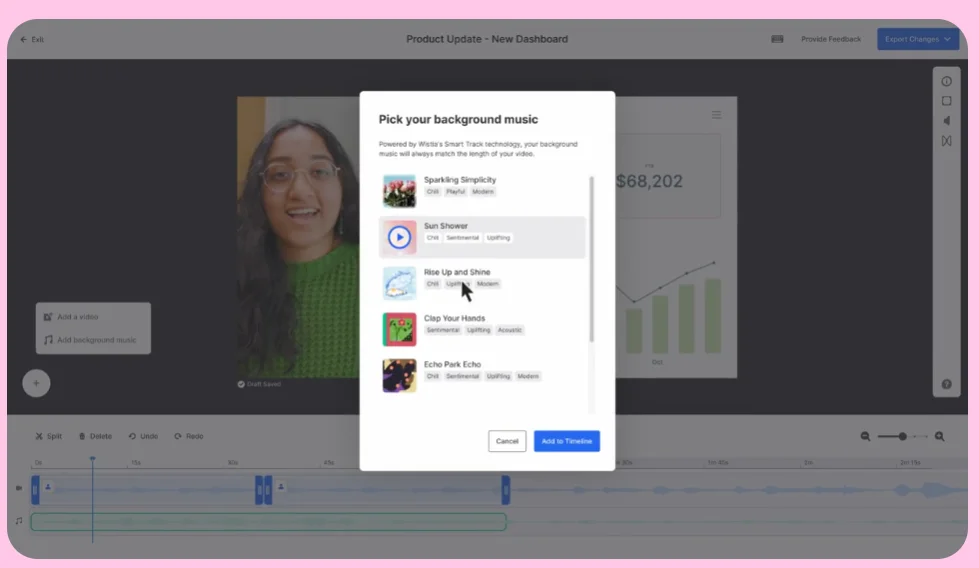
Wistia Record (formerly SoapBox) is a full video-marketing platform with tools to create, host, edit, and analyze professional marketing videos. You can publish your recording directly to a customizable Wistia player with built-in analytics.
Wistia is a professional creator tool, and it’s made for businesses that want more control over viewer engagement and keep track of their ROI.


3. Animaker: Best for animated videos

Price: Basic $25/mo; Pro $43/mo
Compatibility: iOS, PC & Mac
Animaker is an impressive platform for creating animation and live-action videos. Its features include GIF creation, animation character building, and an animation studio. You can even auto-sync the animated characters’ lips with your voice, giving your voiceovers a unique touch. Animaker also features over 1,000 templates where you can drag and drop photos and videos to create content easily.
4. Headliner: Best for turning audio content into video

Price: Free; Plans from $7.99/mo
Compatibility: iOS, Android, PC & Mac
Headliner is available as both an app and a webpage that turns your podcast recording into shareable content. The idea behind Headliner is to easily transform full podcast episodes, or clips from your podcast, into a captioned video. This creates new opportunities for you to promote your content on video platforms and grow your audience.
5. iMovie: Best for video editing for beginners

Price: Free
Compatibility: iOS & Mac
iMovie is a handy video editing app that’s great for when you’re out and about. You can use iMovie for quick fixes like cropping and rotating videos, adding transitions and stabilizing shaky videos. These simple features are easy to learn and can transform your content in a matter of minutes. While iMovie doesn’t have all the tools of more extensive editing software, it’s a perfect place for beginners to improve their content creation skills.
6. InShot: Best for editing Instagram videos

Price: Free; in-app purchases
Compatibility: iOS & Android
InShot is a straightforward app for online influences to create content on. This editing app works for pictures and videos, allowing you to apply filters, add music, sounds and voice-overs, merge video clips, and more.
These features make it a great option for Instagram content creation, as you can edit reels, stories and posts on InShot. It’s worth noting that while this app is free, you will need to pay in app to remove the watermark from your videos.
7. Frame.io: Best for collaborative video editing

Price: Free; Plans from $15/mo
Compatibility: iOS, Android, PC & Mac
Struggling to get clear, practical feedback on a video you’ve created? Frame.io is a collaboration space where you can share your video with a colleague or team. Those you invite to view your video can easily leave timestamped, frame-specific comments on your video. They can make suggestions on what you should edit, or even draw on frames to bring specific features to your attention.
8. Splice app: Best for adding finishing touches to videos

Price: Free
Compatibility: iOS & Android
Splice is a video creation and editing app that you can use on the go for professional-looking videos. Designed to be simple and effective, the app’s features include trimming video clips, removing backgrounds, adding filters, special effects, and title slides. With these content creation tools you can add extra touches to your recordings.
9: Murf.ai: Best for creating AI voiceovers

Price: Free; Plans from $19/mo
Compatibility: PC & Mac
Many viral videos feature AI voices, which read text in a clear and interesting tone. Murf.ai is an impressive tool for creating these voice-overs. The platform offers a range of natural human-sounding voices to choose from. If you don’t want to use your own voice in a video because of an accent, or for professional or privacy reasons, Murf.ai is a great option to consider.
10: Quik by GoPro: Best for editing GoPro videos

Price: Free
Compatibility: iOS & Android
Quik by GoPro can be used to edit and share content from your smartphone or a GoPro device. Quik offers filters, trimming tools, and video speed editing. On top of this, Quik can automatically sync your video to music, making it swift and effortless to take your content to the next level. The app can also find the highlights of your video and cut together the best moments you have recorded.
Content Creation Software for Scheduling
One of the hardest parts of content creation is consistently uploading videos. Sticking to an upload schedule can improve your channel statistics on YouTube, and help to steadily grow your follower count on social media platforms.
There are some great tools out there that can help you stay organized with your upload schedule. Some will even post your video for you, making sure you never miss an upload today. We’ve chosen some of the best scheduling software to share with you below.
SproutSocial
SproutSocial is software designed to help you understand your audience. This platform provides insights into your data, such as the engagement levels of your posts. Ideal for companies and corporations, this platform can keep you on track with your long-term goals. Come up with content strategies, like how often to post, based on the analytics SproutSocial offers.
NapoleonCat
With NapoleonCat you can schedule your content for Instagram, Twitter, Facebook, LinkedIn and more. This slick platform features a user-friendly layout and can even post scheduled content for you. It’s easy to get started with NapoleonCat’s simple process for setting up your social media accounts.
Buffer
Buffer is a great place to automate your social media posting. You can test their model with 10 free social updates on their app or browser extension. With Buffer, you can schedule your posts to go out at certain times. To find the peak times to post for your audience, check out Buffer’s suggestions and analytics results.
Content Creation Tools for Social Media
There are some fantastic tools out there to help with social media posting. Some apps and websites will help you create posts and short videos, while others are tailor-made for editing them. Using these tools can be a huge time-saver. Check out the options below for platforms that can enhance your social media content creation.
Adobe Express
Adobe Express, available on both web and mobile, is a quick and easy tool for both creating and editing social media posts. With text, themes and music designed for specific platforms including TikTok and Instagram, it doesn’t take long to create your next post. Converting, cropping and resizing videos are just a few of the editing tools on offer.
Splice
As highlighted in our list, Splice is a free app you can use to create social media videos. This simple, intuitive platform offers entertaining features like special effects and title slides to make your social media posts more attention-grabbing.
Canva
Canva is an easy-to-use platform ideal for beginners to create and edit social media posts. Offering a huge variety of templates for both photos and videos, this platform can help you design and format a post for social media. There are fun features to play with too, including the collages, slideshow and GIF maker options.
Content Creation Software for Podcasters
If you’re a podcaster, it’s a smart idea to use content creation software for recording and editing your episodes. You can use a variety of tools to make sure that your audio quality is high and your content has a professional feel to it. Using content creation software can make your life simpler, so why not check out this list of software that could streamline your process?
Riverside
Riverside is an all-in-one podcast creation and editing platform. Use Riverside to fit your needs, either through the app or by recording directly from a Chrome browser. Riverside offers separate track recording and a studio for you to remotely record with up to 10 participants. With uncompressed, up to 4K audio quality, this tool is ideal for creating clear-sounding, professional podcast episodes.
Headliner
As mentioned in our list, Headliner is a captioning tool great for podcasters who want to expand their audience. As an audio-only format, it can be difficult to market a podcast across multiple platforms. Headliner aims to fix this problem by transforming podcast clips and episodes into captioned videos.
Spotify for Creators
Back in 2019, Anchor was acquired by Spotify as a way to create, post and monetize your podcast. Now known as Spotify for Creators, you can now use it to record and edit a podcast thanks to the integration with Riverside. Or, you can host your podcast on Riverside, then one-click publish it to Spotify.
FAQs on Content Creation
What do content creators use to create videos?
There is a huge variety of content creation software out there. The tools that creators use depend on the type of content they are making, the platform it is aimed for, and the audience they’re trying to reach. We’ve mentioned many popular content creation tools in this article. Why not read through them to discover what works best for you?
What software is best for making videos?
We’ve mentioned specific video software such as Riverside, iMovie and InShot, which many creators use for their content. However, the best video-making tools come down to personal preference.
Some creators prefer more advanced editing platforms, while others are looking to easily create and edit videos on the go. Because of this, you should consider which features are important to you, to find the best software for your needs.
What software do YouTubers use to make videos?
Some of the most popular software used by YouTubers includes iMovie, Premiere Pro, and Final Cut Pro. However, there are many other content creation apps and websites out there used by YouTubers. The software they use depends on their style of creation, and their priorities when it comes to tools. It’s worth trying out a few different types of software if you want to find the best way to create your own videos.
Where should I start as a content creator?
If you’re just starting out with content creation, there are a few important first steps you should take. Firstly, identify the audience you want to appeal to. Secondly, decide on the type of content you’d like to create. Finally, choose a platform to upload your videos to.
When it comes to creating your content, consider using some beginner-friendly software. Easy-to-use apps like Riverside, InShot and iMovie can be a great place to develop your videos.
When it comes to creating your content, consider using some beginner-friendly software like Riverside, InShot, or Splice.




-(1).webp)
.webp)


.webp)
.webp)


