Customize your tone of voice for AI translations
Choose a neutral, casual, professional or sales tone when translating video into thirty languages.

Choose a neutral, casual, professional or sales tone when translating video into thirty languages.
Riverside's AI translations now let you choose a tone of voice as well as a language, so translated content matches how you would actually speak in that context.
The video covers:
00:00 So we all know that when you're speaking your own language, there are different tones that you can use, whether that's professional, casual, there's a different way you speak in different situations. So we've added to our AI translations, the ability to choose the tone of voice for what you're translating. So now when you go into your AI translations, you'll be able to choose between neutral, casual, professional, and sales driven, so that your content not only is translated,
00:25 but translates into exactly the tone that you'd like for it to. So let me show you exactly how to use that. So in a project that I created, I'm just going to go over to exports, and then I'm going to hover over the video that I want to AI translate. Over here on ask AI, I'll choose translate right over here. Then I can choose whatever language that I want it to be in, and you can choose from up to 30 different languages. And then from there, you'll be able
00:50 to see this new tone of voice option. So you can choose neutral, casual, professional, or sales driven. Once you press translate video, you will get it in the language that you choose, and now the tone of voice that you choose. So you'll also be able to get your translated transcript and captions in there as well. So a lot of great powerful features that are coming here, and then you'll be able to edit it like you would any other Riverside video.
01:13 So you will now find that in any of your edits. It costs one AI credit for a minute, and you could do it for up to 60 minutes worth of video at a time. Stay tuned for more, because we've got a lot more coming, and I announce all of these updates, always here in the community. Thanks so much.
More videos you might like
A full product tour: studio and recording, AI assets, editing, then hosting, newsletters and social.
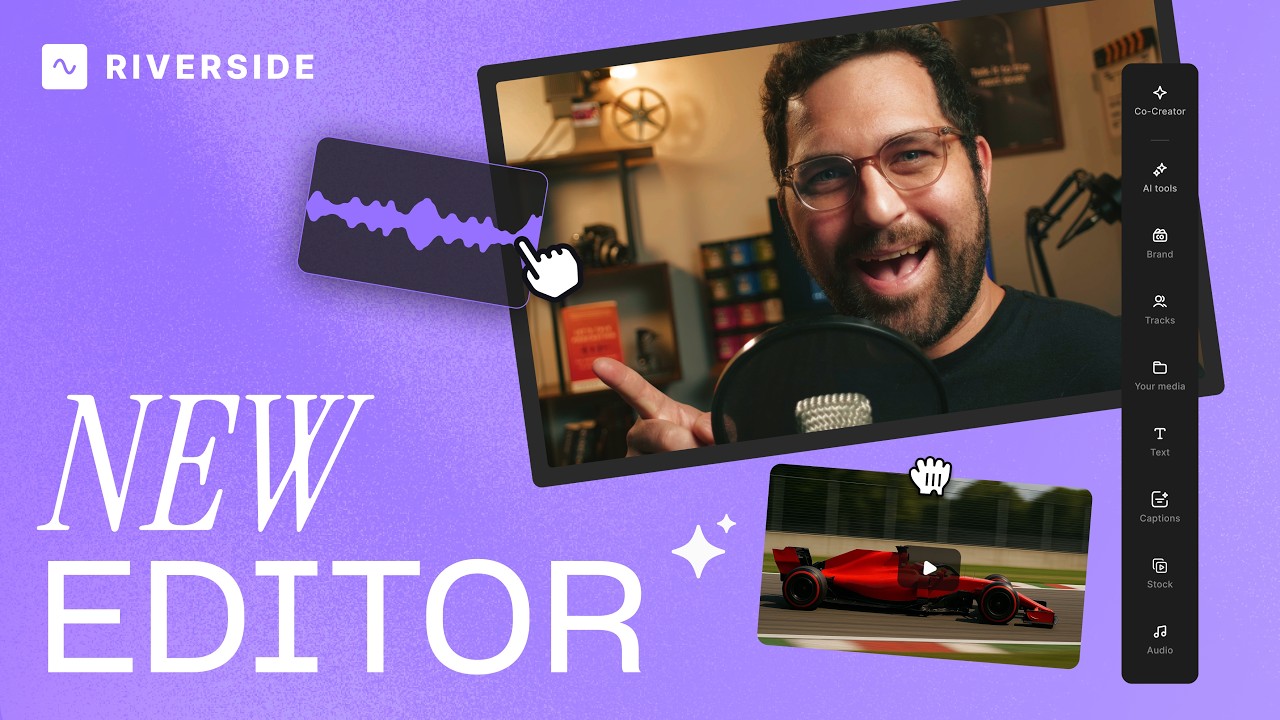
A complete editor tour: transcript and timeline editing, AI tools, layouts, scenes and exporting.
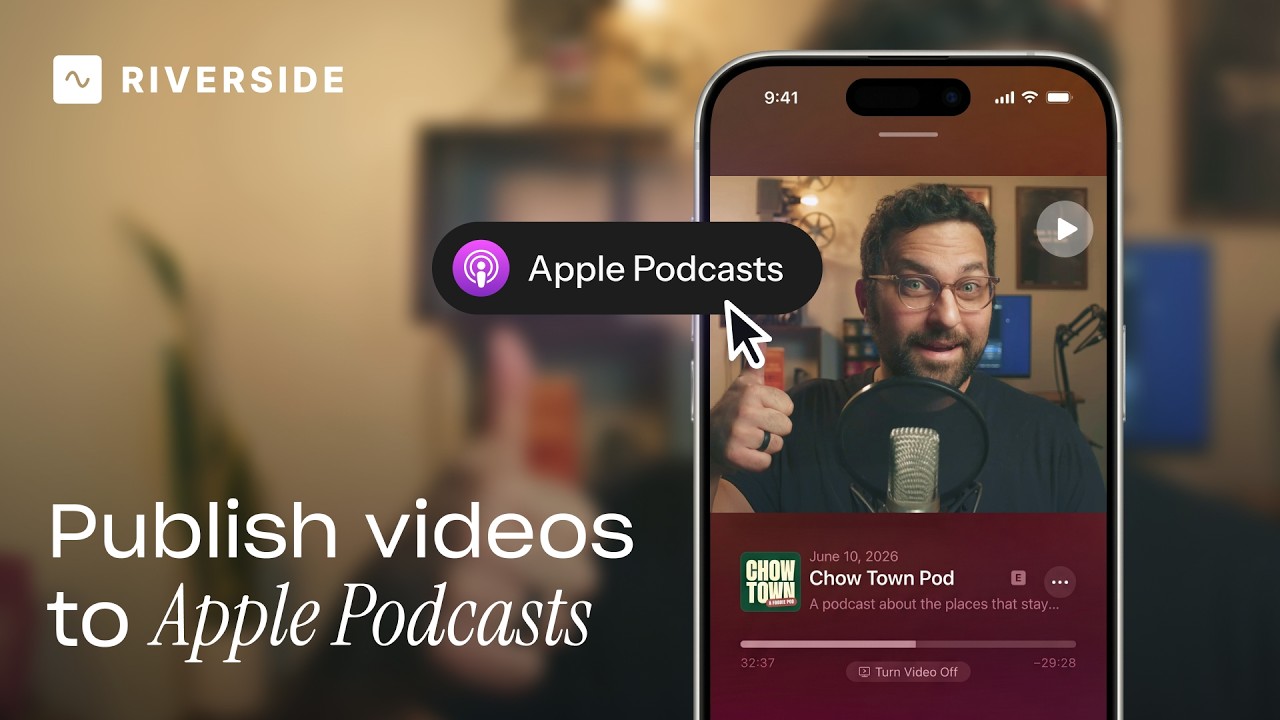
Publish video to Apple Podcasts so your audience can switch between listening and watching easily.
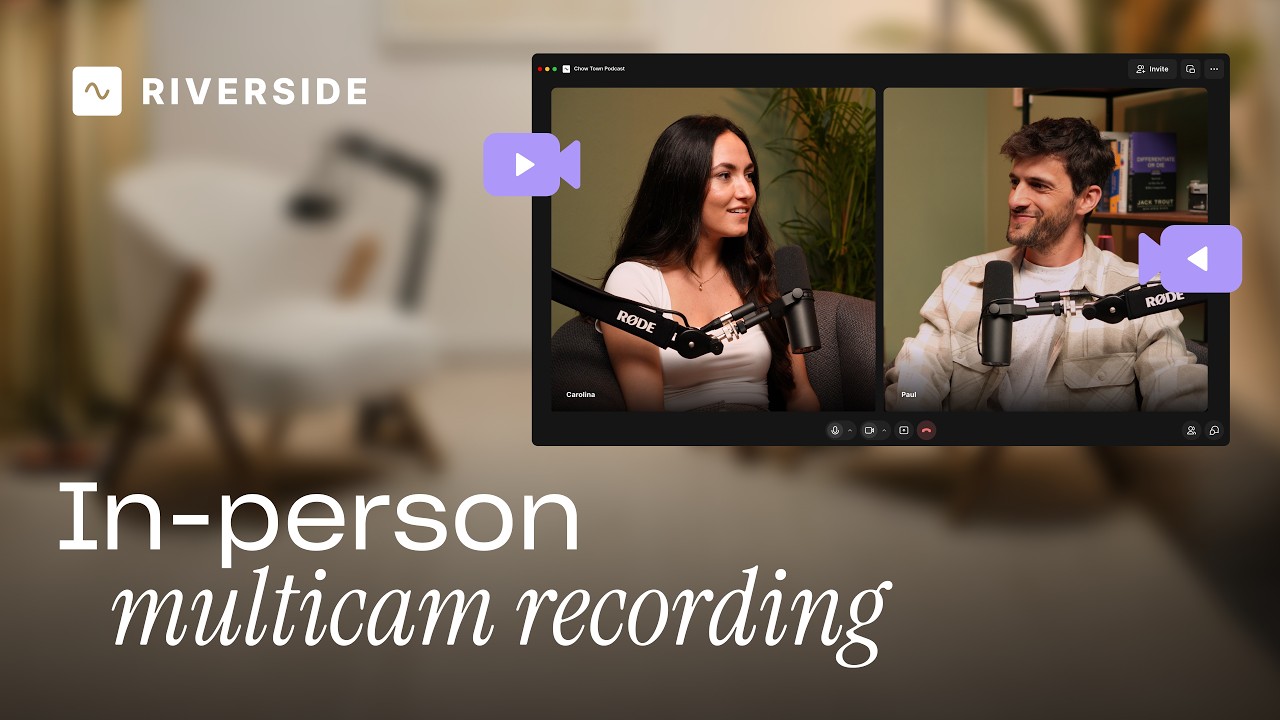
Add multiple in-person guests with their own camera and mic from one computer, as synced tracks.


.avif)
.avif)
.avif)
Got a process that works for you? Get featured by submitting your step-by-step flow. Help other creators save time, learn new tricks and improve their productions.


.avif)