Plan recordings, streams & posts in Riverside's content planner
One calendar for scheduling recording sessions, live streams, webinars, episodes and social posts.

One calendar for scheduling recording sessions, live streams, webinars, episodes and social posts.
Riverside's Content Planner gives you a single calendar for everything you create and publish, instead of scattering it across separate tools.
The video covers:
00:00 Wouldn't it be nice to have all of your planning, scheduling, and publishing for your content all in one place? Well, let me introduce you to your new content planner. This is your single calendar for everything you need to create and publish. Everything from webinars, to recordings, to podcast episodes, to livestreams, and even social media posts. So let's dive in and see how it works.
00:20 When you log on the Riverside, we'll see that we now have this Planner tab. And this will give you not only a quick overview of your calendar, but an easy way to schedule any content you want to create. And it all lives in one place without feeling cluttered, and you're able to centralize your entire content strategy.
00:37 So how do we create an event? Well, we can hover over whatever day we want to schedule on and select the plus icon. Now we can choose what type of item we want to add. For example, we can add a session, which will be your standard recording session, or optionally a livestream if you're on the live plan or up.
00:56 If you have a webinar planner higher, you can schedule a webinar, you can schedule your podcast episodes to publish if you use Riverside hosting on any paid plan, or you can create a social media post on any connected platform. And if you have a live plan or up, you can schedule those posts to publish later automatically.
01:14 Now let's see how it looks when we schedule an event. We'll create a session in this example, and it'll open up a side panel where we can then add a session name or title, specify the time and date if it needs changed, add a description, invite people to be on the session through email, and again, if you're on the live plan, you can add livestream destinations here, and then you can hit create session.
01:36 And the event will now appear on your calendar. And when you have an event of any sort created, you can select it and edit it at any time before the event starts. The last thing I want to show is the social posting option. At the time of recording this, YouTube is the only supported platform, but there are more platforms coming soon.
01:55 But what this option allows you to do is to schedule a post to a specific platform directly from Riverside. So if we select this option, we'll be presented with the platform we want to post and which account we're posting it under. In this instance, because we're posting it to YouTube, we can upload a video with a title and description directly to YouTube.
02:14 Now this option to publish posts anywhere is free, but you can also add the ability to schedule those posts with the right plan. The content planner is your one-stop shop for everything you need to organize and schedule your content. Try it out and let us know what features you'd like to see in the future. Thank you so much for watching.
More videos you might like
A full product tour: studio and recording, AI assets, editing, then hosting, newsletters and social.
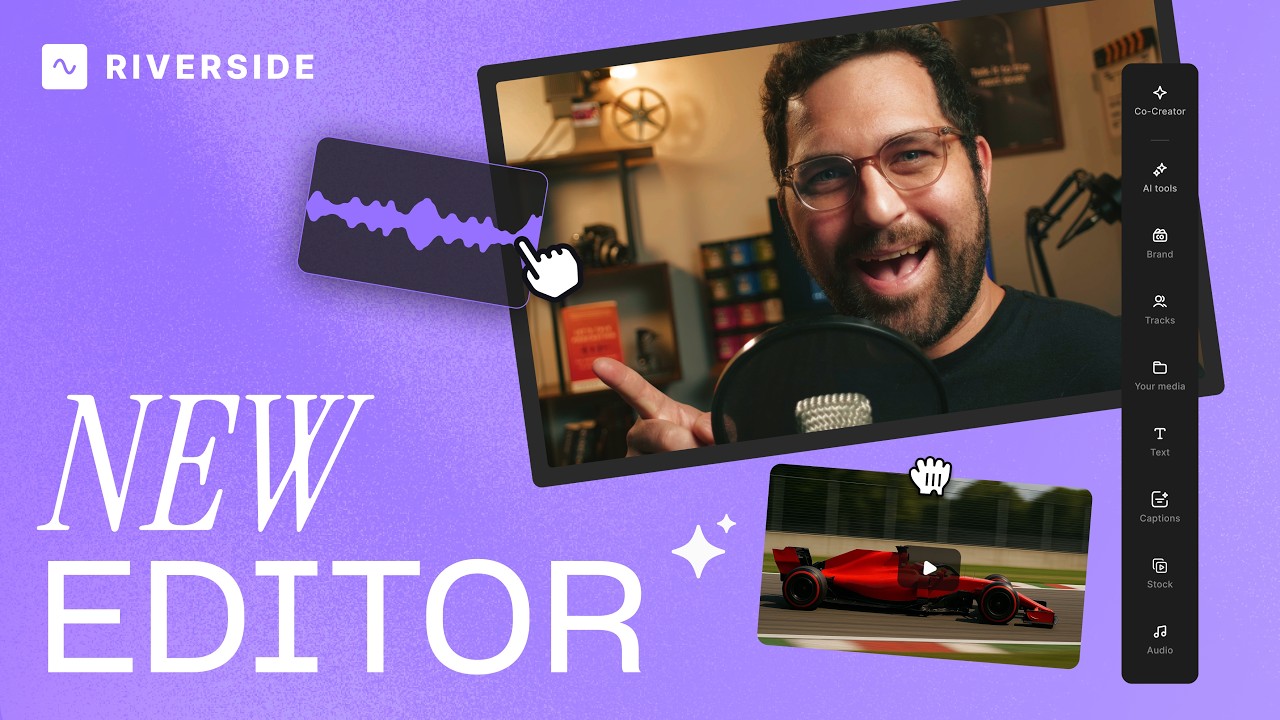
A complete editor tour: transcript and timeline editing, AI tools, layouts, scenes and exporting.
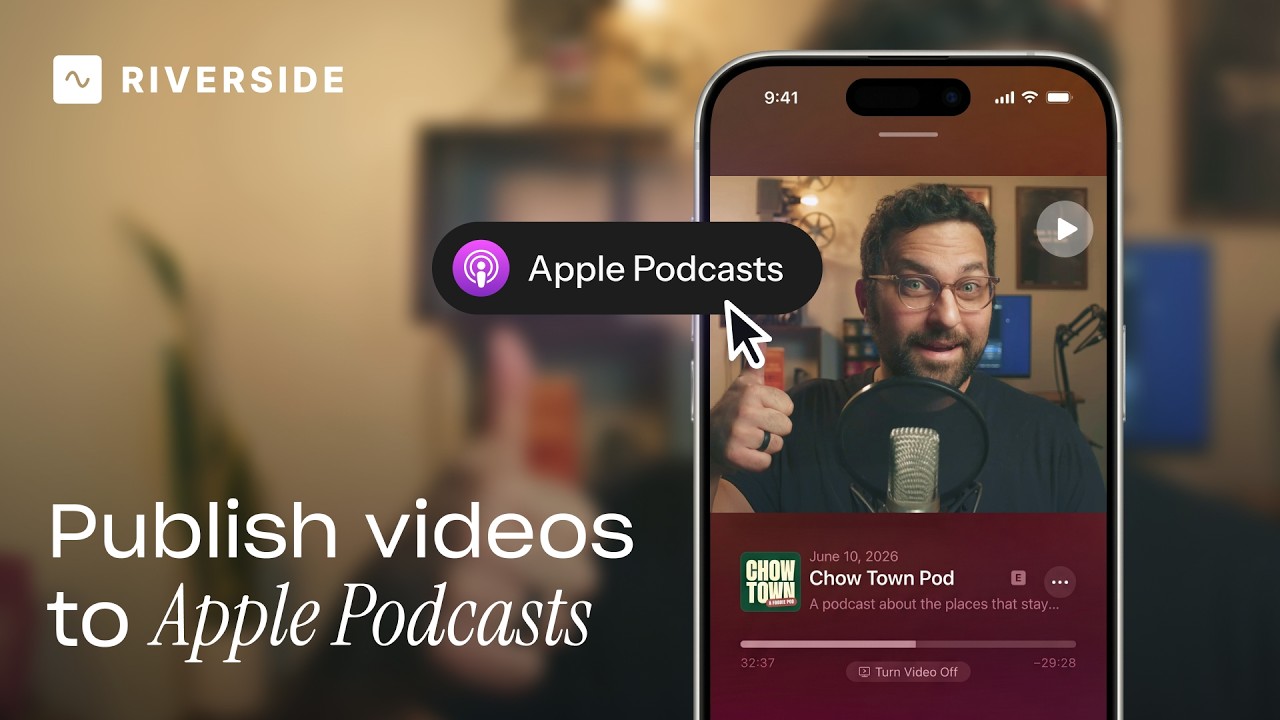
Publish video to Apple Podcasts so your audience can switch between listening and watching easily.
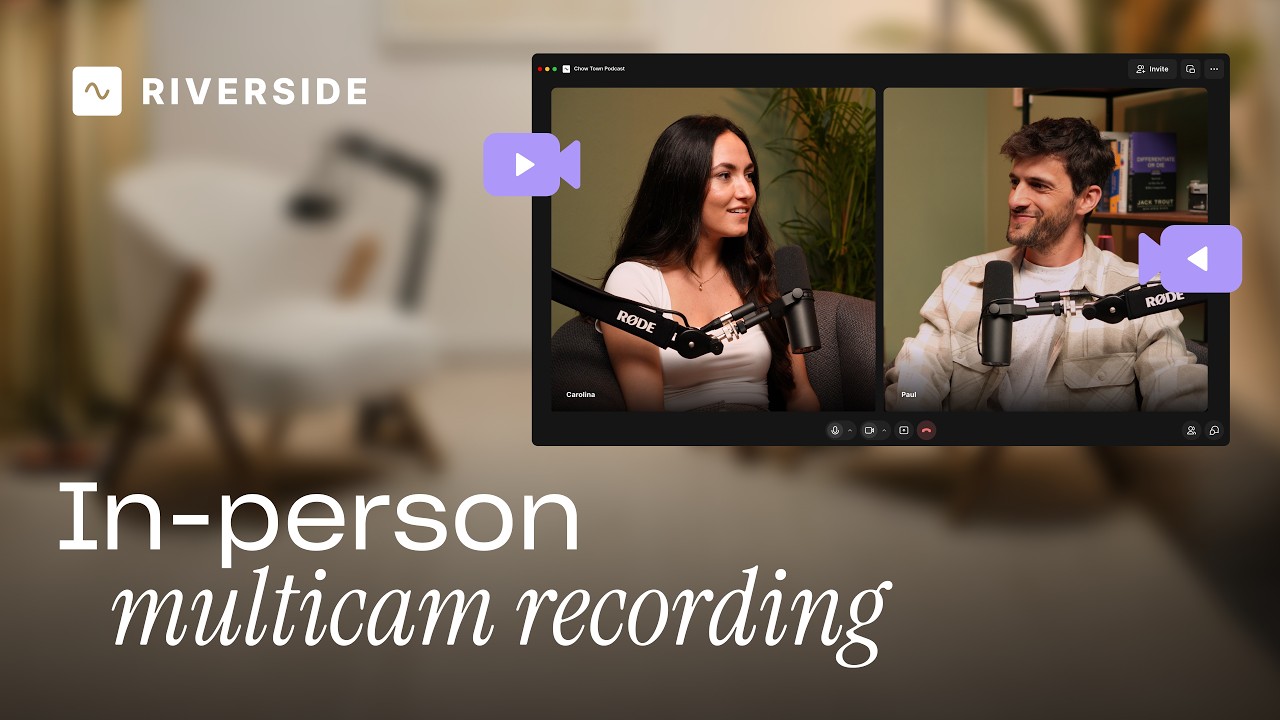
Add multiple in-person guests with their own camera and mic from one computer, as synced tracks.


.avif)
.avif)
.avif)
Got a process that works for you? Get featured by submitting your step-by-step flow. Help other creators save time, learn new tricks and improve their productions.


.avif)