Riverside
Platform
Products
  • Recording
    4K video and audio recorder.
  • Editing
    AI, text-based video editor.
  • Live Streaming
    For livestreams in full HD.
  • Webinars
    Host, record, and repurpose.
  • Hosting
    Podcast publishing and analytics.
  • Newsletters
    Create and send newsletters.
Features
Agents
Magic Clips
AI Twin
Transcribing
Captions
Magic Audio
AI Show Notes
AI Translation
Social Scheduling
Video Enhancement
AI Tools
All AI Tools
Arrow Icon
Apps
Mac App
Mobile Apps
MCP
Meet the Agents
Solutions
Use cases
Podcasts
Video testimonials
Webinars
Video marketing
In-person Recording
Learning & Development
Async Recording
Virtual conferences
Internal communications
Tutorial videos
For
Podcasters
Producers
Marketers
Industries
Tech
Finance
Resources
Learn
Riverside University
Blog
What’s New
Free tools
Webinars
Masterclass
Community
Case studies
Creators Newsletter
Community hub
Recorded on Riverside
Support
Help Center
Contact support
Laptop
Blog
University
For BusinessPricing
English
Site language
English
Deutsch
English
English
Deutsch
Contact SalesLoginStart for Free
Get started
RIVERSIDE UNIVERSITY
LEARN FROM RIVERSIDE
Getting started
Courses
Studio set-up & equipment
Editor certification
Explore videos
By use case
Podcasts
Live streams
Webinars
Social media & marketing
Tutorials & demos
Interviews
Customer testimonials
Meetings & client calls
By topic
Set-up & equipment
Recording
Live streaming
Editing & repurposing
Promotion & growth
Hosting & publishing
Mobile & Mac app
All videos
LEARN FROM THE COMMUNITY
Community workflows
Submit a flow
DISCOVER
Product updates
Events
Case studies
LEARN FROM RIVERSIDE
Help Center
Blog
Get Started
University
Videos
Crop and reframe your video

Crop and reframe your video

Crop and zoom to reframe any guest after recording, so every face sits centered and evenly sized.

Published on December 7, 2024

Share

Try Riverside
for Free

Get Started
Record video Try Riverside for Free
Summary
Transcript

Riverside's crop and zoom tool solves the problem of a guest sitting off to one side of their frame, fixed after the recording is already finished.

The video covers:

  • Clicking any participant's video to reveal the new tools above it
  • Making a track full screen or hiding it entirely within a scene
  • Zooming with a slider or the plus and minus buttons
  • Dragging within the frame to center each person's face precisely
  • Branding tools for spacing, rounded corners and built-in backgrounds
  • Reordering participants by dragging them in the tracks tool

00:00 Have you ever had a big guest and their face was way off to the side in their camera shot, but you've already finished recording and now you don't know what to do. Well, the Riverside editor now has a new tool where you can crop and zoom in on either your video, your remote guests to make sure everyone is framed just right. Here's how to use our new crop and zoom tool in Riverside. In my Riverside account, let's jump to a previous recording with multiple guests and we can quickly jump into the editor by clicking the edit button here.

00:23 Now here we have a side by side shot, but let's say I wanted to zoom in to make their heads and faces even size. I can click on one of the guests here and you'll see new tools appear above their video. You could choose to put this video track full screen, hide it entirely in this scene or use our new crop tool. Clicking crop. You can now zoom in on any of the guests.

00:42 You can fit the full video in the frame if you want to show the full 16 by nine or drag the slider or click the plus and minus buttons to zoom in. And once you've zoomed in, you can now click and drag around here in the frame to perfectly center each person's face. Click done. And now you've reframed the video. I just noticed I'm leaning a little bit to the left.

00:59 So I'm going to go back into the crop tool, drag it over and now I've recentered myself. I can do the same for the other guests. Clicking the crop tool, zoom in and drag his face to be centered. When you're ready, click done. And now you have multiple guests perfectly framed. Don't forget all the other branding tools we have available to you.

01:16 Going over to the brand, we can actually add spacing between the video round the corners and then choose one of the backgrounds built into the Riverside editor. If you'd like to change the order that people appear, just click and drag them here in the tracks tool and that will swap their position. Add animated captions with just a click. And you can even decide what kind of animation for the active word. I like the boxed look. We'll go to a darker color there.

01:38 And now we have animated captions added to this edit. And don't forget, we have our image overlay tool where you can add royalty free images. Our text overlay tool, great for names, websites or lower thirds. And you can of course upload your own content, including image overlays, insert video clips and just edit your content by selecting text here in the transcript, which you get every time you record with Riverside, click delete and you've edited your video. When you're ready to export, click the export tool in the top right, export it up to 4k resolution and you're ready to download and share wherever you'd like. And that's our new crop and zoom tool in the Riverside editor.

02:11 If you have any questions, leave comments below this video. I answer those personally. And don't forget to subscribe to the channel because we have lots of new features coming soon. And if you didn't know, you can live stream with Riverside to multiple destinations and even see all of the messages from various social platforms in your Riverside studio.

02:27 If you want to learn more about our live streaming tools, check out this video right up here. If you haven't hit that like button, be sure to do that. And if you want to learn about using your mobile device, like an iPhone 16 or 16 pro as a podcast studio, wherever you go, both beginner, intermediate and advanced setups, check out this video right up here. Thanks for watching. We'll catch you next time.

More videos you might like
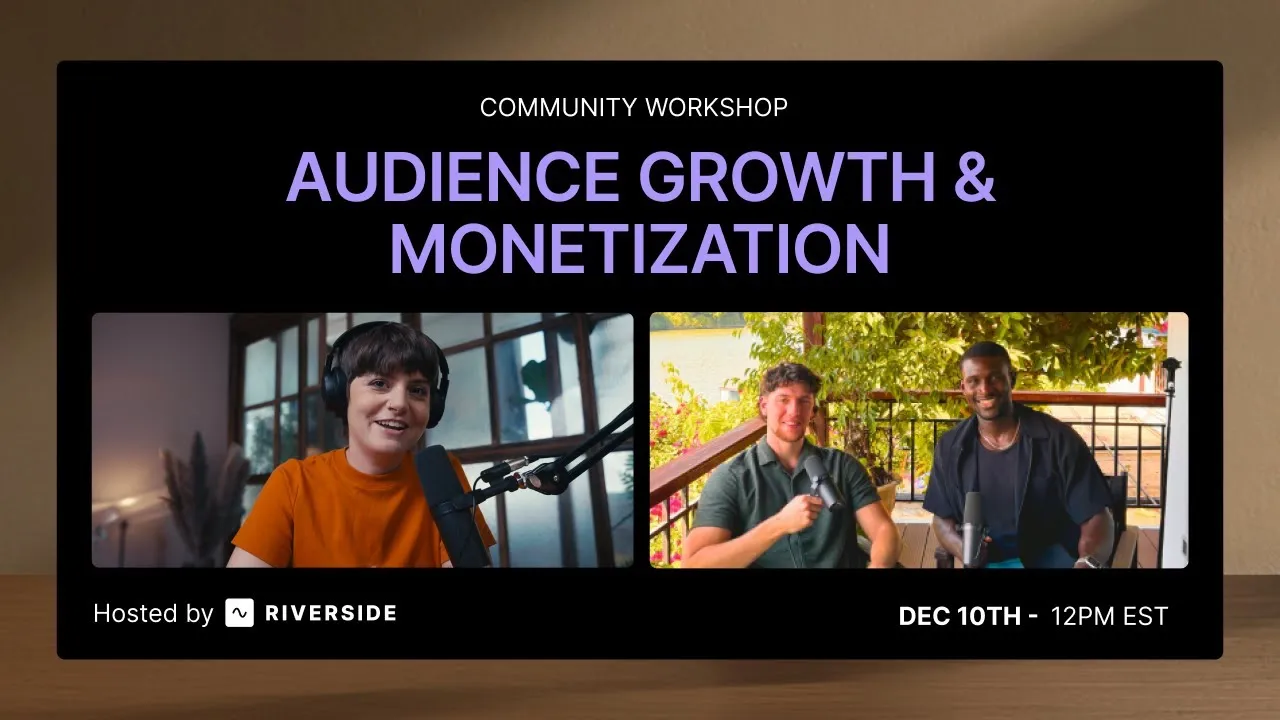
Live workshop: Audience growth and monetization
3 MIN
Podcasting
Promotion & growth
Live workshop: Audience growth and monetization

Grow your audience with podcast SEO, a unique selling point and branding that turns searchers into listeners.
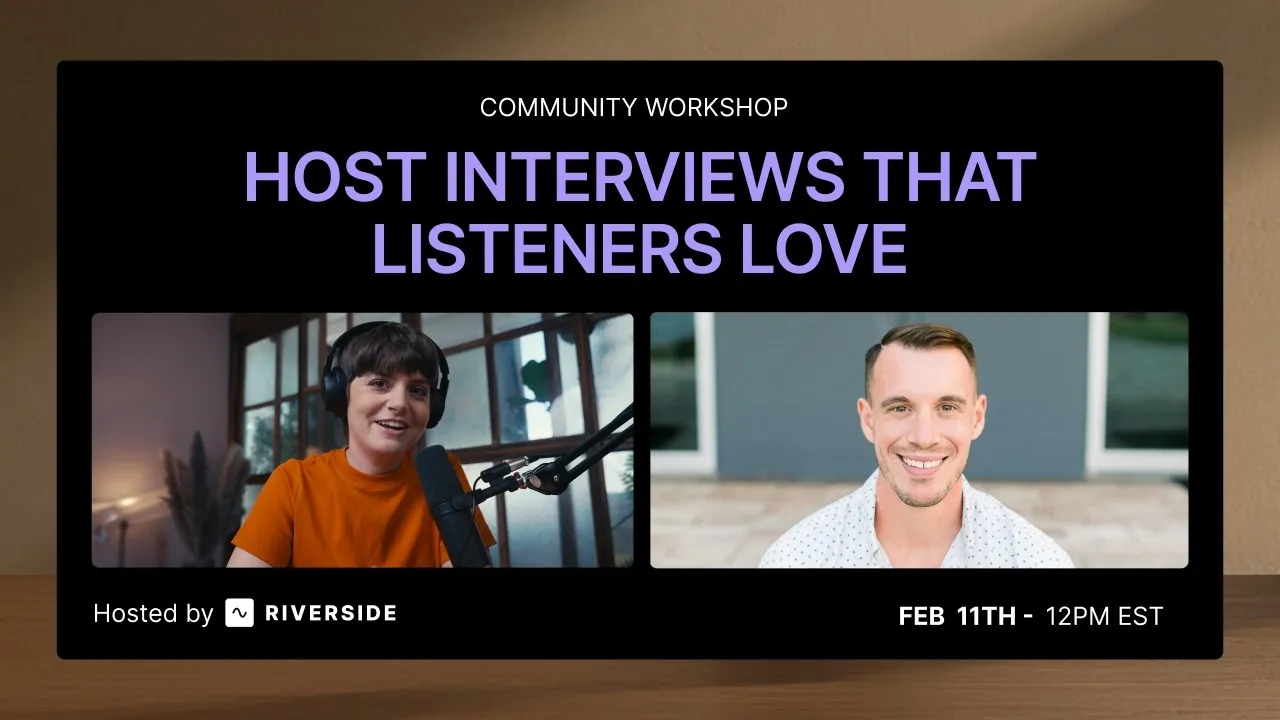
Live workshop: Host interviews that listeners love
3 MIN
Podcasting
Interviews
Recording
Editing & repurposing
Live workshop: Host interviews that listeners love

Tips from PodMatch on planning and hosting podcast interviews that keep listeners hooked until the end.
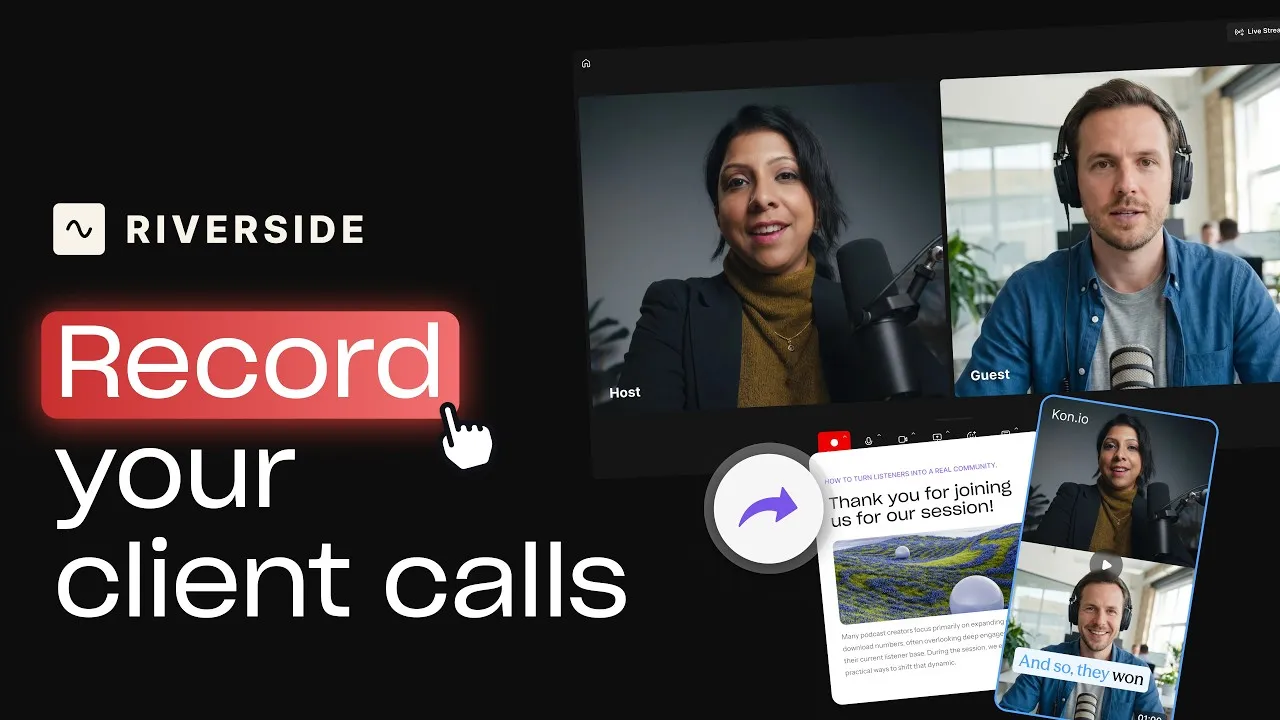
Record and repurpose client calls on Riverside
3 MIN
Meetings & client calls
Recording
Editing & repurposing
Record and repurpose client calls on Riverside

Record calls in Riverside, then use the transcript to create follow-ups, highlights, and insights.
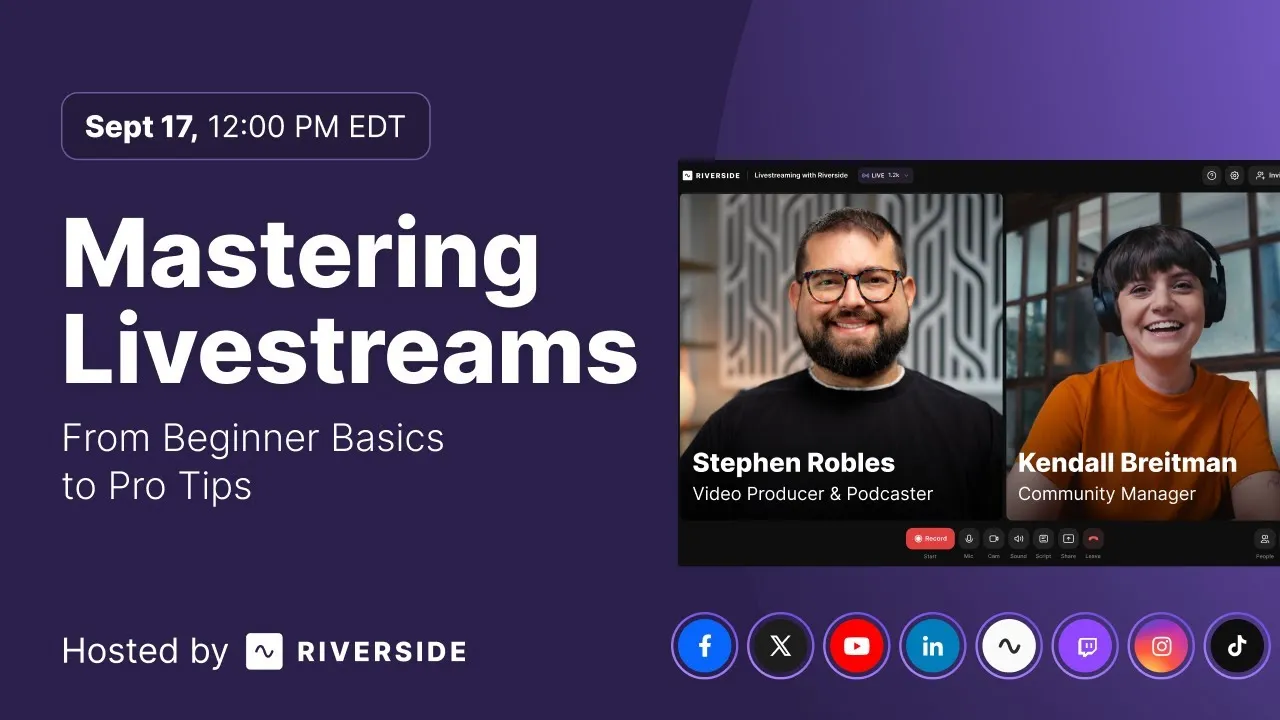
Live workshop: Mastering livestreams from beginner basics to pro tips
3 MIN
Live Streams
Live streaming
Live workshop: Mastering livestreams from beginner basics to pro tips

Learn how to plan, set up, repurpose, and keep livestreams engaging.
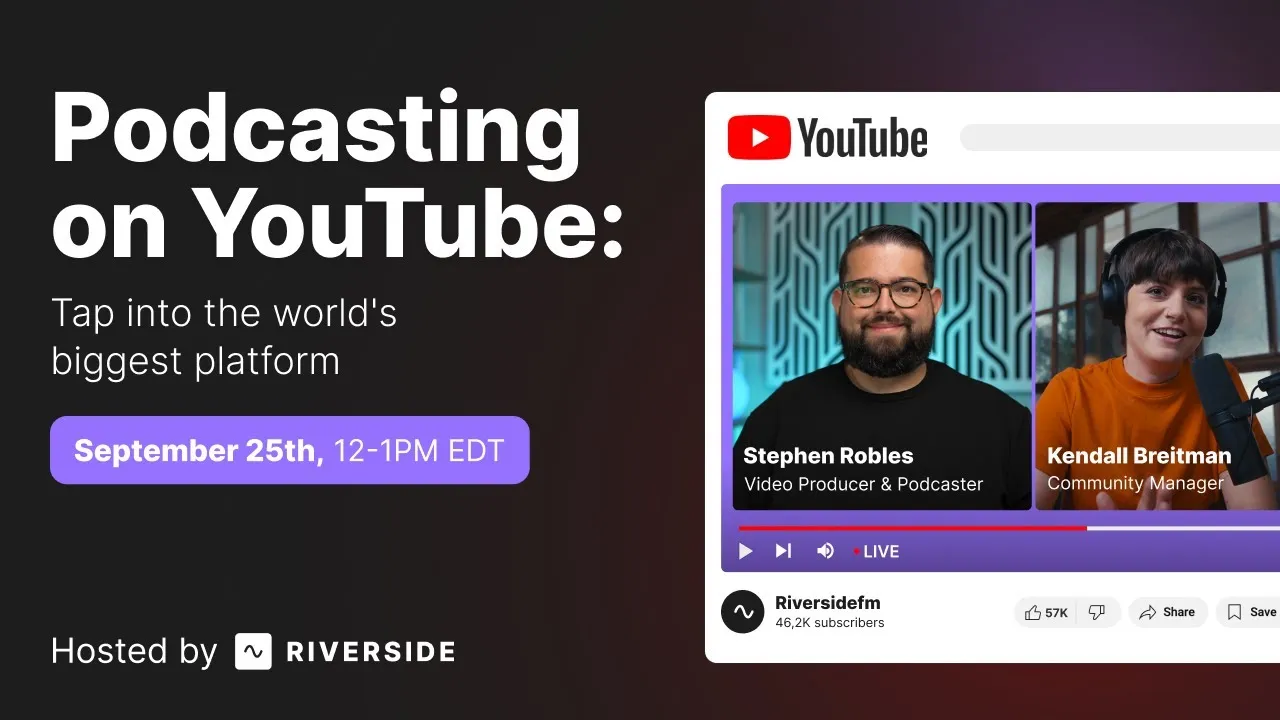
Live workshop: Podcasting on Youtube
3 MIN
Podcasting
Live streaming
Promotion & growth
Hosting & publishing
Live workshop: Podcasting on Youtube

A practical guide on how podcasters can leverage YouTube to grow.

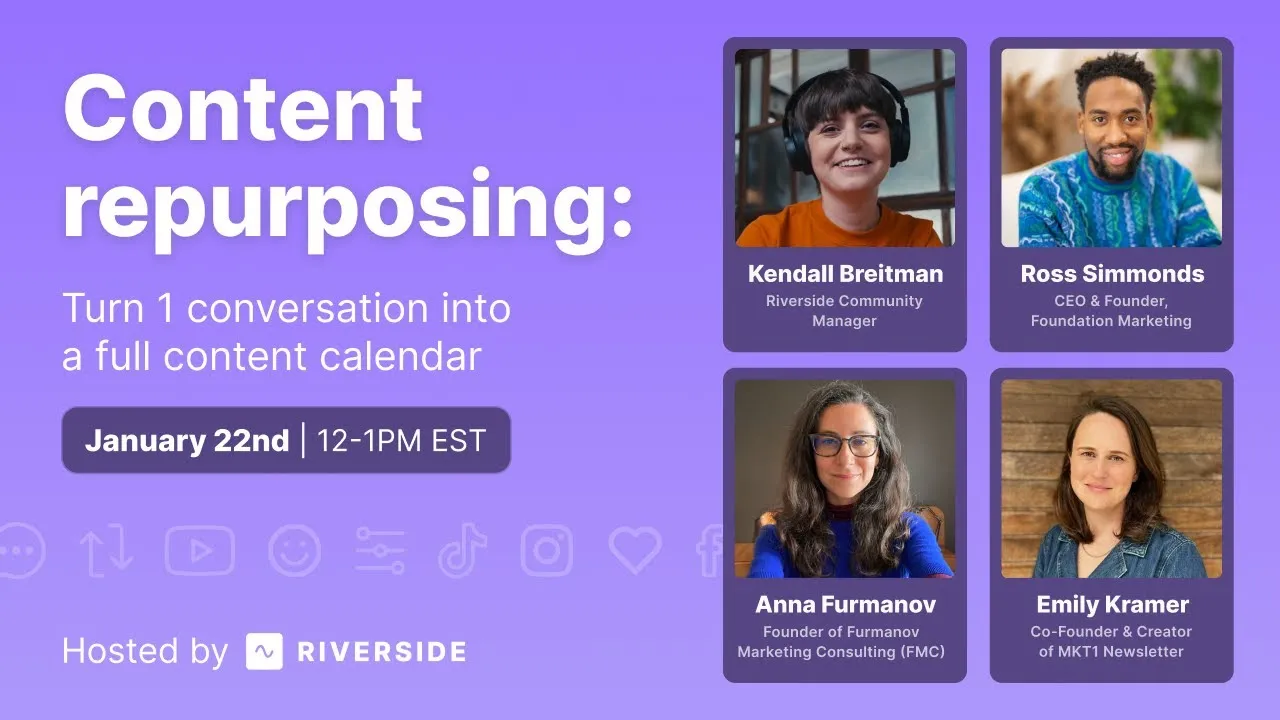
Live workshop: Turn one conversation into a full content calendar
3 MIN
Webinars
Podcasting
Live Streams
Tutorials & demos
Social media & marketing
Editing & repurposing
Live workshop: Turn one conversation into a full content calendar

A panel of marketers shares how they repurpose their content.

Ready to create? We think so too.

Got a process that works for you? Get featured by submitting your step-by-step flow. Help other creators save time, learn new tricks and improve their productions.

Start for Free
Riverside

Company

About usBlogCareersPartnersAffiliate ProgramCreator PartnershipsImpressum

Platform

Why RiversidePricingFor BusinessMac AppMobile AppsFAQAppsAppsSupport

Features

RecordingLivestreamEditorHostingMCPAI Co-CreatorMagic clipsTranscriptionsCaptionsMagic AudioAI Show NotesTeleprompterAsync RecordingOverlaysStudio BrandingAI TranslationArrow Icon
All AI Features

Use Cases

Video MarketingTutorial VideosVirtual EventsPodcastsLearning & DevelopmentInternal CommunicationsWebinarsCustomer TestimonialsVirtual ConferencesLive ShowSplit-Screen Video

Tools

Podcast MakerPodcast RecorderLive PodcastYouTube Video MakerScreen RecorderVideo CompressorWAV to MP3Podcast Name GeneratorYouTube Name GeneratorMic TestWebcam TestYouTube Transcript GeneratorTop Podcast ChartsFree Podcast Music
All Tools

Solutions

PodcastersProducersMarketers

Resources

Riverside UniversityWhat's NewRecorded on RiversideHelp CenterCase StudiesPartnersBlogCreators NewsletterMasterclassCommunity HubVideo Editing Glossary
Download on the App Store IconGet it on Google PlayAICPA SOC certification
Podcast icon

Podcast guides

How to Start a Podcast in 2026: The Complete 10-Step Guide
How to Start a Podcast on YouTube: 6 Steps [2026]
How to Record a Podcast Remotely: 4 Methods Compared
Video Podcast Software: Top Tools to Record, Edit & Publish
Download on the App Store IconGet it on Google PlayAICPA SOC certification
Facebook iconYoutube iconX (twitter) iconLinkedin iconInstagram iconTiktok

© 2024 RiversideFM, Inc.

English
English
Deutsch
TermsPrivacyCookies
Facebook iconYoutube iconX (twitter) iconLinkedin iconInstagram iconTiktok