How to create a podcast with Riverside
A full guide to launch your podcast: planning, gear, recording, editing, hosting and publishing.

A full guide to launch your podcast: planning, gear, recording, editing, hosting and publishing.
A complete guide to launching a podcast. It walks through every step from concept to distribution.
The video covers:
00:00 Did you know if you start a podcast today, you could quickly outperform over 95% of shows? You might think that's impossible, but with a little effort and planning, you can do exactly that. Even though there's over 4 million podcasts listed in Apple Podcasts and other apps, only 500,000 of them are active. And research shows over 90% of podcasts don't make it past three episodes, and of the 10% that do, 90% of those don't make it past episode 20.
00:23 So in this video, I'm gonna reveal the proven strategies to help you launch your podcast, get your episode recorded, how to edit that show quickly and easily, distribute it everywhere for maximum reach, and whether you have a few episodes under your belt or you're a beginning podcaster looking to start, this is the ultimate guide for creating a successful show.
00:40 We'll help you get started with a microphone and headphones, where to record your show, free software to edit it, and how to distribute it to Spotify, Apple Podcasts, create compelling artwork and more. And let's get started with number one, choosing your niche.
00:51 Rather than seeking after trending topics or popular categories that you think will grow a large audience, you need to decide on something that you are passionate about and have experience or expertise in. That's really the only way to go the distance.
01:03 I've been podcasting for over 15 years and still do a weekly podcast about technology. The only way I could have done it for so long is because it's a topic I'm passionate about, have experience in, and wanna share that knowledge with others. So think about that Venn diagram of passion and expertise, and that's what you need to podcast about.
01:20 Once you decide on that, it's time to get a microphone to start recording. Getting an inexpensive USB microphone is gonna go a long way to helping you sound great. This is a USB mic, so you can connect it directly to your computer or even your iPhone and Android device, and it has a headphone jack. We'll talk about that in a moment.
01:35 This is the Samsung Q2U, it's about 80 bucks. It actually sounds incredible for the price. Lots of big podcasters still use it, and this can be your choice for years to come. If you want an upgrade pick, the Shure MV7 Plus is a great option. This one has USB-C, so it's a little more compatible with all your cables, still has the headphone jack and plugs directly into your computer or mobile device.
01:55 It is a step up in both quality and price coming in at about $300, but this one could take you the rest of your podcast and career. You'll see lots of big shows using the MV7 Plus on YouTube and elsewhere. I still use it when I travel.
02:08 And if you wanna step up to audio interfaces and XLR microphones, there's lots of great options out there. Like I would recommend the Shure SM7DB, which has a built-in preamp, and the Earthworks Ethos. That's actually the microphone I use to podcast with every week.
02:20 Now, if you wanna learn more about those Pro Mics, audio interfaces, and more, I'll link one of our videos on that right up here. You can scan the QR code, or it'll be linked down in the video description. Once you get your USB mic, just connect it to your computer or mobile device with a single cable, and you're ready to record.
02:34 Now you have to decide, are you gonna record in-person with someone else or remotely? Recording in-person can be great for chemistry, being able to play off one another, but it can actually be difficult to edit that audio because there'll be noise bleed between the microphones and sometimes getting the schedules to line up or just being in the same town as someone you wanna record with can be difficult.
02:52 Instead, you can record remotely. That's what I do every week with my co-host. He's in Michigan, I'm in Florida, and we use Riverside to record. When you record with Riverside, you get high-quality recordings for both you and the person you're recording with. You can download those individual files, or you can just edit them in Riverside, which is even easier. I'll show you that in a moment.
03:10 Consider the format of your show and which method will help you be more consistent. The biggest and fastest growing podcast typically publish once a week. If you can't do that or it feels like you might burn out or just don't have the bandwidth, aim for every other week or even once a month. Whatever your schedule is, decide on that consistent publishing time and then make sure you can hit it.
03:29 Now, whether you're recording in-person or remotely, it is important to use headphones for a couple of reasons. One, wearing headphones allows you to hear your own voice in the microphone. It can take a while to get used to. A lot of times people don't like hearing their own voice. I actually did an entire video about why you don't like hearing your own voice. You can watch it above and learn how to get past that.
03:47 But if you're recording with remote guests, it's important to hear their voice in your headphones and not through computer speakers because then their voice will be picked up in your microphone. You don't want that. Or you can get a pair like mine. These are in-ear headphones. They wrap around the back of the ear.
04:00 And if you're gonna be adding video to your podcast, which we recommend you do, this way you can publish that on YouTube and Spotify. These are more discreet and you barely see them when you're on camera. And they're about the same price, 100 bucks.
04:10 Step number five, before you record, it's important to outline your episode, plan what you're going to say. One of the pitfalls of podcasting, especially when you're just getting started is rambling, having small talk, or a lot of rabbit trails. But even after 15 years, I still plan every episode of our podcast.
04:25 This here is a Notion document. I plan every episode. Here's the number at the top. And then everything we're gonna talk about in kind of an outline, bulleted format. If there's any listener questions or engagement we wanna call out, I'll put that verbatim here in the note. But a lot of times it's just reminders of what the next topic is. And I'll then load these websites to share my screen.
04:44 This way the video is more engaging. So whether you're doing a solo show with a co-host or an interview, write down your questions or topics, outline it, this way you have a plan of attack and you're not rambling. And that'll help you in the editing process too.
04:56 Next, while you have your USB mic and you're ready to record, where you plan to record is just as important. A lot of rooms, especially if they're equity or reverb-y might not have a great sound for recording. If you have a dedicated space like I do and you can put some sound treatment up, that's great. We'll put some links down in the video description for options like that.
05:13 Or sometimes recording in a bedroom actually sounds the best. There's lots of furniture, soft objects. I actually did a whole video on how you can start a YouTube channel in your bedroom, which works for a podcast too. I'll link that video above and down in the description.
05:25 But whatever your space is, try to fill it with soft objects, maybe some pillows, choose a room in your home that has a carpet or rug. All of that helps reduce the echo and help you sound better in your podcast. But if you can't prepare a space at all, there's actually great AI tools that can help you remove that echo and even make any microphone sound studio quality. We'll talk about that in a moment.
05:44 All right, you have your microphone, you've chosen the space to record, you've outlined your episode and now you're ready to hit the red button. But where do you do that? What app should you use? Well, Riverside, you can record and edit completely for free, works great for audio and video. And that's where I record my show every week.
05:59 So go to riverside.com, create an account for free. I've logged into my account here and you'll see a big red record button right here. Now you can choose the built-in camera on your computer or laptop. You can also use your mobile phone as a webcam. If you have an iPhone and a Mac, it actually works seamlessly using Continuity Camera. I explain how to use that and set it up in this video up here.
06:18 Then make sure your USB microphone is plugged in with a cable to your computer. Connect your wired headphones to that USB microphone so you can hear yourself and the remote guest. You'll actually see that USB microphone show up here in Riverside with that mic icon. So I'll choose my Shure MV7 Plus, both as the microphone and I'll also choose it as my speaker because I want to hear my remote guest and my own voice through those headphones.
06:41 I'll choose I'm using headphones because I have them connected and then join studio. Now you can invite your co-host or remote guest by clicking this link, sending it to them. They just have to open it in Google Chrome or Microsoft Edge. They'll appear here in the studio with you to record and you're ready to go.
06:55 Hit the big record button down here in the studio and you'll be recording high quality video and audio of both you and the remote guest. And recording with Riverside means any internet blips, freezes, or whatever's going on in the cloud won't affect your recording.
07:09 Your audio and video and your guest or co-host audio and video is recorded in pristine quality and then upload it to your Riverside dashboard so you can download or edit directly in Riverside. Now, once you go through, record your episode, you followed your outline, you have some great content. Let's go and edit our podcast right here.
07:25 Every time you record, it will create a project file here in your Riverside dashboard. You can go into the latest one and then here you can go to create and there's lots of options here. There's some great AI tools like Magic Clips which will create vertical videos of your content instantly.
07:38 You can translate content into other languages or if there was a video clip you wanna use in the editor, you can import that here. But we're just gonna go straight to editing our podcast so we can publish. Now here in Riverside, editing is as easy as editing a Word document. You actually get a transcript right here on the left and I can just select sentences, words, or phrases, click the trash can, and that's it. I've edited my podcast, both video and audio.
08:02 And there's also some great AI tools to speed up the process even more. If I go up to AI tools here, I can remove all silences with a single click and even adjust the pace so typically for a long-form podcast, I like it right there. You can remove filler words, either cut, mute, or let Riverside use smart removal which will cut some and mute others to keep it smooth and not make it a choppy edit.
08:23 And there's a bunch of other tools here but I mentioned Magic Audio before so if there was some echo or room noise or someone used a built-in microphone on their laptop, you can apply Magic Audio to one or all the tracks in the recording and there's even a slider to decide how much Magic Audio to apply and make it sound just right.
08:40 Now, maybe you listen to your edit and you feel like you wanna add an intro to your episode, maybe introducing yourself or the podcast. Little tip here, make sure it's very short. You wanna have people who click play on your podcast, video or audio to hear the content they came for quickly. So don't have long intros and a bunch of small talk before the actual meet of the podcast.
08:59 But if you wanna add an intro, you can actually record it right here. Just click the plus icon at the bidding, just click the plus icon at the beginning of the timeline here in Riverside and you can choose to record. You'll head back into the studio to record an intro, both video and audio. And once you're done recording here, you'll be inserted into your edit automatically, making it seamless to add an intro, outro or record something in the middle.
09:21 Another thing you can add is background music, whether it's intro music, interstitial or to go through a sponsor break or ad read. And there's actually an entire library of royalty-free music right here in Riverside. Just click the music tab on the right. You can upload your own music if you would like, although be careful with copyright, especially if you're uploading to YouTube. But you can also search for different genres and tracks, choose one of the pieces of music you see here in Riverside and you can use all of Riverside's royalty-free.
09:47 And now that music track is added in your podcast. You can move it around, place it wherever you would like and then click the three dots if you wanna add a fade in and fade out and you can also adjust the volume of that background music. You can also add more music tracks throughout your episode, just going back to that music tab right here.
10:05 A little Riverside trick too, if you want the music to start before you're speaking, click the plus icon at the very beginning, choose empty section. And now there's a blank section here where there's no talking. It starts at five seconds, but you can drag this to be longer or shorter. And now you can drag the music track under that empty section. So the first thing listeners will hear is music and then it goes into the full episode recording.
10:29 If you want more pro tips about editing with Riverside, I did a video on some of the advanced techniques you can use here, like applying EQ, editing separate tracks and more. You can watch that video right up here.
10:38 Once you've made your edits, added your music, recorded an intro, you're ready to export. To do that, go to the export menu here in the top right and you can export a video and up to 4K. That's great to upload to your YouTube channel and Spotify for creators. Or you can also jump over to audio and export an MP3, which is perfect for a podcast host.
10:57 I'll click export audio only. And now I can go to the exports and you'll see a bunch of clips here that I've already exported plus my full length episodes. Now, once your exports have done processing, you can download those files to upload to a host in YouTube or you can use Riverside to publish and host directly.
11:13 To do that, go over to the hosting tab you'll see here on the left-hand side and keep in mind, this is on pro plans and higher. And here you can create a new show and you don't even have to download your files and upload them to a host. You can create a new episode, choose a Riverside file to act as your episode.
11:29 Here's that audio version I was exporting right here. You can navigate to specific projects. You can sort. I always try to label my full episodes after I'm done editing as full app. And then I can select that and Riverside will use it to publish this to my RSS and Apple podcasts on Spotify. You don't have to download or re-upload anything. Also, if you choose a video file, Riverside will even deliver that to your YouTube channel automatically.
11:51 If you want to learn all the details about using Riverside hosting, I did a walkthrough on how to set up your show and connect it to Apple, Spotify, and YouTube. You can watch that video right up here. Now, one other piece of media you'll need when you create your podcast in Riverside for hosting is artwork.
12:08 Artwork needs to be a square image and ideally be eye-catching and engaging. You probably guessed it, but yes, I did a whole video on how to make engaging artwork for your podcast with some case studies and some tips and apps to help you create yours. If you want to watch that video, that's up here and down in the description as well.
12:22 Finally, you can connect your podcast to Spotify and Apple podcast and your show will be available across all platforms. And as you're consistent and continue to release episodes, I would encourage you to do video for your show and upload those videos to YouTube. This is the place where we have found the most growth. We also generate those magic clips every week and you'll see they get hundreds to thousands of views and this helps get your podcast in front of even more people and then move over to actually watch or listen to the full episodes once they've seen and love your content here.
12:50 And that's the whole process from start to finish. Now, just repeat that for 10 to 20 episodes and you'll be in the top 5% of podcasts of all time. Now remember, you can record, edit, export, publish, and distribute your podcast all with Riverside. A link to do that is down in the description.
13:05 And once you get a few episodes under your belt, you can actually start monetizing your podcast right away and not just sponsors, there's lots of other methods. I talk about five ways to monetize your show up here no matter what the size. And if you want a longer video getting really into detail about planning your show, outlining artwork, recording, editing, and more, I did an hour long podcast course and it has everything you need to know in one video. I'll link that video right up here.
13:30 Thank you for watching. We can't wait to see the podcasts you create.
More videos you might like

Grow your audience with podcast SEO, a unique selling point and branding that turns searchers into listeners.

Tips from PodMatch on planning and hosting podcast interviews that keep listeners hooked until the end.
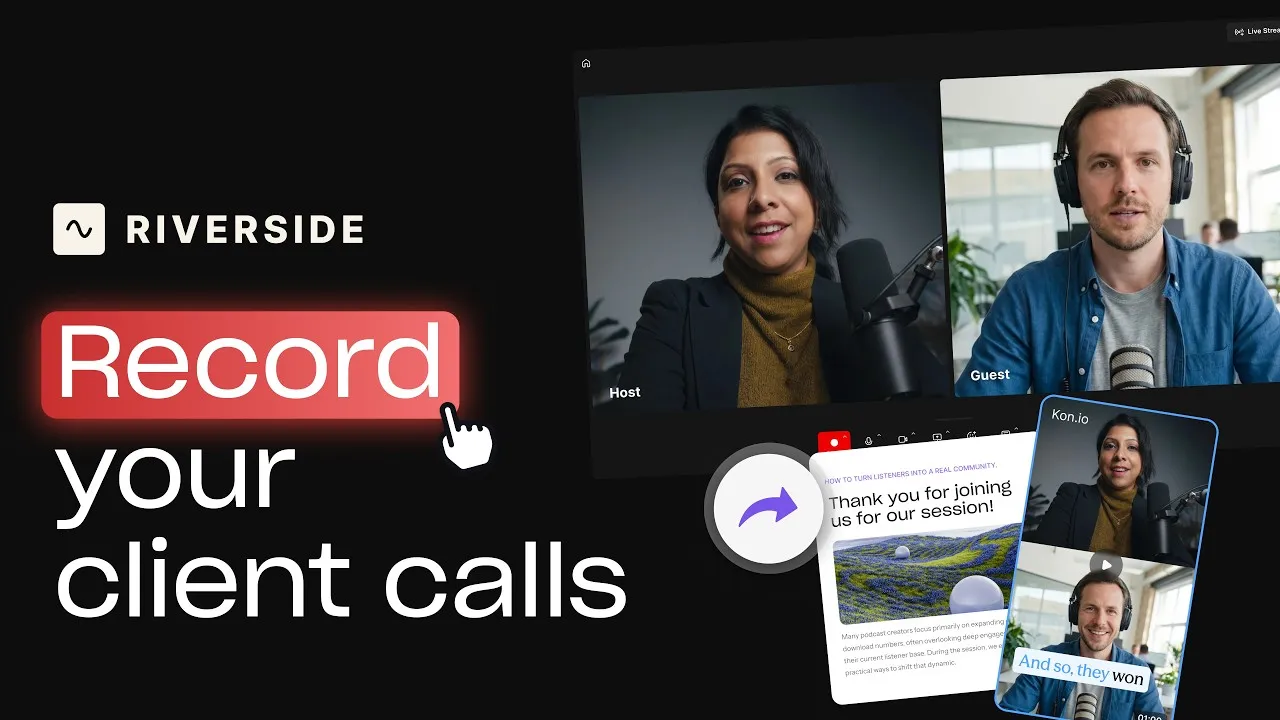
Record calls in Riverside, then use the transcript to create follow-ups, highlights, and insights.
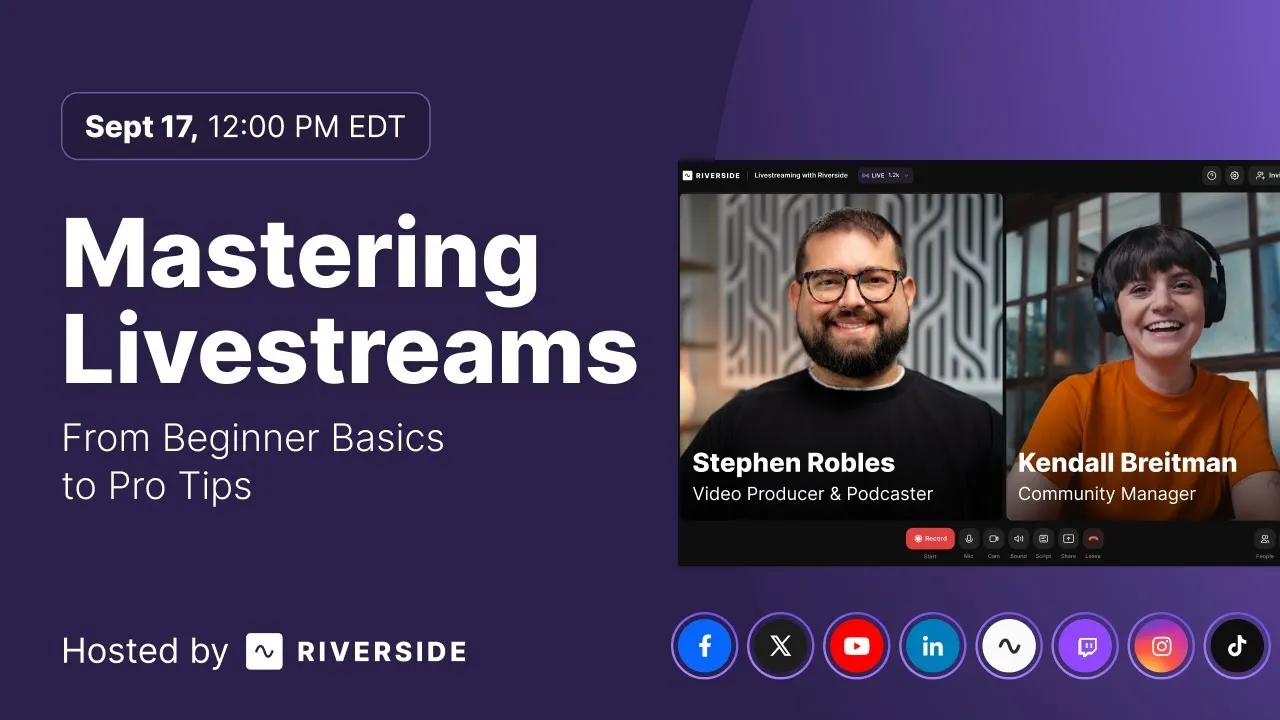
Learn how to plan, set up, repurpose, and keep livestreams engaging.

Got a process that works for you? Get featured by submitting your step-by-step flow. Help other creators save time, learn new tricks and improve their productions.


.avif)




