How to improve video podcast quality with Riverside
Three tips on camera, audio, and remote recording for a more professional-looking video podcast.

Three tips on camera, audio, and remote recording for a more professional-looking video podcast.
A better-looking video podcast comes down to a few simple choices rather than an expensive camera. Three quick tips cover your image, your audio and how you record.
The video covers:
00:00 If you want to improve the quality of your video podcast, buying a more expensive camera probably isn't the best place to start. A professional looking podcast is really the result of a few simple choices. How you set up your camera, how you capture your audio, and how you record the conversation all have a much bigger impact than one piece of gear. So here's three quick tips you can focus on to make your next podcast video recording look and sound better. The first thing you focus on is your image. You can record a great looking podcast with a professional camera, a webcam, or even your phone. The important thing is creating a shot that feels intentional. Start by placing your camera around eye level, just like I have here. This creates a more natural perspective and helps the audience feel like you're speaking directly to them. You also want to think about your framing.
00:45 Leave a little space around yourself, avoid cutting off the top of your head, and keep anything distracting out of the background. Lighting is another major part of the image. You don't necessarily need a large studio light. A window can work really well as long as the light is in front of you instead of directly behind you. Don't take this case for example though. I have lighting to compensate for this. We also have an entire video that breaks down how you can light a video podcast. I'll link that right up here and down below.
01:12 The second thing to focus on is your audio. Video is obviously important, but people still need to be able to comfortably listen to the entire conversation. Even a great discussion can be difficult to follow when the voices are distant, inconsistent, or surrounded by room noise. You don't need the most expensive podcast microphone to capture good audio. What matters most is using a microphone that fits your setup and placing it close enough to capture your voice clearly. I usually keep mine about 6 inches away from my mouth. And if you have a guest or co-host joining remotely, give them a moment to check their microphone. This only takes a few seconds, but it can help you catch problems before they affect the entire episode.
01:48 You're not trying to make every person sound identical. You're just trying to make sure that every voice is clear, balanced, and easy to understand. The final piece is choosing how you record the conversation. This becomes especially important when your guests are joining remotely. For example, my buddy and I record a video podcast every single week, and we record right from our home offices. Everyone might be using a different camera, microphone, and internet connection, so we needed a recording process that can handle all of those differences. And that's where Riverside comes in. Riverside records each participant's audio and video locally on their own device. That means the final recording isn't dependent on how the live call looked or sounded depending on each other's internet. You also receive separate tracks for each participant. This gives you more control over the final video because you can adjust an individual speaker without affecting everyone else. Once the recording
02:35 is finished, you can continue working in Riverside. You can edit the full episode, improve the audio, create social clips, and prepare the content for publishing without moving between several different platforms. But even before you start editing, choosing the right recording process gives you much better material to work with. Now, I know that was a really quick video, but if you want to try recording your video podcast with Riverside, you can use the link in the description to get started. And if you want to learn more about recording, editing, and creating better content with Riverside, I'll link a few more videos for you to watch right up here and in the description down below.
03:06 Be sure to like this video and subscribe for more content just like this. And if you have any questions about video podcasting or setup, feel free to leave them in the comments. I'll be happy to answer them personally. Thank you so much for watching, and we can't wait to see what you create.
More videos you might like

Grow your audience with podcast SEO, a unique selling point and branding that turns searchers into listeners.

Tips from PodMatch on planning and hosting podcast interviews that keep listeners hooked until the end.
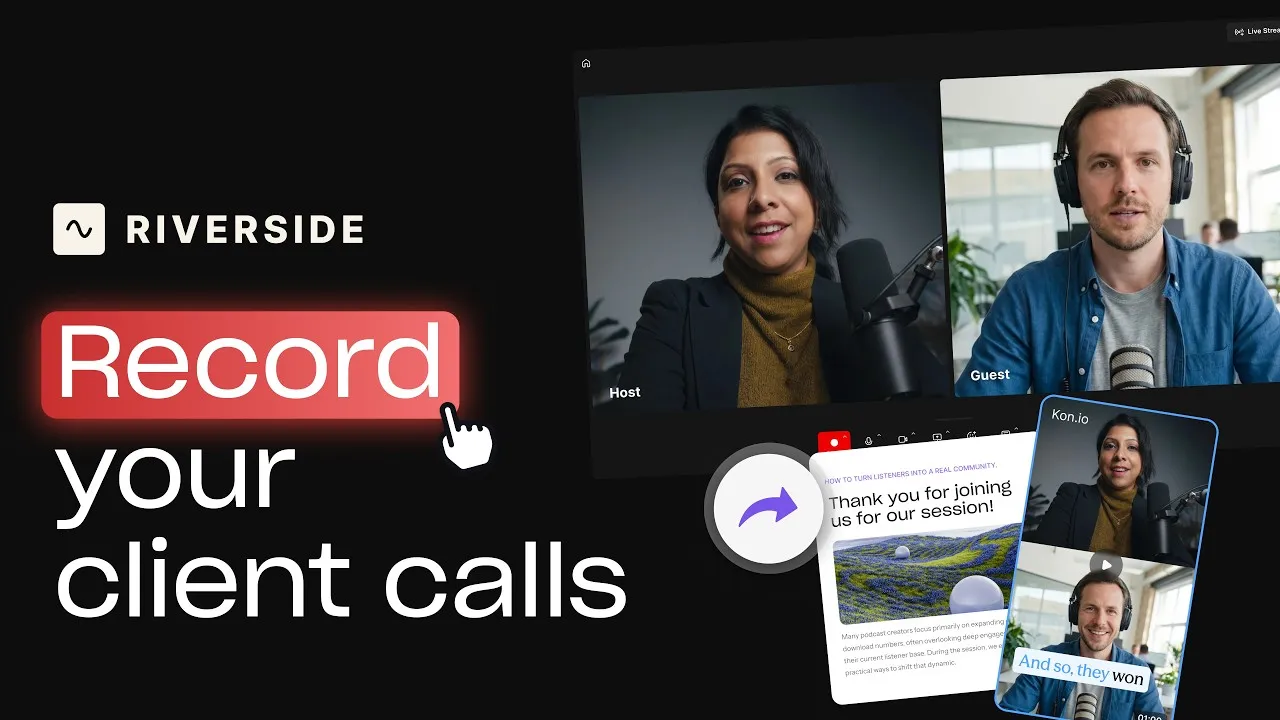
Record calls in Riverside, then use the transcript to create follow-ups, highlights, and insights.
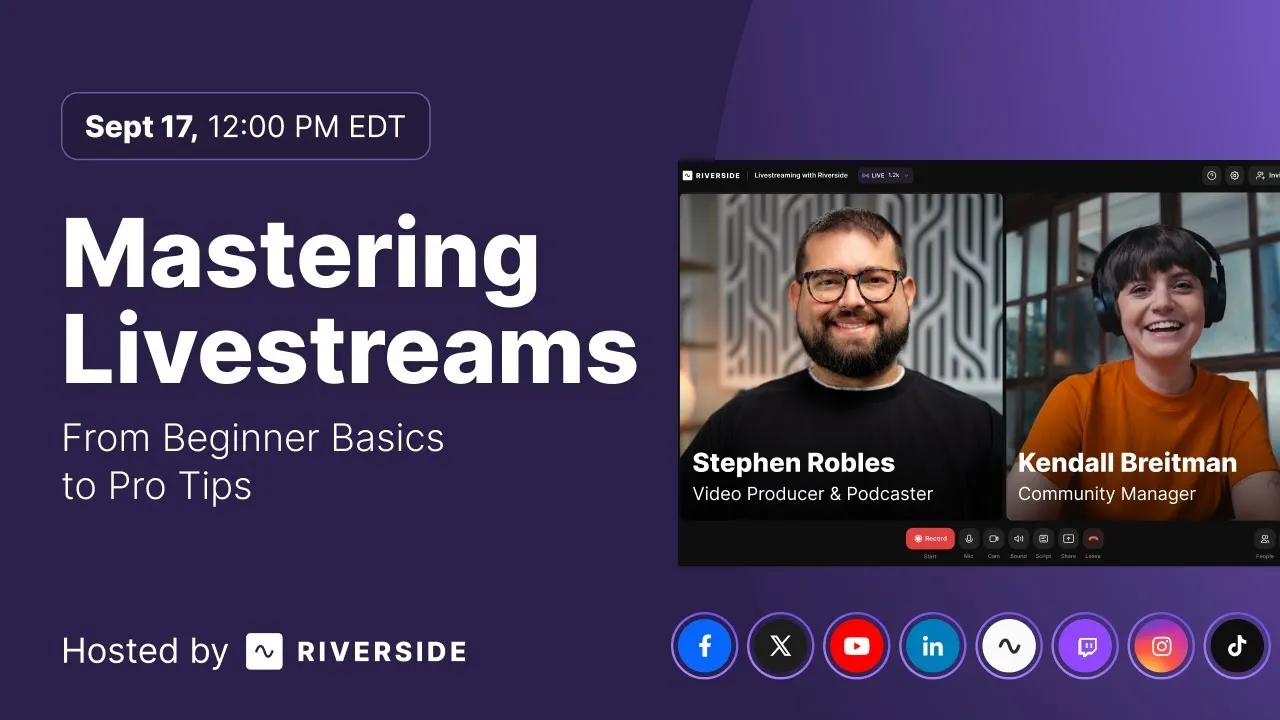
Learn how to plan, set up, repurpose, and keep livestreams engaging.

Got a process that works for you? Get featured by submitting your step-by-step flow. Help other creators save time, learn new tricks and improve their productions.


.avif)




