Create and send newsletters
Create, schedule and send newsletters from any recording, with CSV import and a subscribe page.

Create, schedule and send newsletters from any recording, with CSV import and a subscribe page.
You can now create, schedule and send newsletters directly from Riverside, written from scratch or generated automatically from any recording.
The video covers:
Newsletters are available on the Grow plan and up.
00:00 You can now create, send, and schedule newsletters directly from Riverside. That means that you could either generate one right from your recording or create one from scratch, and it creates a website so that people can subscribe to your newsletter and see all of your previous editions. Newsletters are an incredible way to communicate directly with your audience and create some really incredible conversations. So I'm gonna show you how to set one up now right through Riverside.
00:25 So I'm in my home screen of my studio, and on the left-hand side, you'll now see this newsletter option. So I'll click newsletter. So once you do create new newsletter, you can give your newsletter a title and a description. I have a newsletter through Riverside, so I'm just gonna use that description and that title to create my own. So go over here to create, and then you're on your newsletter dashboard.
00:48 So over here is where you're gonna see your posts and your subscribers. But let's say that I wanna create a new post, a new newsletter edition. If I wanna create my first post, I'm gonna go over here to create post, and then you could either write from scratch or generate from a file. But let's start from generating from a file.
01:04 When you click that, it means that it'll open up this page for you. So you can choose from any of your exports, edits, any of your episodes to generate a newsletter based on that recording. So you don't have to do anything. It's already made for you. Let's say that I want to go over to this recording where I talked about releasing a newsletter, and I'm gonna click exports because that's going to be my full episode that I've edited and created.
01:29 And over here, I'm just gonna press this file over here. Then you see, it just took one second, and now a newsletter is already generated for me based on my recording. I also can go in and massage it out, make it my tone of voice, and add some things in there too. So for example, maybe over here, I wanna add a divider to make it all look very nice and sleek.
01:54 You can see that it already popped out a quote right here and added links, amazing. But let's also say that I wanna add a video or image to my newsletter. Over here, you could see images, but what really is cool over here is that I can add a video. I can just add it directly from Riverside. So over here is an edit that I did. I'll just put that right in. And you can see that it's added right into my newsletter.
02:18 Then whenever I'm ready, you have three options. You could either go over here to schedule and pick the date and time that you'd like to schedule your post to go out. You can also send a test to yourself so that you can see that it looks exactly how you want it to look. And over at publish and send, it's exactly what it sounds like. Publish and send your newsletter.
02:36 If you'd like, you can also write from scratch. So for example, if I press over here to create new post, I can click write from scratch and add anything that I'd like right in there. Or if I have an existing newsletter and I wanna bring in previous editions into my new newsletter page, I can just go right over here and paste all of that in.
02:56 So here's a newsletter that I published. You can see that I published it on June 3rd, how many views it got, your open rate. Plus you can go over here and edit and delete that post any time that you'd like. You also have the subscribers tab and that'll show you how many subscribers and who they actually are.
03:12 But while we're on the topic of subscribers, how will people actually subscribe to your newsletter? So if you have a newsletter already, when you press subscribers, over here you can upload the CSV file and that'll import all of your subscribers into Riverside, which means that when you send out a new post, it'll go straight to their inboxes.
03:31 But let's say that you wanna get new subscribers. That is where it becomes even cooler because Riverside provides to you a website built in when you have a newsletter. So that means that it's a website that has all of your previous posts and a place to subscribe to your newsletter. So let me show you how to set all of that up.
03:51 Over on the left-hand panel, you'll see that we have this website tab. So I'm gonna click there. And from here, I can create my website. There are a few customization options here. So you can add your title and your description, your logo. You could also add social links. So maybe I wanna add my Instagram or my YouTube there. You can have all of your links really in one place.
04:11 You'll see right here that you have pages like newsletter, podcast, and about. If you're just using your website for the newsletter, then you won't see this podcast page. The podcast page is for anyone who hosts with Riverside, which means that you'll have that podcast page that has all of your episodes there. So I highly recommend it if you want that kind of one place for your content to live.
04:29 This is my newsletter website. So you could see that I have our newsletter title right at the top and a description, plus all of my editions will live right here. You can also click into any of them and just be able to read through any of them. And you could see that I styled this how I like. And the most important button on this page is the subscribe button, which you'll find right up here.
04:49 Anyone who wants to subscribe to your newsletter, your content can press that button, fill out their info, and they will get all of your future newsletters sent directly to their inbox. Then you also get a full list of your subscribers. So over here, you'll see the total subscribers that I have. And when you click subscribers over here, you'll see their email addresses and information.
05:07 You could even export all of those email addresses by just going to the top under settings and doing export subscribers. So that's how you create, send, and schedule newsletters all through Riverside. Plus, that's how you get that built-in website that lets people see all of your newsletters in one place and all of your content if you're hosting as well, and be able to, most importantly, subscribe to that content so that they can get those updates from you.
05:30 And if you don't have a newsletter yet, I highly recommend it. It is my favorite way to communicate with people in the community because they subscribe to my newsletter and I'm able to communicate directly with them. I love to hear the feedback, and I love to be able to have conversations with them. So really, highly recommend having a newsletter if you don't already. It's a great way to build your audience and to continue to connect with them.
05:52 So if you have a newsletter, make sure to tag us so that we can subscribe to yours, and I cannot wait to see what you create.
More videos you might like
A full product tour: studio and recording, AI assets, editing, then hosting, newsletters and social.
A complete editor tour: transcript and timeline editing, AI tools, layouts, scenes and exporting.
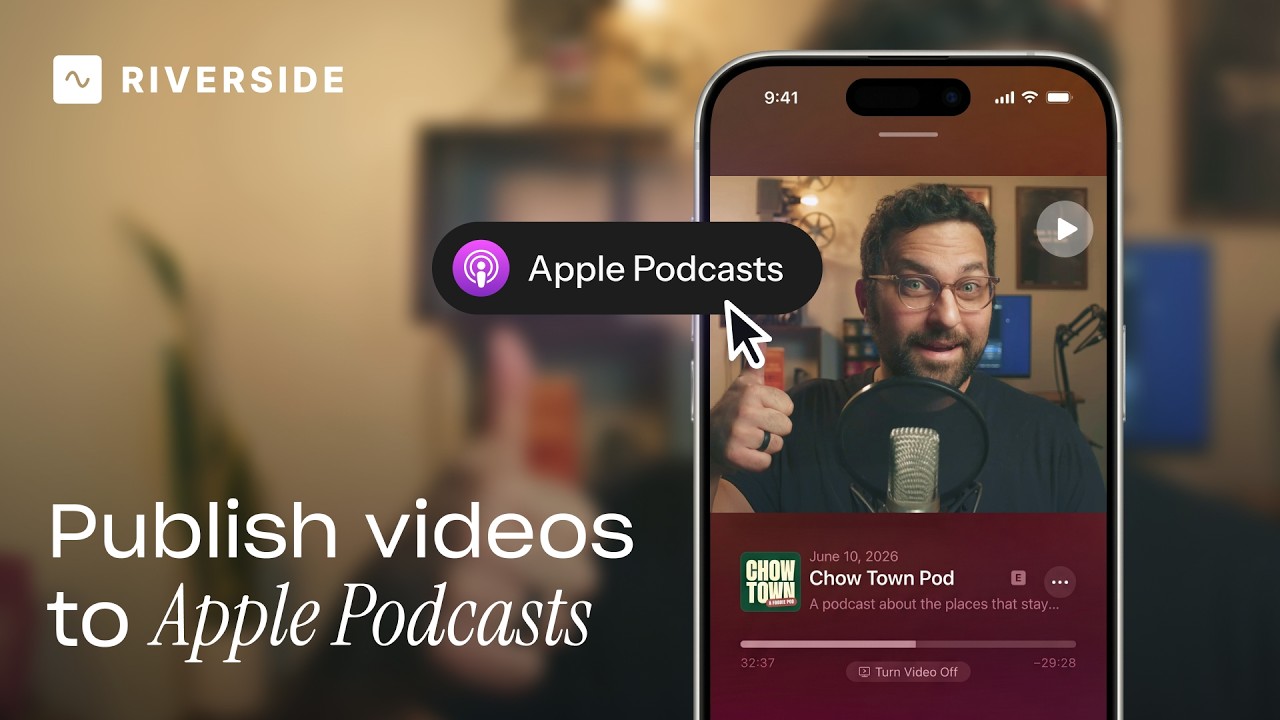
Publish video to Apple Podcasts so your audience can switch between listening and watching easily.
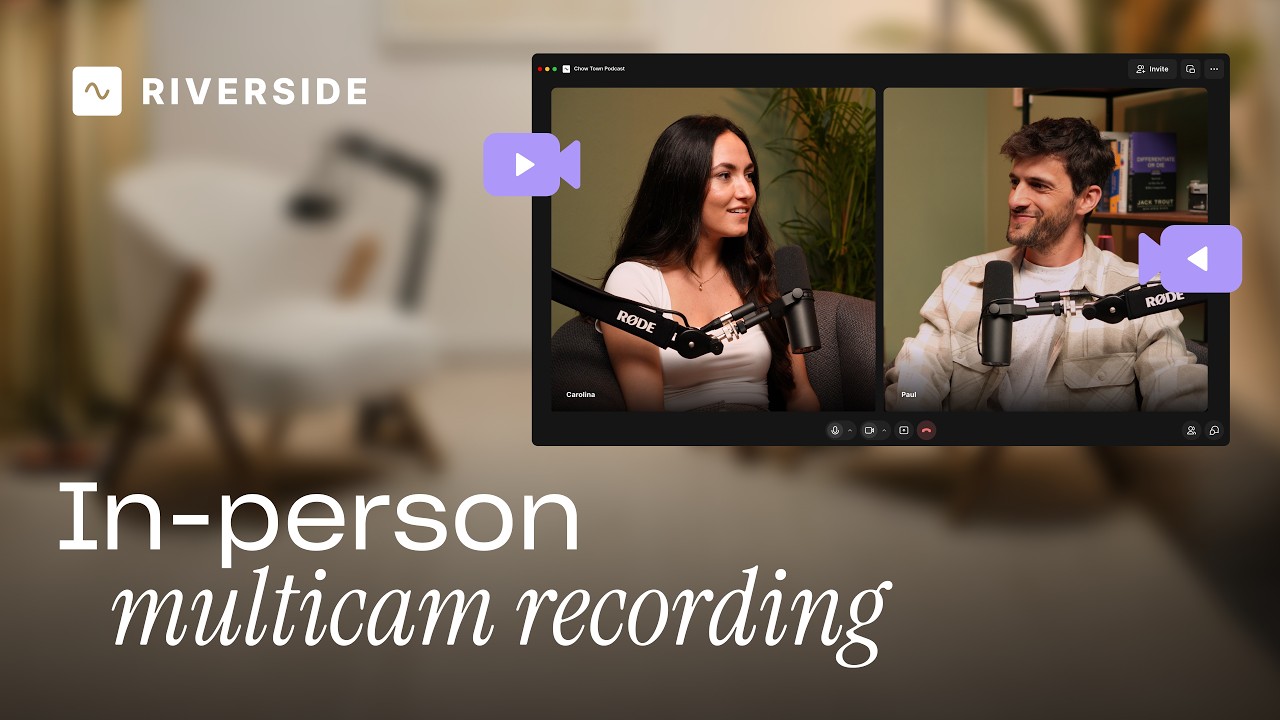
Add multiple in-person guests with their own camera and mic from one computer, as synced tracks.


.avif)
.avif)
.avif)
Got a process that works for you? Get featured by submitting your step-by-step flow. Help other creators save time, learn new tricks and improve their productions.


.avif)