Riverside Podcast Hosting Guide
What a podcast host does, and how to create or import a show, set up RSS and manage episodes.

What a podcast host does, and how to create or import a show, set up RSS and manage episodes.
An explanation of what podcast hosting actually is and how to set it up in Riverside, whether you are starting fresh or moving an existing show across.
The video covers:
Podcast hosting is available on the Grow plan and up.
00:00 If you're starting podcast, one of the first things you need to figure out is where your show actually lives online. Because after you record and edit an episode, you don't upload it manually to every podcast app one by one. You need a podcast host. A podcast hosting platform stores your episodes, show art, description and podcast details.
00:19 It also creates your RSS feed, which allows platforms like Spotify, Apple Podcasts and YouTube to pull in your latest episodes. There's a few ways to do this. You can use a dedicated podcast hosting platform, which works well if you already record and edit somewhere else. You can use a free podcast host, which can be helpful when you're just getting started.
00:36 For most podcasters, I'd recommend using a platform that keeps the process simple, and that's where Riverside comes in. With Riverside, you can host your podcast in the same place where you record, edit and publish your episodes. Here's how you can set it up. Once you're inside Riverside, head over to the hosting tab. That'll be on the left side of the screen here. Click on that and you have a couple of options.
00:55 From there, you can either create a brand new podcast or you can import an existing one. If you're starting from scratch, go ahead and click on create new podcast. Then Riverside will walk you through setting up your show details like your podcast title, description, cover art, category, language and the information podcast platforms need.
01:13 So let me walk you through that entirely. I recently wanted to start a podcast called The Blueberry Podcast that's about conspiracy theories. I'll add a brief podcast description, add my podcast categories. Maybe this is comedy, maybe go a sci fi. I'll quickly add my cover art and then show the author, which is me and my co-host.
01:34 And we don't have a website, so I'll just leave that blank show that it's English. It'd be clean, episodic and set up podcast. So once that's done, Riverside creates your RSS feed and that feed is what allows your podcast to be distributed to all the different types of podcast listening platforms.
01:51 And the way you can grab that is by coming up to this right corner with the three dots and copy your RSS URL and paste that to whatever platforms you want to distribute to. After your podcast is created, you can connect your distribution platforms. That way, when you publish a new episode from Riverside, it can go out to places your audience already listens or watches.
02:10 Now, if you already have a podcast hosted somewhere else, you can import it into Riverside instead. From the hosting tab, choose import existing podcast. Then you can add your RSS feed or search for your podcast name. Riverside will pull in your show information, including your title, artwork, description, categories and existing episodes. So you can confirm everything looks right before moving forward.
02:31 Now, once the import is complete, Riverside creates a new RSS feed and walks you through setting up your RSS redirect. That redirect tells podcast platforms that Riverside is now your podcast host and your listeners don't have to do a thing. Your show stays available on platforms they already use.
02:47 Now, once your podcast is set up in Riverside, you can also view and manage your analytics. You will see a quick preview of your analytics on the home page right about here. And this will just give you a brief insight from like the last 30 days, the last seven days, wherever you want to narrow it down to. And it will give you an insight on your recent or top episodes.
03:05 Or you can go back into the hosting tab and then click on analytics right next to episodes. And this will give you a little bit more of a deeper insight into the analytics on your podcast. You can either select the last seven days or up to the last 12 months, or at least from the point that your podcast was imported into Riverside.
03:23 You can also see the total streams for each individual episode, which makes it easier to understand what people are actually listening to. And if you need to manage one of your episodes, come back to the episode slide here and click on the three dots are on the right side of your episode. And from there, you can either preview, edit, embed, unpublish, copy the ID or remove the episode entirely.
03:44 So Riverside isn't just giving you a place to publish your show. It also gives you a simple way to manage the episodes after they're live. And this is where the all in one workflow really starts to matter. You can record your episode in Riverside with high quality audio and video. You can edit using the transcript, clean up the conversation, remove silences, create show notes and turn strong moments into clips to share on social media.
04:06 Then when the episode is ready, you can publish and host it from the same platform. That makes the entire process feel much less scattered. Trust me, I know. So whether you're starting a new show or moving an existing one over, Riverside gives you a simpler way to host your podcast online and keep your full creation workflow connected from start to finish.
04:25 If you want to try hosting your podcast with Riverside, you can use the link in the description to get started for free. And if you want to learn more ways to improve your podcast creation workflow, I'll link a few videos up here and in the description down below. Like and subscribe for more content just like this. And if you have any questions regarding hosting or Riverside editing or anything about the platform, leave them in the comments. I'll be happy to answer them personally. Thank you so much for watching. We can't wait to see what you create.
More videos you might like

Grow your audience with podcast SEO, a unique selling point and branding that turns searchers into listeners.

Tips from PodMatch on planning and hosting podcast interviews that keep listeners hooked until the end.
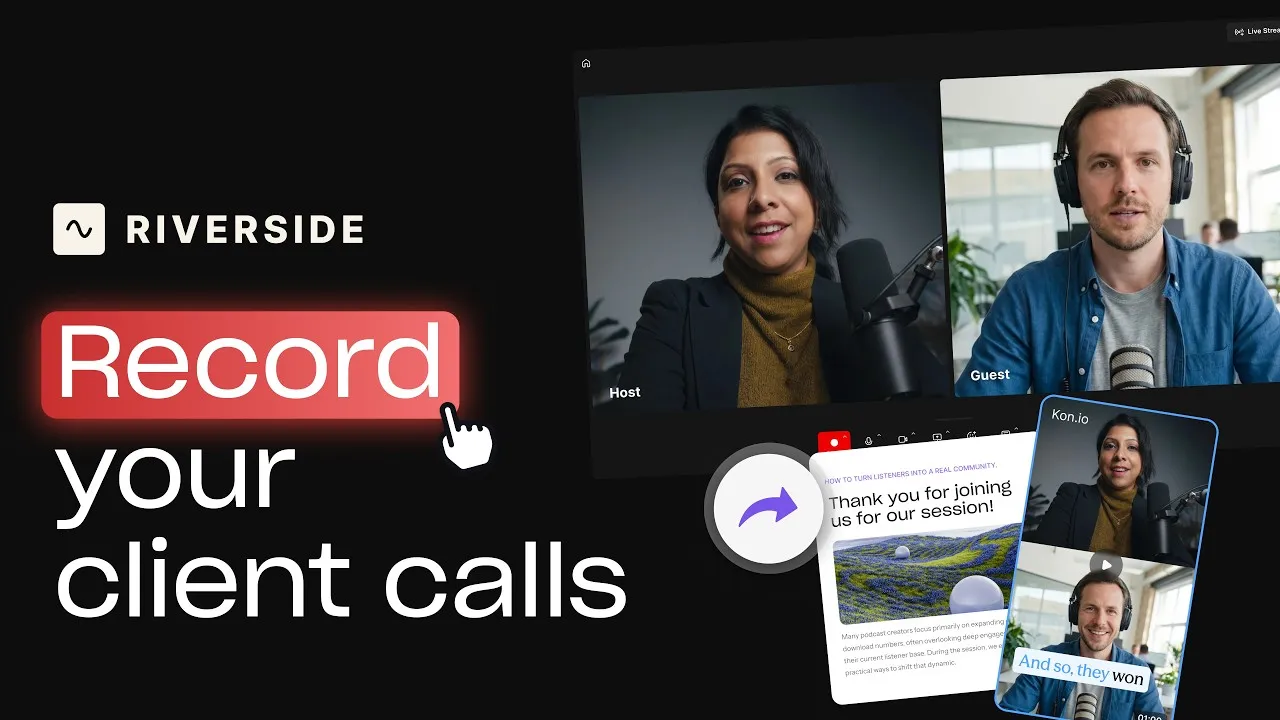
Record calls in Riverside, then use the transcript to create follow-ups, highlights, and insights.
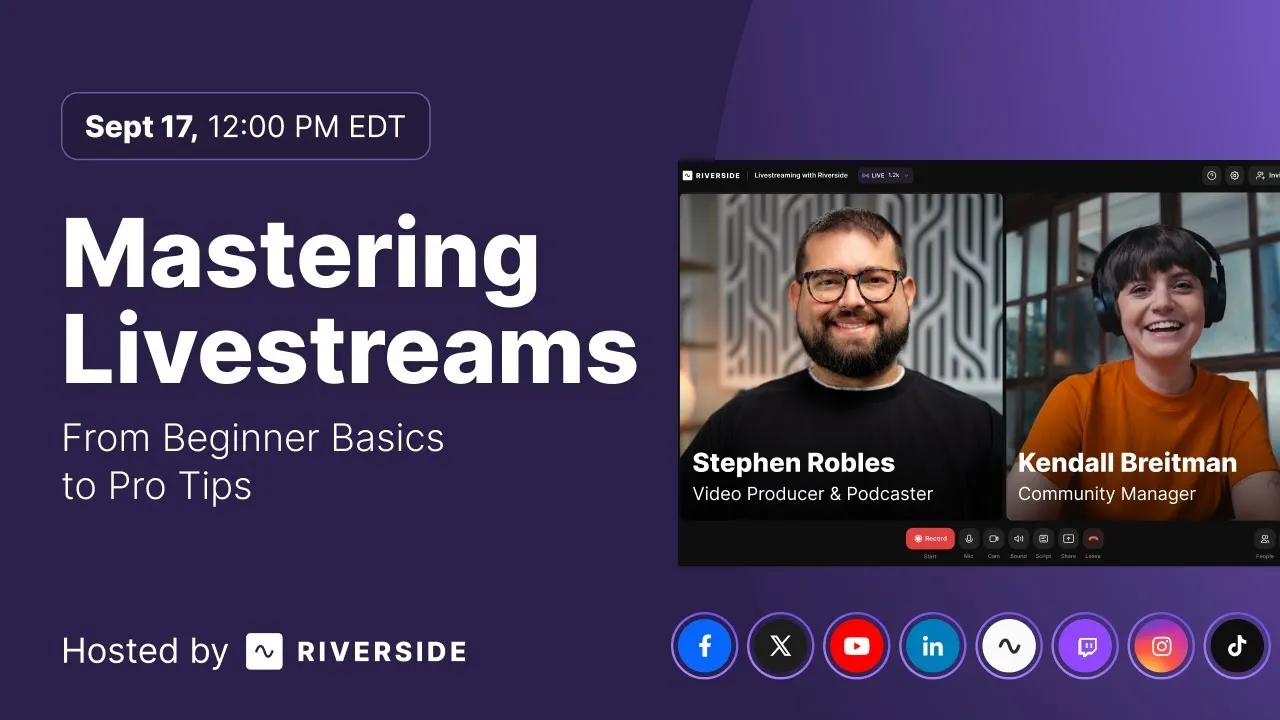
Learn how to plan, set up, repurpose, and keep livestreams engaging.

Got a process that works for you? Get featured by submitting your step-by-step flow. Help other creators save time, learn new tricks and improve their productions.


.avif)




