Record, edit, and post from your phone with the Riverside app
Record in 4K, edit with Co-Creator and post Magic Clips from the Riverside mobile app, wherever you are.

Record in 4K, edit with Co-Creator and post Magic Clips from the Riverside mobile app, wherever you are.
The Riverside app lets you record, edit and post from anywhere. This walkthrough takes a clip from a park bench to social media using only a phone.
The video covers:
00:00 Your workflow isn't tied to your desk. You can take it literally anywhere. So I'm out here with my phone and my trusty Riverside app. And by the end of this video, I'll have a recorded and edited clip ready to be posted to social all from here. Let's dive in. Now, if you've tried the Riverside app before and it just hasn't quite fit your workflow, that's fair. Which is why we took your feedback and made it a much better experience. So first, I already recorded footage at my desk, which is already uploaded to the app.
00:26 So if we go ahead in here and select it, I can go ahead and watch what I recorded here while I'm just sitting on a log at the park. And I'll watch my hook, maybe leave myself a comment on it, and then trim some of it off that I don't need, especially that intro that I messed up on. And then that's sitting at my desktop Editor whenever I need it. Now for the new segment. And this is the part we rebuilt from the ground up. So let's open the studio in the app. And I have the ability to record at the best resolution for my phone's camera so I can actually export with a true 4K image.
00:57 Now the quality settings are managed on the desktop still. So make sure you set your quality settings to 4K if you're looking to shoot it before you head out on a trip like this. We've also got a built-in stabilizer so I can actually craft some clean B-roll and walking shots much easier. And if you're an iPad user, you also have the ability to plug in an external camera that supports UVC so that it can effectively be used as a webcam. The really cool part about this is even though I only have my phone to edit with here, by chatting with Co-Creator, I can cut several sections very quickly.
01:27 I can clean up the audio. I can remove filler words, add captions, and it'll do things on my phone that used to be something I could only do on my computer. Now the purpose behind this type of trimming is it's meant for quick editing and it's iOS for now, but along with Co-Creator being able to do some of the more detailed edits, if you wanna do more work on it when you're back home at your desktop, you can open these projects up at any time on your computer with most of the work already done.
01:53 And it's just sitting there waiting for you. Now here's the thing about social posting, which is something that I had a hard time with for a long time personally. And that was that the hard part was never actually posting the video. It was deciding what to post and then figuring out how to make it into something worth posting. And thankfully, this app does both. What we've done is we've added a clips tab, which contains a vertical feed of your own magic clips. And so you can just scroll through them like so. The captions are already applied.
02:19 I can tweak whatever I wanna fine tune. And it's posted from log in the woods to wherever you are in the park. And it's all on the same day that I shot it. And now as I'm recording this clips tab is on iOS. And if you're on Android, magic clips are still in the made for you tab. Now I'm just gonna put this camera back here. And we're back. Now that I can open up my project and see everything that I shot and edited out there already in my workspace, it makes the overall workflow that much more seamless and efficient.
02:47 So when I do sit down, whether it's in my office or wherever it may be, my project is right there waiting for me. Your desk is where you go when you want to, not where the work gets stuck. Now, one last feature I wanna mention really quick is that you can also multi-stream in the same exact way you do on desktop to all of your channels, whether that's on Twitch, YouTube, LinkedIn, Facebook, X, TikTok, Instagram, or any custom RTMP.
03:12 At the end of the day, what we really wanna accomplish with this app is a more flexible and creative workflow that isn't bound by where you are. So we hope you check it out and let us know how it works for you. And as always, drop some comments below of what you think and what you would like to see next. Thank you so much for watching and we can't wait to see what you create.
More videos you might like

Grow your audience with podcast SEO, a unique selling point and branding that turns searchers into listeners.

Tips from PodMatch on planning and hosting podcast interviews that keep listeners hooked until the end.
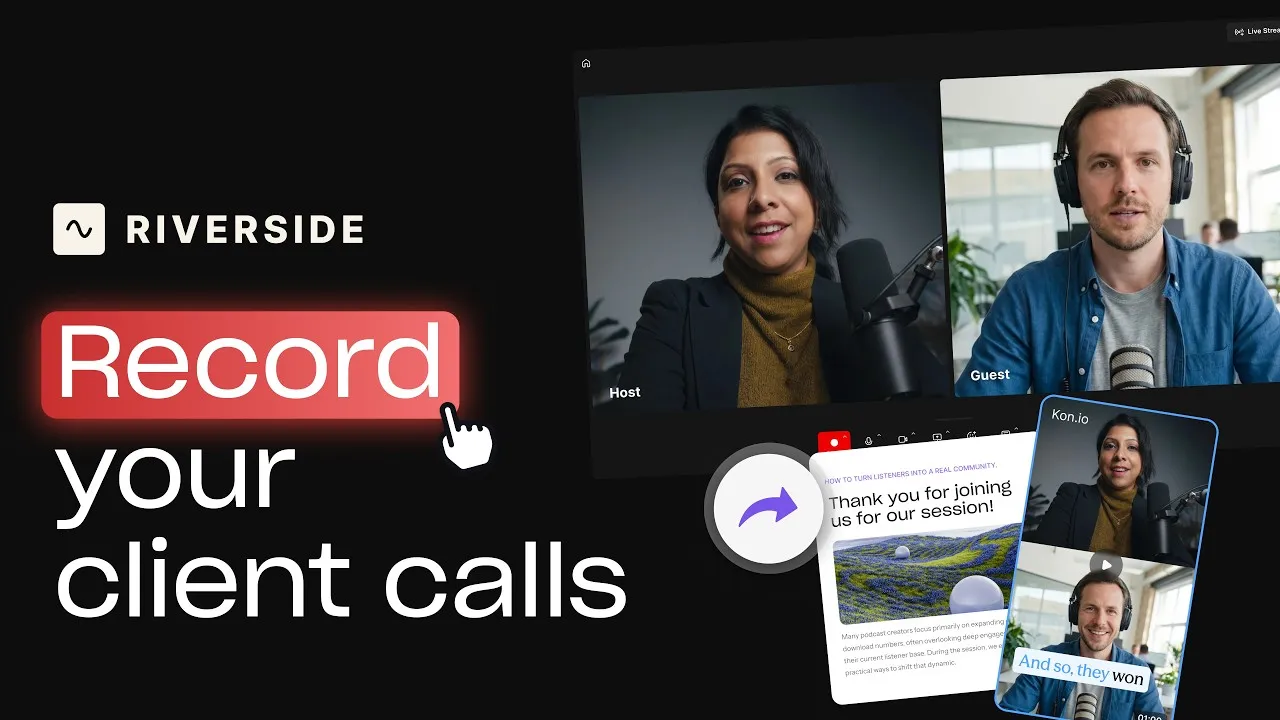
Record calls in Riverside, then use the transcript to create follow-ups, highlights, and insights.
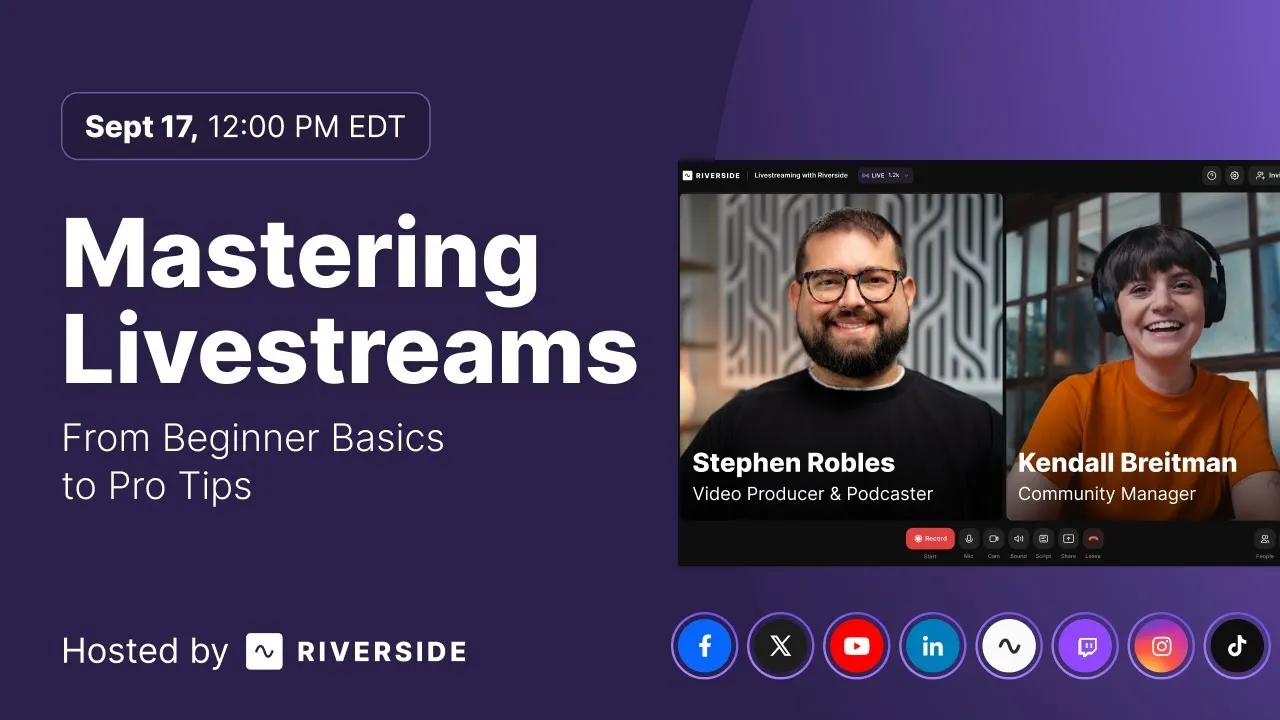
Learn how to plan, set up, repurpose, and keep livestreams engaging.

Got a process that works for you? Get featured by submitting your step-by-step flow. Help other creators save time, learn new tricks and improve their productions.


.avif)




