Turn your transcript into show notes, titles, and clips with Riverside's MCP
Use the Riverside MCP and a prompt series to turn one episode into show notes, titles, posts and clips.

Use the Riverside MCP and a prompt series to turn one episode into show notes, titles, posts and clips.
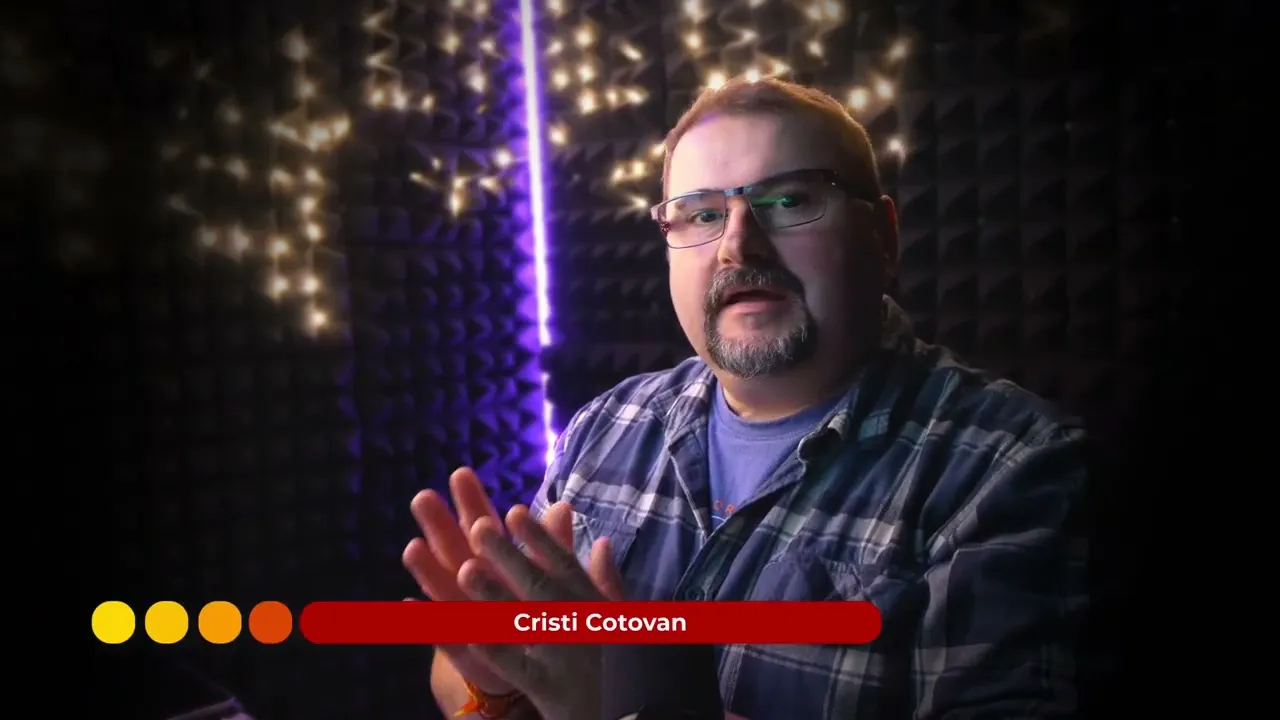
Writing show notes, titles, posts and clips for every episode usually means copying a transcript between tools. In this video, Cristi Cotovan shows how he connects ChatGPT to Riverside through the MCP and runs a series of prompts in one long conversation to produce everything he needs to publish an episode.
He points the AI at a specific edit, finds the main topic and hooks, then drafts story-style show notes and adds short guest quotes. He fact-checks every claim against the transcript and the guest's bio and generates title options. Finally, he compresses the notes and chapters to 4,000 characters for Spotify and YouTube, creates YouTube tags and social posts, and has the AI build 12 vertical clips directly in Riverside. He also explains why he still reviews everything himself and sends the notes to guests before publishing.
In ChatGPT, go to Plugins and add Riverside. If you don't see it, open the plugin marketplace and search for it. Log in to Riverside once to authorize. This also works with Claude and other AI assistants that support MCP.
Ask it to find the specific edit by name, project, and studio, and give it the host's and guest's names so it spells them right. Then ask for the overarching topic and a few 30–60 second hooks from the transcript. This is a quick check that the AI understood the conversation.
Ask for show notes of about 4,000 characters, written as a story instead of a bullet list, with no clichés, exaggeration, or corporate language. Cristi's model tip: in Claude, he finds Sonnet better for prose than Opus. Experiment to see which model writes best for you.
Ask the AI to find a few short quotes from the guest and place them where they fit in the show notes. Tell it the 4,000-character limit no longer applies, or it'll start trimming. This becomes your long version, which works as a blog post.
Paste in the guest's bio as the source of truth and ask the AI to list every claim, number, name, and date with the transcript passage it came from. Have it correct anything unsupported, and optionally ask for a side-by-side check that each quote matches the transcript. Then ask for the complete finished version with quotes and the bio. Read it yourself, and send it to your guest or client to approve.
Ask for clever, insightful titles under 60 characters, with some emotion, the guest's name at the end, and a two- or three-word version for the thumbnail.
Ask the AI to compress the show notes to 4,000 characters (Spotify's limit; YouTube allows 5,000), counting the chapters it pulls from Riverside, and to leave the chapters unchanged. Shorten the bio if you need more room. Then ask for YouTube tags and two social posts: a longer one for Facebook and a short one of about 200 characters for X, with a placeholder for the episode link.
Ask the AI to pick 10 or more short moments that each contain a complete idea, including a few where you ask a question and the guest answers, and to create them as separate vertical edits in Riverside. Refresh your project to find them under Magic Clips. You can also ask it to apply your branding or schedule them in the Planner.
00:00 Hello, this is Christy. Let me show you my workflow for generating the draft show notes for my podcast episodes. And for this, I am using the Riverside integration with AI models, the MCP. And this will allow me to connect my AI to Riverside, to my studio, to my account, and then talk to the AI and have it do work with me.
00:26 So. I've always wanted to have these very long conversations with an AI model and really sculpt and chisel and adjust the show notes and get very long ones because my workflow is usually to get a version that is very long of the show notes, which could turn into a lengthy blog post that goes on the website with the episode.
00:49 And that includes quotes from the guest and various little stories and things that are said. and discussed in the episode as well as the bio from the guest and lots of other stuff. So it's a very long one which won't fit in the platforms such as YouTube, Spotify and all the other platforms because it's too long. But then from this version, then we go into a shorter version and condense it for the platforms.
01:14 And I have a series of prompts that I go through for every episode and I go from the beginning. provide the right context and then I you know, basically work on the show notes. at the end, I get everything from the show notes to promotion, all of the materials that go in, you know, social media posts, tags for YouTube maybe, and even helping me select the clips.
01:40 So this entire prompt series, I want to go through it today and quickly show you how I kind of do it using the MCP, which then allows me to link my AI and gives me much lengthier responses and I can have a super long conversation. Let's go. So before you do this, obviously you need to connect your AI to the Riverside account and you do this through the MCP.
02:07 But now Riverside has a plugin in all of the marketplaces. So if you are in chat GPT, for example, and you start a new chat, you go to plugins here and you want to add a plugin. You go Riverside like this. and you can add a Riverside plugin. If it doesn't show up in here, you can go Plugins, Connect Plugins, Browse all the plugins, and this will open the plugin marketplace.
02:31 And in here at the top, you can say, I want to connect Riverside to my Chagy Pt. And you click plus right there, and it says, Connect Riverside to your account. Let's go and do that too. You have to log into your Riverside account one time. So clicking here goes to Riverside. And it is asking for authorization.
02:51 now because I was already logged in, I am now inside of the Chat GPT, but my Riverside is already approved. So the first thing is I want to find the edit that I was working on. So let's locate edit 23 in my project with Brett Fisher in the Media Makers Studio.
03:17 So that's the reason because I have multiple studios. I want to be specific and ask to focus on the particular project I want to work on. Going to the model here, I'm going to go ahead and choose the latest Sol. Let's go on high and then send this off. So here we go.
03:38 It's located that edit. I called it edit 23 because I've done many edits. This is the full episode edit, which, you we're not talking clips right now. So now that we found this Riverside knows which project I'm talking about now comes the series of prompts that I go through to come up with show notes.
03:59 The first prompt basically tells the context of the discussion. And I know that probably this phrase is not necessary anymore, but I'm saying I'm going to provide you with the transcript. In here we can say, pick up the transcript from the edit. So, you know, you can modify this, pick up the transcript of this edit in Riverside.
04:21 And then the host name is obviously me. I'm replacing this usually because I work on multiple podcasts. So I say, this is Christie, the host and Brett Fisher is the guest. I am providing the names so that the AI has a correct name for everybody. And for the first prompt is basically identifying the overarching topic of the conversation, the topic that we refer to the most, we come back to, and a few good hooks.
04:49 This is the preliminary part, which kind of tells me if the AI has understood the topic of the discussion and it comes up with some nice and engaging hooks that I could potentially use at the beginning in the opening. So let's go and submit this. So The AI is able to access the complete transcript of the discussion through the NCP.
05:09 So I don't have to copy and paste that and provide it in here like you would do before the NCP was available. You could go to the Riverside account and grab that and copy and paste it. But that's no longer necessary now. It's already identified the correct topic. are talking about building a successful course business on Udemy, how to create established courses, economics of Udemy.
05:35 was a very lengthy discussion. And at the end, it says here that I described it as how to win on Udemy, which is exactly the title that I had in mind. It's found five hooks and it's trying to make them to stay continuous and run to about 30 to 60 seconds. I'll probably favor the ones closer to 30 seconds, but we'll see.
05:56 Here we go. Now the topic has been identified building a sustainable business for educational content with Udemy. Then the theme is choosing the topics and indeed we have been talking a lot about the best topic and winning in a topic and finding topics with demand as great. And then it fits my introduction and there are some hooks now that came in.
06:19 We can look at those. I'm not going to bore you with reading these but some of them look interesting. Some very exciting facts in there that bread included and some good advice as well. Sobering facts three years before we make a buck. It's a costly lesson. So these look like great hooks and the AI provides an example or like a suggestion of which one to use.
06:43 Now the next prompt after this and this is why I like to continue and I progressively disclose what I want because the context is there and the AI is working with what we've done before. So the next step is to create the show notes. And I am using this little prompt here to create some amazing show notes around 4,000 characters and, you know, including the topic, not like a bullet list, more like a story.
07:09 This is, this is my preference for show notes, like a story style. And I'm providing a little bit of a safeguard here to not use cliches, overemphasis, exaggerations and corporate language, you know, and boring stuff. So let's see now what this comes up with. And just to mention. These things depend sometimes on the model that you are using.
07:30 If you are using Claude, for example, my preference is to use the sonnet models. I don't know, maybe it's just me, maybe it's just a fake impression I have that the sonnet models are better at writing text or prose or stories and things like this. Whereas Opus is more sort of programmatically inclined.
07:51 It's more like technical. This is what I find. This is what I feel. I don't know if it's real or not, but that's what I've observed. If you are using ChadGPT, probably the Sol models are good for this, but you can experiment and try different models and see which ones give you the best content.
08:12 So here come the show notes. This is the first draft. We're not done yet. It's a short version. It doesn't include anything. We'll see in the next step. We are adding more things to it, but it sounds very nice. You know, spend months, creating a course, putting a price on it can feel surprising and personal and so on. So you see how this is a long response here and it also puts the link here, which is fine, but we are not done yet.
08:37 So the next step is to actually go and ask for quotes because what I like to do I like to intertwine different quotes from the guest in between the little paragraphs of the story of the show notes. This is what will expand this into a longer piece, like a blog post, and it gives you a better feel for the actual episode.
08:57 So the next prompt actually comes now and this prompt says, this is good. Let's identify a few great quotes from the guest that can be interspersed in the show notes in the relevant places. And sometimes the model will adjust the writing it's done so far to take the story and the facts from outside of the from out of the paragraphs and put them into the quotes because the quotes come in.
09:21 I'm telling it also not to worry about the 4000 character limit from this point. These prompts have been I have adjusted them over time because it seems sometimes the model decides to say I want to still abide by the initial rule of 4000 characters and it starts shortening the notes. I don't want to shorten the notes, I now want to add these quotes over that limit.
09:45 So there was a need for this specification in here. Here we go. Let's see what quotes it comes up with relevant to the content in the description we've done so far. I've also told it that the quotes should be short. Sometimes the models tend to extract longer parts, which may be okay for a clip, but I don't want them to make the show notes too long and reveal too much of the stuff from the story from the show.
10:14 So here we go. It's come up with some quotes and they have been added in between the paragraphs. These are good quotes. Probably I would have liked some longer ones, but I think this works for now. Let's move to the next step. The next step is to fact check the quotes. And for this, I actually provide the bio because sometimes guests will mention things during the show.
10:37 which they may not remember very well, or the transcript may not be super accurate. Maybe names, places, things like this, company names, they can be a bit misunderstood, maybe transcribed wrong, and then the model thinks they are correct. So for this, if there's any names or companies or things like this mentioned and other facts, like years in the job or things like this, then probably they will be in the bio.
11:02 And I provide the bio as an authoritative feature and That will be used to fact check the show notes we've done so far against it so that we make sure we're not introducing false things. So the next prompt says, I'd you to fact check the show notes. I want you to take every claim, every figure, every number, every year location, show me the claim and the quote in the transcript where it came from.
11:29 And then for checking, I'm providing the guest bio, which I am now going to include here. I don't have a super exhaustive one from Brett, but this should do fine. So let's go. So here comes the report. It found one naming correction. That's the name of the podcast, which I think was transcribed wrong in the transcript. That's fine.
11:49 It clarified some of the pricing stuff and then the rest is supported with some passages serving as editorial framing. And it also checks the notes against the transcript and the bio. So here we go. We get a table of the claim, creating a course can take months, it shows me where that shows up in the transcript because the transcript comes with the timestamps and it gives the finding or the verdict of whether that was accurate or not.
12:16 So if it comes up with any that are not supported, sometimes they do come, you know, again from differences in transcripts or maybe the guest was not remembering correctly, then I ask the model in the next prompt to actually address those things and correct them. And this is really thorough, by the way. At the end here, I'm getting usually a claim check from the bio with things that were added in the notes from the bio itself that were not available in the original transcript.
12:45 So now this is the part where you get the show notes back with the quotes, with the corrections made after this pass here. And they are already shaping up to be quite long, as you can see. The bio is added at the end, of course. And I notice here that it kept some of the formatting from the bio, which I may ask to remove and just give me plain text.
13:09 I don't want that. And now the next prompt comes here and I sometimes skip over this because the checking has already been done. But if you want to be double sure, you can ask for this. Help me check that the quotes you extracted for the guest are accurate. I know they might be slightly paraphrased, corrected and with filler words removed.
13:29 but I would like to have a parallel comparison of the quote you gave me which you have included in the show notes and the exact passage it comes from. This is me being super cautious if I want to check that the quotes that were included are not putting words in the guest's mouth and they are accurate as they said them. Okay, minus some filler words and gaps and ellipses here and there, but usually keeping the meaning.
13:52 So this is an extra step that I provide. And in this case, we are very happy and fortunate because it says that all five quotes match the transcript word for word. None of them was paraphrased, no filler words removed, and the only changes are some typographic stuff. So here we go. And it gives me the quote, the included, the one that was included in the show notes and the original one from the transcript so that I can double check them, make sure they're okay.
14:20 And it gives me a summary here. It tells me what it did. Sometimes it combines two segments that are not necessarily together into a single quote or, you know, it just, it just removes some stuff from the middle that is maybe a side note or a parenthesis of some kind. And then it explains each quote, where it comes from and what it did to get to it.
14:42 So if there are no changes needed, then these are really my show notes. And what I'm saying is, At the last step, if we're doing any more checks or changes or adjustments, I finally say, give me the complete show notes now with quotes and the bio at the end, the finished version.
15:02 So this is my finished version that I'm requesting now in case I've done any more changes. Now one thing that I want to say is after I get this version, Of course, I check it again and I actually read everything as it's being generated. And sometimes I come up with changes on the way before I move to the next prompt. I don't just blindly copy these and consider it a day.
15:26 So I'm sending these also to the guest. And if it's a client, I'm sending this to the client as well so they can check it that they are accurate. And we have a few days between this and the actual publication of the show. And sometimes if they come back with changes, adjustments, I would have to say that probably 95 % of the shows I've done so far after I've sent this format of show notes have not come back with any adjustments and everybody loves them.
15:55 So that's one way to generate them like this. And you know, if you trust them and you go through the process, check everything, you should be fine. The next prompt is helping me come up with a title for the show. So in this case, again, we have all this conversation we've gone we've had going on for a while and now the AI has the entire thing in memory in the context.
16:18 So now we can say, considering these show notes, the topic, the discussion, can you think of a nice title for this episode? Something clever, insightful, that summarizes the conversation, not too long and so on. And as an optional, which I'm going to add now is this. I have an extra prompt which says You know, if I'm trying to go for more, I don't know, I would say viral, but maybe more curiosity inducing titles, if you want to call it.
16:48 And I provide this extra prompt here that says, how would you think of different titles if you listen to the following rules? So in these rules, I'm actually adding some constraints here. The title must be under 60 characters, around 30 characters, 60 % more viewers than titles over 70. Past 60, your title gets cut off. So I'm doing...
17:08 Some statistics I gathered along the way. Title doesn't trigger emotion, won't get clicked. So trying to put some emotion in there and numbers can hurt titles. I don't know if that's the case. There's some debate on that, but I try to see if I'm getting any interesting titles and variations from this prompt. So let's go with this one. And I believe I found some of these facts or research or analytics or statistics, whatever they are in various groups where Various YouTube gurus and podcast gurus hang hang out So they're kind of compiled from various places and I also like to add the name of the guest at the end of every title So in this case, it's going to have with Brett Fisher at the end of every title and I was also asking in that prompt for Thumbnail versions of the title which means two or three words at the most on the thumbnail itself So here we go.
18:03 It came up with a bunch of titles And it suggests a pick in here, a great course can be a bad business with Brad Fisher. That is a really cool title, I think. And then there's others, business behind the course, course business, can you make a living on Udemy, making Udemy work, what makes a course worth buying? There you go. So these are ideas for titles.
18:24 This is the choice. This is a good title actually. And then good courses don't always sell. You know, these are a bit of a contradictory title. Why your course isn't selling. best content should be free, controversial and curiosity ones, you know, and some of the bold claims, you know, they could, they could work on titles and, and thumbnails. So there you go.
18:44 That's the title. Once I send this over to the client and they come back with changes, maybe a different title, you know, if, if, if the one I supplied is not, does not work for them, then we go into the other phase, which leads us into publication, publishing the episode, preparing it for publication or packaging, if you like.
19:04 So now the next prompt comes with this one. This prompt now gives me the other part where I'm condensing the show notes, which I may have adjusted. I provide them here. So I say, here are the show notes I settled for. Now in this case, I'm not going to do this. So I'm going to just say, consider the last version of the show notes.
19:27 I'd like to compress them a little to make them fit within 4,000 characters. We're back to 4,000 characters. The reason is Spotify's limit for the description is 4,000 characters. YouTube has 5,000 characters. So I'm trying to basically compress all of that, which actually ends up being the blog post, which has no limit, but I'm compressing the show notes into a shorter version that works on these platforms.
19:53 So that's why the 4,000 characters. So I'm saying I need this for the YouTube description where space is limited. Don't remove essential parts. Do not remove much from the bio. Just make the show notes more compressed, trimming down too much details and so on. There are parts where we give away too much, maybe take those out and also providing the chapters. Now the chapter markers can be obtained from the MCP as well.
20:16 I don't have them here. I don't paste them here. If you want to paste them in here, you can actually go to Riverside. Open this little menu at the top here and copy the chapters list, which will give you the chapters. The model is going to be able to obtain this from Riverside directly from the MCP. Pick up the chapters from the show with timestamps so they can be considered for the length calculation because I actually want to use that, of course.
20:45 I don't want to go over 4,000 characters because of the chapters. They also go in the description, so I have to count for them. So now YouTube requires them and make sure you don't shorten a lot of the chapters. So let's go. So it's retrieving the chapters from the edit, keeps them unchanged and then counts them towards the 4,000 limit. All right. So here comes the short version of the show notes.
21:07 It still retains some of the quotes and it starts with the nice description there and also includes the chapters which were downloaded from the MCP directly. and then the bio goes at the end. Probably at this point I should have said to keep the bio shorter because it's too long and the rest of the show notes are not so long so probably could have gained a little bit of space there by shortening the bio a little bit just to the essentials.
21:37 That's another prompt I sometimes include. The following step is to actually request the tags for YouTube. This is a very short one because As you know, probably on YouTube nowadays the tags don't really mean much, but I like to include them anyway since I have access to them. So there you go. I'm asking you to create some SEO friendly descriptive YouTube tags for the episode, include the most potent ones.
21:59 Not that the AI knows what the most potent ones are, but it's going to prioritize, you know, more unique keywords that may appear in searches sometimes. I don't think it helps too much, but you know, why not? So there are the tags right there. You can just simply copy these and put them into your YouTube description where you need to do it. And the next step is to create a social media post.
22:21 Now this one comes in two flavors. One is to create a social media promotional post in reasonable version for Facebook and other platforms that don't have a limit. But then a shorter version for X and other platforms where the space is limited. Staying around 200 characters I think is safe. You put the URL in there. I put a placeholder so I can replace it with the actual URL of the video when we post it.
22:46 I find that this is the one that I tweak more because I'm not always happy with it, but let's have a go. So there are the posts. I think they look pretty good. I may tweak some stuff, but there you go. A short version, can your course become a business? Brett Fisher joins me to explore how to succeed with Udemy and whether your course idea has an audience willing to buy it.
23:06 There you go. Very nice one. Now the next prompt is the one where I'm selecting the clips. So I'm saying using the subtitles in the transcript for the entire conversation with timings, consider the quotes we've extracted, the hooks, the topic of the episode, the major insights, learning lesson, insightful information, educational bits. I'm just including everything in there.
23:27 Select at least 10 short clips from the conversation that I could use for shorts and so on. They must contain an entire idea or quote or an insight. no fragmented or incomplete portions. So this is going to now go to Riverside and select these. I'm asking, extract them and then separate them as separate edits in Riverside in vertical format.
23:52 And also I'm looking to find ones where I am asking a question and then the guest is answering, but I'm not guaranteed to get some of those anyway. I'm asking if he has questions before starting, let's see. So here we go. It says it's selected 12 complete moments, including three Q &A exchanges where I ask a question and he answers.
24:13 And then it gives me the list here of all of them, how long they are and what is the main idea behind them. Give away your best content. That sounds great. Check demand before you record. Can you beat the top courses? Stop trying to be first. No, number one can still earn less. So now it's creating those edits.
24:33 Inside of Riverside directly the MCP enables this and it's also creating layouts and switching scenes Based on the camera angles of who is speaking. So let's see what it comes up with Okay, so now the clips are done Sometimes if the model gets to capacity you may have to retry sometimes it happens but in the end it finished and if I go back to Riverside and refresh my project page and I want to check if the clips actually made it I can open the drop down here with the clips and the project information and data.
25:06 And let's see in the magic clip section. Here we are. These are the clips already here with the title that the AI has figured out for them. So give away your best content, for example, just opening this up. It is vertical and I didn't ask for this, but if you want, you can say, please apply my branding for it and it will apply the captions.
25:30 and your logo if you have that in your studio and all those things. this is pretty much ready to go. I didn't ask for it to remove filler words. I didn't ask for them because I want them to be raw, unedited. And if they're picked up from my initial edit, then I don't want to touch them too much in terms of cutting stuff out. So I can do those myself if I want to.
25:50 And the NCP also allows recently to also schedule these. So you can ask it to then, you know, go ahead and schedule them. I don't know, one every day or whatever in the content planner on Riverside. So there you go. This was a long workflow, but I hope it helps give you an idea of what you can do with the Riverside MCP.
26:12 Just connect to it with your AI, your favorite AI, and then just ask it to do stuff, automate work. And while it's doing it, you just go and have a coffee or something. So thanks again for watching and see you next time.
Use the Riverside MCP and a prompt series to turn one episode into show notes, titles, posts and clips.
USE CASES
Whether you're recording a podcast, hosting a live stream, or creating content for social, we've got you covered.

Got a process that works for you? Get featured by submitting your step-by-step flow. Help other creators save time, learn new tricks and improve their productions.


.webp)